
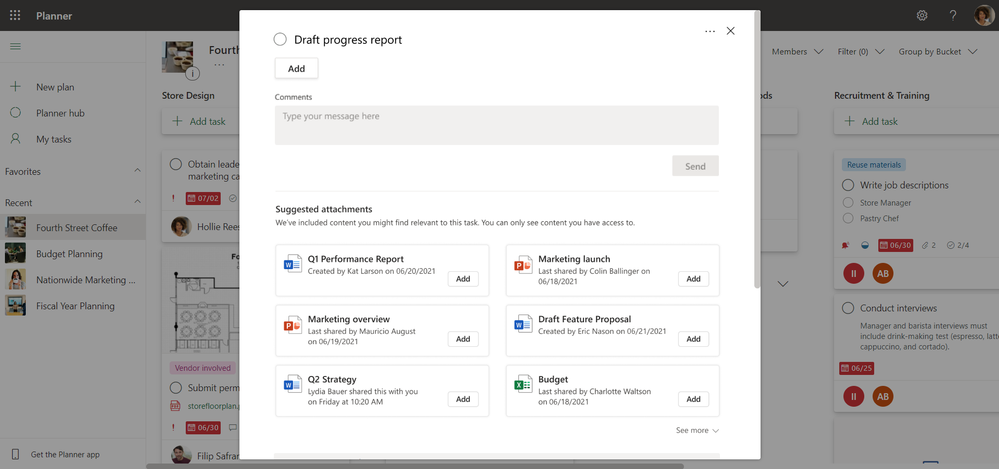
When you're using Microsoft Planner and you want to add attachments to a task, there's no need to look through your folders, servers, or cloud storage to find your file. Suggested attachments is a feature that can help you find your file quickly, by showing you a list of task-related files to choose from.
Note
The suggested attachments feature is currently available in Planner for the web.
- Open Planner for the web from tasks.office.com.
- Select a plan from your list of Pinned or Recent plans in the Planner hub.
- Open a task.
- Scroll down to the Suggested attachments section.
- Select Add next to the file you want to attach.
Tip
Hover your cursor to the right of the file name, and then select the three dots (...) that appear to open the file or copy a shareable link.
See also
Attach files, photos, or links to a task