
If you want a task to end on a particular day, set a finish date for the task.
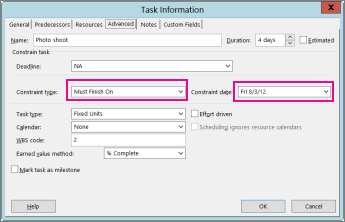
- Right-click a task, click Information > Advanced tab.
- Next to Constraint type, click Must Finish On.
- Next to Constraint date, fill in your end date.
Tip
To set the finish date back to its original setting, change the Constraint type to As Soon As Possible.
Set a deadline for a task
Keep in mind that setting the finish date can lock up your schedule in ways you don’t want. If you just need a reminder, use the Deadline box instead. That will create an arrow on the Gantt chart
 and an indicator in the Indicator column that changes color when the deadline is passed.
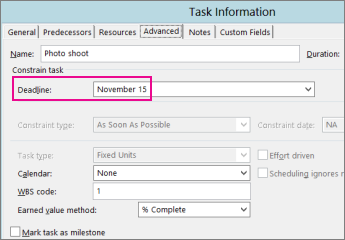
- Right-click a task, click Information > Advanced tab.
- Next to Deadline, fill in your deadline date.
Learn other ways to control the dates in your schedule.