
Jei dar nesate pažįstami su jutikliniais įrenginiais, išmokę kelis gestus galėsite maksimaliai išnaudoti lietimo galimybes.
Judėjimas faile
| Norėdami... | Darykite tai... | Gestai |
|---|---|---|
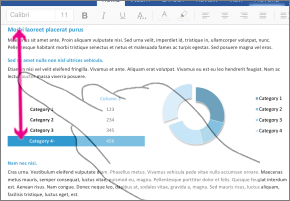
| Slinkti | Palieskite ekraną ir braukite pirštu aukštyn ir žemyn, kairėn ir dešinėn. |
|
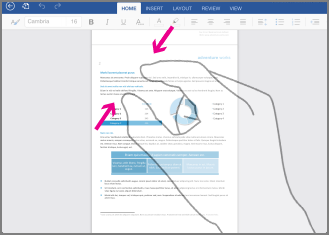
| Artinti | Išplėskite du pirštus. |

|
| Tolinti | Suimkite du pirštus kartu. |
|
Žymėjimas
| Norėdami... | Darykite tai... | Gestai |
|---|---|---|
| Padėti žymeklį | Bakstelėkite vietą. |

|
| Aktyvinti ekraninę klaviatūrą | Bakstelėkite bet kurią teksto vietą. |

|
| Slėpti ekraninę klaviatūrą | Bakstelėkite klaviatūros klavišą. |

|
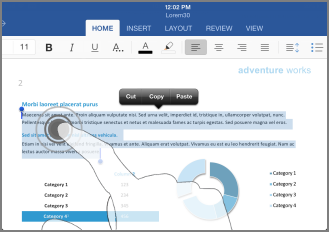
| Žymėti ir redaguoti tekstą | Dukart bakstelėkite žodį, kuri norite pažymėti. Taip pat atidaromas meniu Redaguoti . |

|
| Žymėti pastraipą | Triskart bakstelėkite pastraipą. |
|
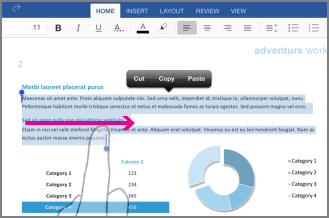
| Pažymėti kelis žodžius, sakinius, pastraipas | Dukart bakstelėkite pirmą žodį ir vilkite pasirinkimo rankenėlę į dešiną arba į dešinę ir žemyn iki paskutinio žodžio, kurį norite pažymėti. |
|
| Pažymėti lentelės turinį | Bakstelėkite bet kurią lentelės vietą. |

|
| Valyti teksto žymėjimą | Bakstelėkite kairiąją arba dešiniąją paraštę. |
|


