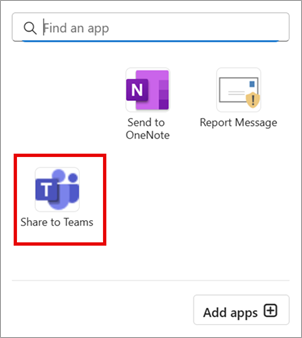
Varat kopīgot e-pasta ziņojumu, tostarp pielikumus, no Outlook jebkurā Teams tērzēšanā vai kanālā.
Piezīme
Šis līdzeklis ir pieejams tikai tad, ja izmantojat darba vai mācību kontu ar atbilstošu Microsoft 365 abonementu.
Tālāk atlasiet cilnes opciju Outlook versijai, kuru izmantojat. Kādu Outlook versiju es lietoju?
Piezīme
Ja šajā jaunajā Outlook cilnē aprakstītās darbības nepalīdz, iespējams, vēl neizmantojat jauno Outlook darbam ar Windows. Atlasiet klasisko Outlook versiju un izpildiet šīs darbības.
Atrodiet e-pasta ziņojumu, kuru vēlaties kopīgot, un atlasiet to, lai atvērtu lasīšanas rūtī.
Cilnē Sākums atlasiet Kopīgot ar Teams.

Ierakstiet personas, grupas vai kanāla nosaukumu. Varat arī ierakstīt ziņojumu.
Programmā Teams e-pasta ziņojuma priekšskatījums tiks parādīts kā ziņojums. Atzīmējiet izvēles rūtiņu, lai iekļautu pielikumus, un pēc tam atlasiet Kopīgot.
Komandās atlasiet Papildu opcijas
 , lai skatītu visu ziņojumu vai to lejupielādētu.