

Designer uzlabo slaidus Microsoft 365 abonentiem, automātiski ģenerējot noformējuma idejas, no kurām izvēlēties.
Kad ievietojat saturu slaidā, noformētājs darbojas fonā, lai šo saturu saskaņotu ar profesionāli noformētiem izkārtojumiem.
- Microsoft 365
- Microsoft 365 darbam ar Mac
- Tīmeklis
- Office darbam ar iOS
- Office operētājsistēmai Android
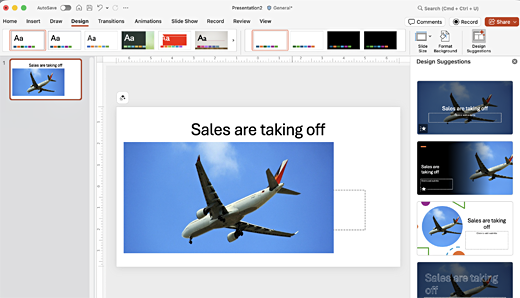
Noformējuma ieteikumu saņemšana
Programmā PowerPoint noformējuma idejas varat iegūt jebkurā brīdī. On the Design tab, select
 Noformējuma ieteikumi.
Noformējuma ieteikumi ir ieslēgti pēc noklusējuma, taču, pirmo reizi izmēģinot Designer, var parādīties uzvedne ar lūgumu atļaut sniegt jums noformējuma idejas.
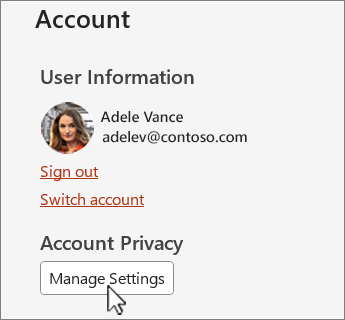
Ja neesat pārliecināts, vai šis iestatījums ir ieslēgts, atveriet cilni Fails , atlasiet Konts un sadaļā Konta konfidencialitāte atlasiet Pārvaldīt iestatījumus. Atzīmējiet izvēles rūtiņu, lai ieslēgtu neobligātos saistītos līdzekļus.
Piezīme
Korporācija Microsoft ir apņēmusies palīdzēt aizsargāt jūsu drošību un konfidencialitāti, izmantojot Designer. Lai iegūtu papildinformāciju, skatiet Microsoft paziņojumu par konfidencialitāti.
Ja tā joprojām nav ieslēgta, cilnē Fails izvēlieties Opcijas. Cilnē Vispārīgi atlasiet Automātiski rādīt ieteikumus un Automātiski rādīt ieteikumus, kad veidoju jaunu prezentāciju.
Dodieties uz rūti Noformējuma ieteikumi loga labajā pusē un pārlūkojiet noformējuma idejas
Atlasiet nepieciešamo noformējumu, un slaids tiks atbilstoši mainīts. Lai izietu no rūts Noformējuma ieteikumi , neveicot nekādas izmaiņas, atlasiet X rūts augšējā kreisajā stūrī.
Varat arī rūtī atlasīt citu ideju vai atgriezties pie sava sākotnējā slaida noformējuma. Nospiediet taustiņu kombināciju Ctrl+Z, lai atsauktu tikko atlasītās noformējuma izmaiņas.
Izpētiet Designer
Uzziniet vairāk par dažādiem Designer līdzekļiem, lai uzlabotu savas prezentācijas. Vienkārši pievienojiet fotoattēlu virsraksta slaidā un izveidojiet vienotu dizainu visos slaidos. Varat izmantot SmartArt grafikas, lai tekstu pārvērstu saistošos vizuālajos elementos. Designer, meklē galvenos terminus, tas ir, ilustrē un parāda atbilstošus vizuālos elementus dažādos izkārtojumos. Uzziniet, kādas citas funkcijas piedāvā Designer.

Virsraksta slaida fotoattēls un noformējuma shēma
Kad sākat tukšu prezentāciju un pievienojat slaidam tekstu, Designer iesaka augstas kvalitātes fotoattēlus, kas atbilst slaida saturam. Ieteicams arī izmantot krāsu shēmu, kas lieliski sader jūsu izvēlētajam fotoattēlam. Visi prezentācijas slaidi vizuāli saskan kopā.
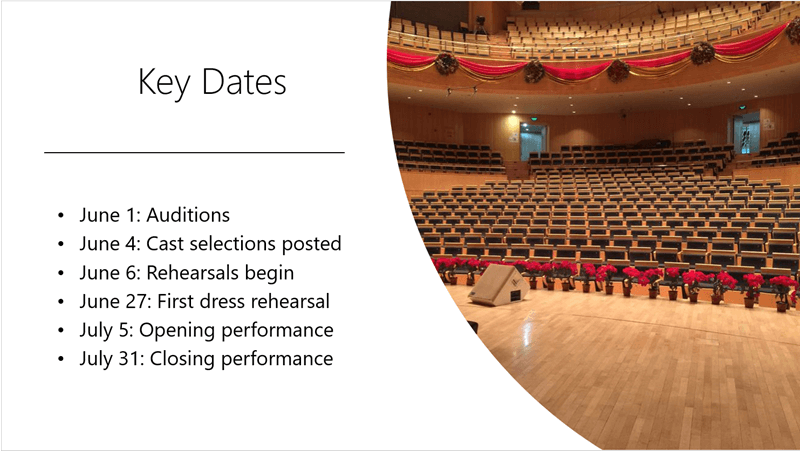
Profesionāli izkārtojumi
Designer atrod attēlus, diagrammas vai tabulas slaidā un sniedz vairākus ieteikumus to izkārtošanai saskaņotā, pievilcīgā izkārtojumā.
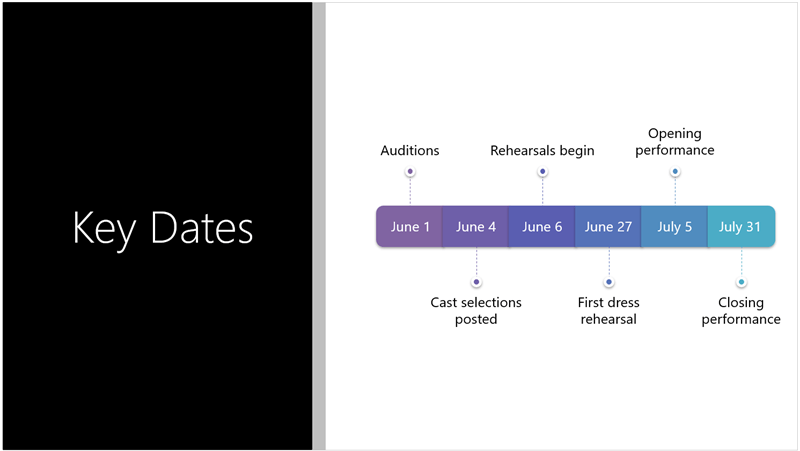
Vairāk vizuālo elementu, mazāk teksta
Vai slaidā ir pārāk daudz teksta? Designer var pārvērst tekstu, piemēram, sarakstus, procesus vai laika grafikus, par viegli salasāmu grafiku. Papildinformācija par SmartArt grafiku.

Ilustrācijas
Designer meklē galvenos terminus un jēdzienus, kurus ilustrē, un rāda tos dažādos izkārtojumos. Ilustrācijas ir no Microsoft 365 ikonu bibliotēkas.
Manage Designer
Ja nevēlaties, lai Designer automātiski piedāvātu ieteikumus, veiciet tālāk norādītās darbības.
- Cilnes Fails apakšā atlasiet Opcijas .
- Cilnē Vispārīgi ritiniet līdz Noformējuma ieteikumi un notīriet izvēles rūtiņu Automātiski rādīt ieteikumus .
Prasības Windows noformējuma ieteikumiem

|
Šis Microsoft 365 līdzeklis ir paredzēts tikai abonentiem. Atrodiet savu versiju |
|---|---|
| Dizaina idejas vienam fotoattēlam Attiecas uz: |
PowerPoint pakalpojumam Microsoft 365 Mēneša kanāls: Versija 1511 vai jaunāka Pusgada uzņēmuma kanāls: Versija 1602 vai jaunāka |
| Vairāki fotoattēli, krāsu ekstrakcija un sejas atpazīšana Attiecas uz: |
PowerPoint pakalpojumam Microsoft 365 Mēneša kanāls: Versija 1603 vai jaunāka Pusgada uzņēmuma kanāls: Versija 1605 vai jaunāka |
| Sarakstu pārvēršana par SmartArt grafikām Attiecas uz: |
PowerPoint pakalpojumam Microsoft 365 Mēneša kanāls: Versija 1609 vai jaunāka Pusgada uzņēmuma kanāls: Versija 1701 vai jaunāka |
| Rīcības plānu sarakstu noformēšanas idejas Attiecas uz: |
PowerPoint pakalpojumam Microsoft 365 Mēneša kanāls: Versija 1702 vai jaunāka Pusgada uzņēmuma kanāls: Versija 1708 vai jaunāka |
| Noformējuma idejas, kur ikonas aizstāj tekstu Attiecas uz: |
PowerPoint pakalpojumam Microsoft 365 Mēneša kanāls: Versija 1612 vai jaunāka Pusgada uzņēmuma kanāls: Vēl nav pieejams |
| Noformējuma idejas diagrammām Attiecas uz: |
PowerPoint pakalpojumam Microsoft 365 Mēneša kanāls: Versija 1705 vai jaunāka Pusgada uzņēmuma kanāls: Versija 1803 vai jaunāka |
| Laika grafiku noformējuma idejas Attiecas uz: |
PowerPoint pakalpojumam Microsoft 365 Mēneša kanāls: Versija 1707 vai jaunāka Pusgada uzņēmuma kanāls: Versija 1803 vai jaunāka |
| Noformējuma idejas teksta pārvēršanai par ikonām + SmartArt grafikām Attiecas uz: |
PowerPoint pakalpojumam Microsoft 365 |
| Dizaina idejas saturam, kas zīmēts ar roku Attiecas uz: |
PowerPoint pakalpojumam Microsoft 365 Mēneša kanāls: Versija 1812 vai jaunāka Pusgada uzņēmuma kanāls: Vēl nav pieejams |
Microsoft 365 problēmu novēršana
Ja rodas problēmas ar Designer ar PowerPoint pakalpojumā Microsoft 365, varat izmēģināt dažas lietas.
Kā rīkoties, ja man nav pogas Noformējuma ieteikumi?
Ja jums nav pogas Noformējuma ieteikums, varat pārskatīt tālāk norādītās lietas.
Noformējuma ieteikumi ir pieejami tikai Microsoft 365 abonentiem
PowerPoint datora versijās tikai abonenti saņem noformējuma ieteikumus. Lai izmēģinātu vai iegādātos Microsoft 365 abonementu, dodieties uz Microsoft 365.
Programmā PowerPoint tīmeklim noformējuma ieteikumi ir pieejami ikvienam.
Vienā Microsoft 365 abonementa pakotnē nav iekļautas noformējuma idejas: Office 365 Germany.
Office saistīto līdzekļu ieslēgšana
Lai izmantotu Designer, pārliecinieties, vai ir ieslēgti Office "saistītie līdzekļi". Cilnē Fails atlasiet Konts un sadaļā Konta konfidencialitāte izvēlieties Pārvaldīt iestatījumus. Sadaļā Neobligātie saistītie līdzekļi atzīmējiet izvēles rūtiņu Ieslēgt neobligātos saistītos līdzekļus. Papildinformāciju skatiet sadaļā Intelektisko pakalpojumu iespējošana un atspējošana.
Iespējams, administrators ir izslēdzis Designer
Designer ir līdzeklis Microsoft 365 abonentiem, taču dažas organizācijas šo līdzekli izslēdz. Ja jums ir Microsoft 365 abonements, bet jums nav Noformējuma ieteikumi , jautājiet IT nodaļai.
Office pārinstalēšana, lai iegūtu abonentiem paredzētos līdzekļus
Ja esat veicis jaunināšanu no Microsoft 365 uz Microsoft 365 abonementu, jums ir jāatinstalē Microsoft 365 un pēc tam jāinstalē atkārtoti, lai iegūtu abonentiem paredzētos līdzekļus. Izlasiet šajos rakstos sniegtos norādījumus:
- Office atinstalēšana personālajā datorā vai Office darbam ar Mac atinstalēšana
- Microsoft 365 pārinstalēšana
Programmas restartēšana, lai iegūtu līdzekli Designer
Dažkārt lietotājiem pirmajā PowerPoint startēšanas reizē pēc Microsoft 365 instalēšanas tiek parādīta Poga Noformējuma ieteikumi nav pieejama. Lietojumprogrammas restartēšana šo problēmu novērš.
Kā rīkoties, ja atlasu pogu Noformējuma ieteikumi un nav ieteikumu?
Ja, atlasot pogu Noformējuma ieteikumi , nesaņemat nevienu ieteikumu, pārbaudiet tālāk norādītās iespējas.
- Iespējams, nav izveidots savienojums ar internetu. Pārliecinieties, ka ir aktivizēts interneta savienojums, un mēģiniet vēlreiz. Designer dodas tiešsaistē, lai iegūtu noformējuma idejas.
- Izmantojiet dizainu, kas tiek lietots ar programmu PowerPoint (nevis pielāgotu dizainu vai tādu, kas lejupielādēts no citas vietas).
Nav noformējuma ieteikumu slaidam ar attēliem
- Pārliecinieties, vai jūsu slaidam ir lietots virsraksta vai virsraksta + satura slaida izkārtojums.
- Nelietojiet papildu objektus vai formas vienā slaidā ar fotoattēlu.
- Izmantojiet ne vairāk kā četrus fotoattēlus katram slaidam un pārliecinieties, vai tie ir lielāki par 200x200 pikseļiem.
Nav noformējuma ieteikumu procesa slaidiem
Pārliecinieties, vai slaidam ir lietots virsraksta + satura slaida izkārtojums.
Nelietojiet papildu fotoattēlus, objektus vai formas vienā slaidā ar procesa tekstu.
Tā kā Designer ir salīdzinoši jauns pakalpojums, tas joprojām mācās jaunus trikus. Ja Designer nevar ģenerēt kvalitatīvas opcijas, tas nerāda nevienu opciju. Mēs cītīgi strādājam, lai spētu ģenerēt lieliskas noformējuma idejas visdažādākajam saturam.
Un, protams, ja noformējuma ieteikumi jums nešķiet noderīgi, varat to izslēgt, dodoties uz cilni Fails , atlasot Opcijas un cilnē Vispārīgi notīrot izvēles rūtiņu Automātiski rādīt noformējuma idejas .
Kāds cits rediģē
Ja veicat prezentācijas koprediģēšanu ar kādu citu lietotāju un vairākas personas vienlaikus aktīvi rediģē vienu slaidu, noformētājs atbilstošajam slaidam nesniedz noformējuma ieteikumus.
Kad viens lietotājs rediģē slaidu, Designer atsāk piedāvāt noformējumu, reaģējot uz konkrētām lietotāja veiktajām darbībām, piemēram, fotoattēla ievietošanu.
Nav noformējuma ideju slaidiem, kuros ir forma vai tekstlodziņi
Designer nevar ieteikt noformējuma ieteikumus, ja slaidā ir uzzīmēta forma vai tekstlodziņš. Vietturī var būt fotoattēli un teksts.
Kā rīkoties, ja poga Noformējuma ieteikumi ir pelēkota?
Ja jums uz lentes ir poga Noformējuma ieteikumi , bet tā ir pelēkota, varat pārbaudīt šādus parametrus:
- Iespējams, nav izveidots savienojums ar internetu. Pārliecinieties, ka ir aktivizēts interneta savienojums, un mēģiniet vēlreiz.
- Nav atlasīts atsevišķs slaids. Tas ir iespējams gadījumā, ja normālskatā slaidu sīktēlu rūtī ir atlasīti vairāki slaidi vai ja sīktēlu rūtī fokuss ir starp diviem slaidiem. Tā notiek arī gadījumos, kad ir atlasīta piezīmju rūts vai atrodaties slaidrādes skatā, nevis normālskatā .


Saistītie raksti
Krāsu saskaņošana programmā PowerPoint: kļūdas, no kurām ieteicams izvairīties