
As a meeting organizer, you can choose whether to allow attendees to forward a meeting invitation to others. When creating a meeting request, you can only use this option if your mailbox is hosted in Microsoft 365 or in Exchange Server 2019.
Note
- If you don't know if your mailbox is hosted in Microsoft 365, contact your helpdesk.
- This feature isn't affected by the use of Information Rights Management.
How to prevent forwarding of a meeting
When you create or edit a meeting, you can choose to allow or prevent forwarding of the meeting invitation. The option to allow forwarding is turned on by default.
However, if you turn off this option, attendees included on the meeting invitation won't be able to forward the meeting to others. As the meeting organizer, you'll still be able to add attendees by editing the meeting.
Outlook for Windows or Outlook for Mac
Go to your calendar
 .
.Select New Meeting.
Select Response Options from the meeting toolbar.
Select Allow Forwarding to remove the checkmark.
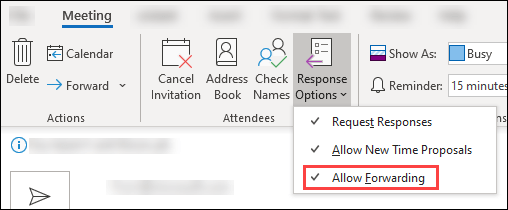
Outlook on the web for Office 365
Go to your calendar
.Select New event.
Select Response options from the meeting toolbar.
Select Allow forwarding to remove the checkmark.

Outlook on the web for Exchange 2019
Go to your calendar.
Select New event.
Add attendees.
Select Response options
 from Attendees.
Select Allow forwarding to remove the checkmark.

Outlook clients where forwarding can be prevented
You can prevent forwarding when you create or update meetings in the following Outlook clients:
| Outlook client | Currently supported |
|---|---|
| Outlook on the web | For Microsoft 365 and Exchange 2019 users |
| Outlook for Windows | For Microsoft 365 users * Available for Current Channel (version 1808 or later) * Available for Semi-Annual Enterprise Channel (version 1902 and later) |
| Outlook for Mac | For Microsoft 365 users * Available for 16.20 (18120801) and later |
| Outlook for iOS | Not supported yet |
| Outlook for Android | Not supported yet |
Note
To see what version of Outlook for Windows or Outlook for Mac that you're using, in Outlook go to About Outlook by selecting File > Office Account.
Attendee's experience when a meeting organizer has prevented forwarding
If an attendee receives a meeting invitation in an updated Outlook client, they are prevented from forwarding the meeting invitation and the calendar event, regardless of the type of email account they have.
Updated Outlook clients are:
- Outlook on the web (Office 365, Exchange Server 2016, Exchange Server 2019)
- Outlook for Windows*(available in Version 1808 of Current Channel, Semi-Annual Enterprise Channel (Preview) and Semi-Annual Enterprise Channel.)*
- Outlook for iOS
- Outlook for Android
See the list below for the experience if an attendee isn't using one of the clients listed above:
Exchange Online, Exchange Server 2016, or Exchange Server 2019: When the attendee receives a meeting on an older client, they will see the options to forward the meeting invitation or calendar event. However, if they try to forward the meeting, Exchange Online and Exchange Server block this action. An email notification is sent to the attendee indicating that the meeting organizer doesn't allow forwarding of the meeting, and as a result, their forward wasn't sent.
Older versions of Exchange or third-party services: When the attendee receives a meeting on an older client, they will see the option to forward the meeting invitation or calendar event. When the forward is sent, it's handled by external servers that don't support this feature, so the meeting forward can't be prevented. As has always happened, when the meeting is forwarded by an attendee using a third-party service, a forward notification isn't sent to the meeting organizer.
Note
Even if the meeting organizer has prevented the forwarding of a meeting invitation or calendar event, attendees can still take the following actions:
- Reply or Reply all to the meeting invitation with an email message.
- Copy the meeting message or calendar event.