
Create ongoing projects, bulletin boards, and calendars with Microsoft Whiteboard
Whiteboard offers a fully customizable canvas that can grow with you and your class over time.
You can use Whiteboard by itself — or even more effectively with Microsoft Teams — to create ongoing and growing boards for long-running projects or to keep your class informed.
Key features:
- In Teams, pin the whiteboard to your class channel, so you and others always have easy access
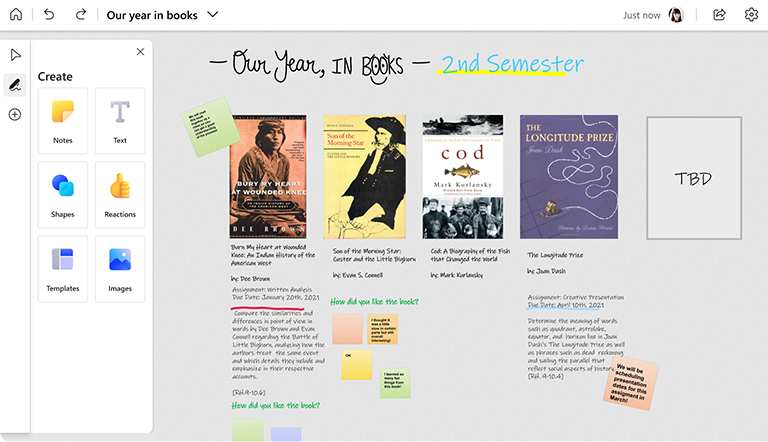
- Add content over time to create a record of class achievements
- Use colorful sticky notes to organize your content
- Insert images to make the board more visually engaging
In Microsoft Teams
Note
Any board that’s attached to a team or channel in Microsoft Teams will be editable by everyone else who has access to that team or channel.
- In Microsoft Teams, create a new team for your class, and then invite all your students.
- Create channels specific to different topics or subjects.
- In any channel, select the + button at the top, search for Whiteboard, and then click Save. A whiteboard is attached to the current channel. Repeat this step for your other channels.
- Remind students where your boards are located.
In the Whiteboard app
- Open Whiteboard and create a new board for each topic or subject matter.
- During class, share your screen with the whiteboard open, or send a share link of the whiteboard to the class.
- Continue to update the whiteboard over time.
- If you're not not always actively collaborating on the board with your students, you can still keep everyone up to date by periodically saving a PNG image of the board from the Settings menu, and then sending it to your students.
See also
Check out our other Whiteboard guides to learn more!