
How to run a group project with Microsoft Whiteboard
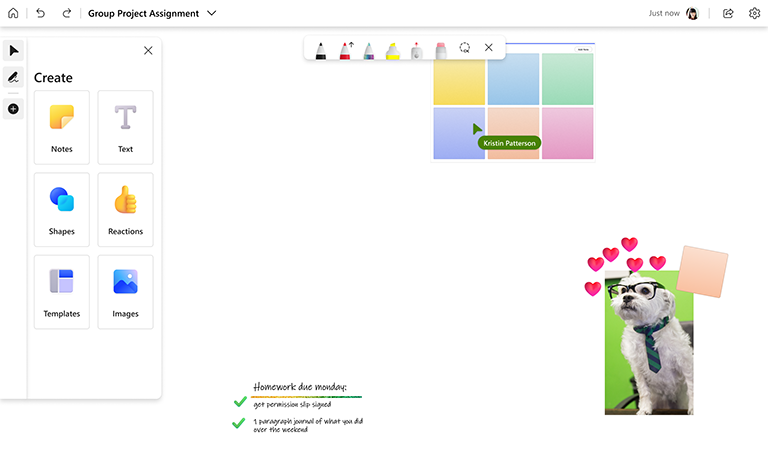
Whiteboard offers a great way for students to work together on group projects, especially when using it together with Microsoft Teams.
To get started, create a group chat in Teams. From there, students can add a Whiteboard tab to their chat to ideate and progress on their project. Whiteboard is a great place to brainstorm, capture ideas, draw insights, and track action items.
Key features:
- Use the Brainstorming templates to get started
- Inking helps to get the creative juices flowing
- Insert images from your computer to add rich visuals
- Organize your thoughts with colorful sticky notes
- Collaborate on any device using the input method of your choice — keyboard, mouse, touchscreen, or pen
- Participate as little or as much as you want with a spectrum of tools — including reactions, sticky notes, text boxes, and ink
Set up groups in Microsoft Teams
- To keep group work private, use group chats rather than a team or a channel within Teams.
- Either create group chats for each group (with yourself included in each), or instruct your students to do so.
- To add a whiteboard to the chat, select the + button at the top of the screen in the chat window, search for Whiteboard, select it, and then click Save.
- The Whiteboard associated with the group chat can now be accessed from the chat directly, or from the Whiteboard app.
During the project
- Provide instructions to your students about how they should use the whiteboard for the project. For example, clarify if the whiteboard will be turned in as a part of the project, or if it’s simply available as a workspace during the project.
- Inform your students of the Whiteboard features they can use, such as Brainstorming templates, shapes, image insertion, inking capabilities, and so on.
- Encourage your students to use the whiteboard during meetings to interact and brainstorm together in real-time.
- If your students have questions, they can invite you to the whiteboard by either adding you to the chat, or by sending you a Whiteboard share link.
After the session
- If the Whiteboard is supposed to be turned in, have your students invite you to the board. Alternately, have them create a PNG image of their board from the Settings menu and then send it to you.
See also
Check out our other Whiteboard guides to learn more!