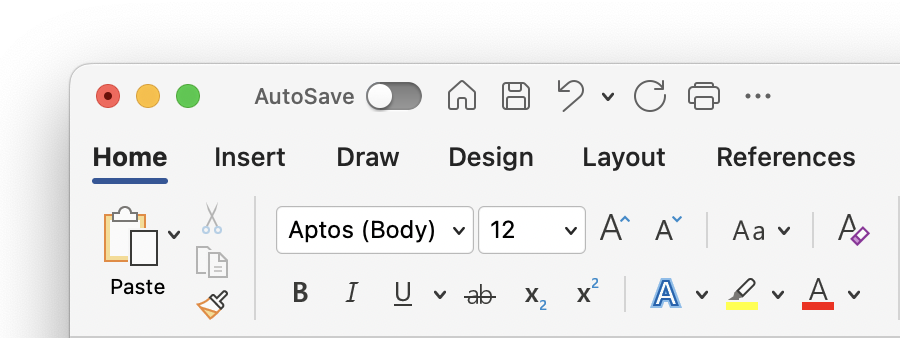
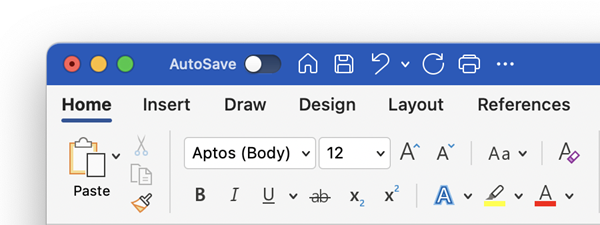
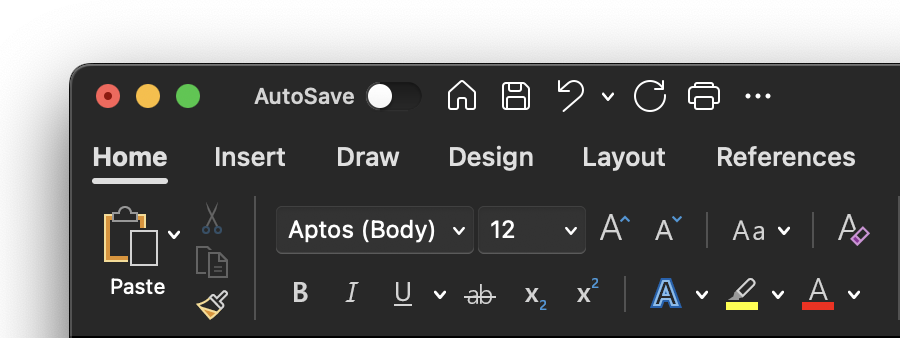
Вы можете изменить внешний вид приложений Microsoft 365, выбрав новую тему Office.
Как изменить тему

Чтобы изменить цвет приложений Microsoft 365:
- Откройте приложение Microsoft 365, например Word, Excel или PowerPoint.
- На вкладке "Файл " нажмите кнопку "Параметры ", а затем — "Общие".
- Щелкните раскрывающийся список "Тема Office " и выберите понравившийся вариант.
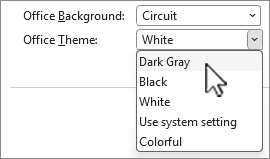
Настройка темы по умолчанию для Microsoft 365 — "Использовать параметр системы", соответствующий выбранному вами оформлению в Windows.
Примечание
Темы на этой странице относятся к последним версиям Microsoft 365. Ваши приложения могут выглядеть по-другому в тех же темах, если вы используете более раннюю версию.
"Белый"
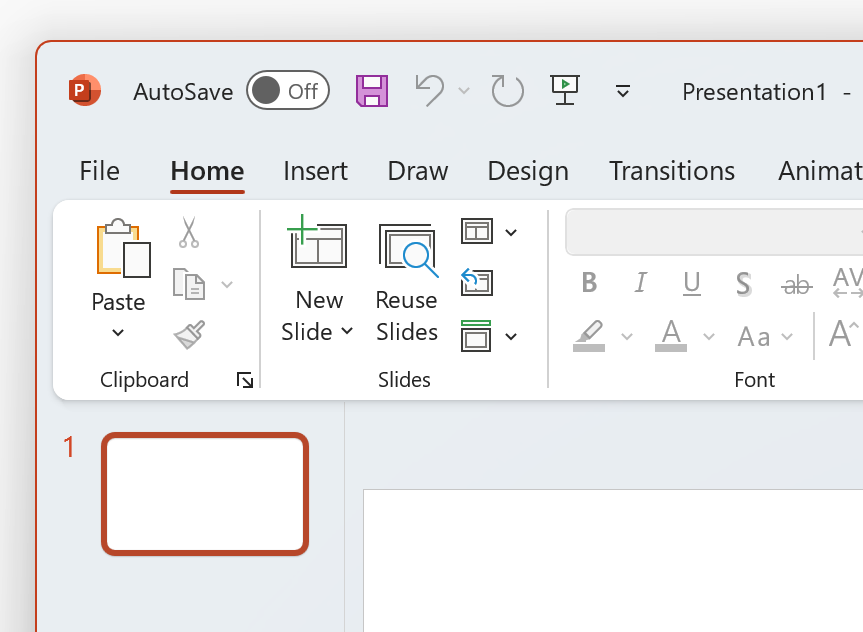
Белая тема должна выглядеть яркой, чистой и свежей. Вот пример темы "Белая" в PowerPoint:
Примечание
В Windows 11 или более новой версии вы можете заметить цветовой оттенок на фоне приложения Microsoft 365. Этот эффект называется Mica. Он представляет собой фон рабочего стола, просвечивающий сквозь фон приложения. Чтобы отключить эту функцию, откройте приложение " Параметры Windows" и перейдите в раздел "Персонализация>: цвета>и эффекты прозрачности".
Темно-серый
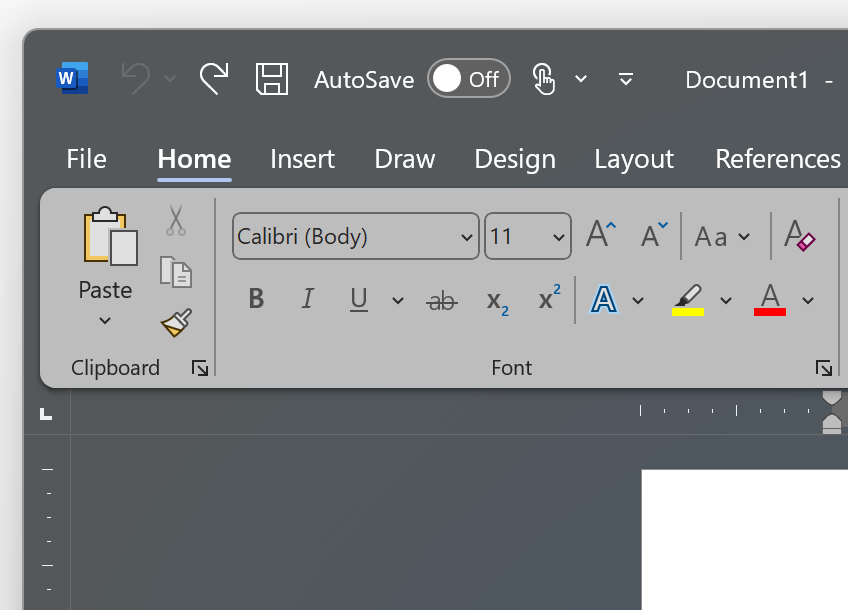
Тема "Темно-серый" идеально подходит для тех, кто предпочитает более мягкие серые цвета с контрастными элементами управления. Ниже приведен пример темы "Темно-серый", примененной к Word.
Черная тема
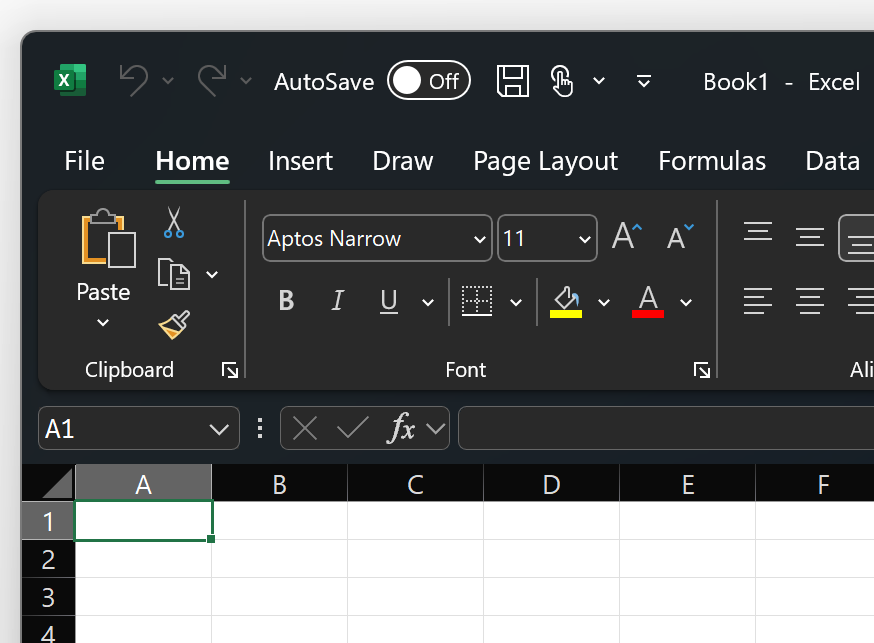
Черная тема обеспечивает самый темный опыт работы с приложениями Microsoft 365. Если вы ищете темный режим, эта тема как раз для вас. Ниже приведен пример применения темы "Черная" в Excel:
Важно
- По умолчанию Word и Outlook перекрашивают ваши документы и сообщения электронной почты, чтобы они соответствовали остальной части приложения с черной темой.
- Чтобы отключить это поведение в Word, перейдите в раздел "Общиепараметры>> файла>"Персонализация копии Microsoft Office, а затем проверка Никогда не изменяйте цвет страницы документа.
- Чтобы отключить это поведение в Outlook, перейдите враздел "Параметры>файла>:общие>" Персонализация копии Microsoft Office, а затем проверка Никогда не изменяйте цвет фона сообщения. См. также: Темный режим в Outlook для Microsoft 365
Красочный
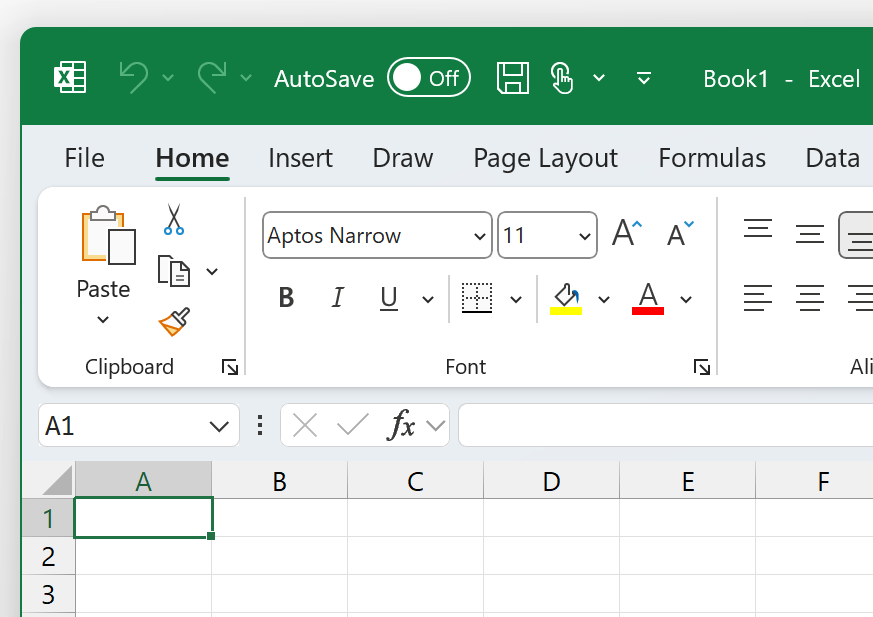
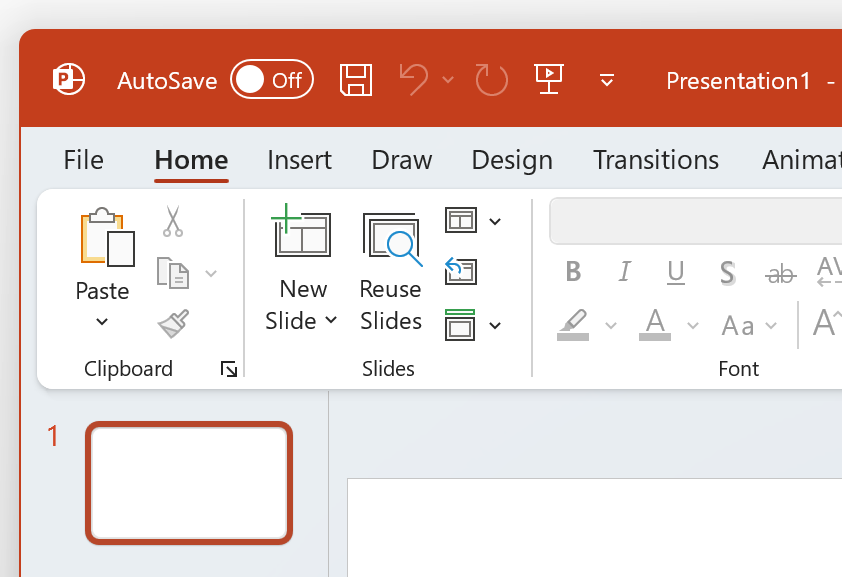
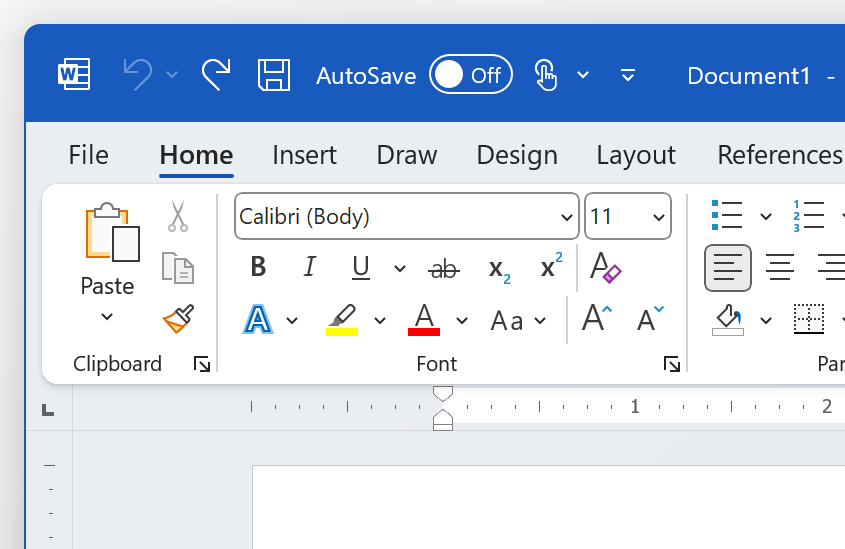
Тема "Цвет" аналогична теме "Белая", но верхняя часть ленты подчеркнута основным цветом текущего приложения.
Красочная тема в Excel:
Красочная тема в PowerPoint:
Красочная тема в Word:
Использование параметров системы
Если выбран параметр "Использовать параметры системы", Microsoft 365 будет выбирать между белой и черной темами в зависимости от того, находится ли Windows в светлом или темном режиме. Вы можете выбрать внешний вид Windows в Windows 11, запустив приложение "Параметры" и перейдя в раздел "Цвета персонализации>".Выберите>режим.