This article discusses how to change the overall look of your SharePoint site as a site owner or a user with design permissions. You can quickly and easily customize the look of your SharePoint site to reflect your professional style and brand. The options available to you depend on the version of SharePoint you're using.
Find the Change the look link
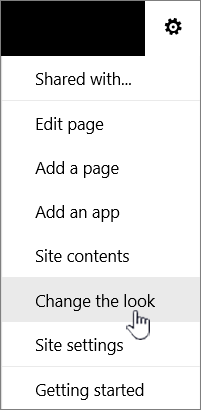
Select Settings
 in the top-right of your SharePoint site, then select Change the look.
Note
- If you don't see Change the look, you may not have permission to manage this option, or you are under classic experience.
- For more information about permissions, see Understanding permission levels in SharePoint or ask your administrator.
- To change the look for SharePoint sites with classic experience, visit here.
Use a theme to change the colors of your SharePoint site
Select Change the look > Theme.

|
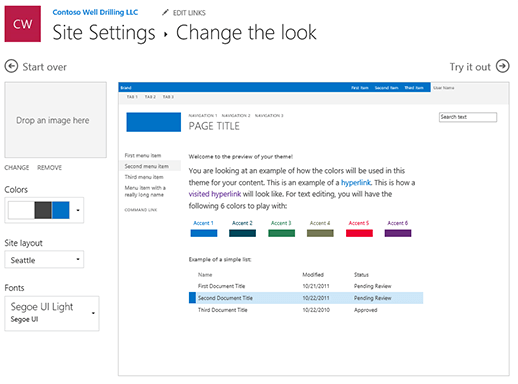
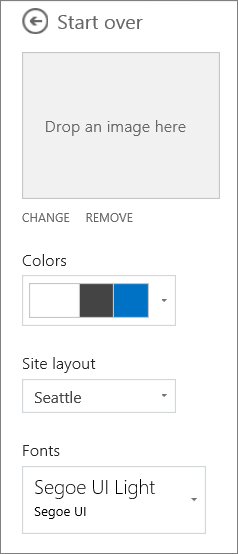
Select the look you want. You'll see a preview of what your site looks like with the selected theme applied. Choose a company theme with approved branding for your company, or use one of the classic experience designs. You can choose one of the default SharePoint themes and customize it as needed. The list of main colors and accent colors varies depending on the default SharePoint theme you choose to customize. To customize the colors of one of the default SharePoint themes:
|
|---|
Note
- Your administrator may have set site theming to show only a list of company-approved themes. If so, you won't see any of the default SharePoint themes.
- If you're updating the theme on a subsite or your administrator has sites set to the classic experience, follow the instructions in the Classic experience designs section.
- Currently, you can't change the background color for your site using this setting. SharePoint administrators can make changes to company-approved themes as described in SharePoint theming.
- The button color is based on the site theme accent color and can't be changed independently of the site theme.
- Learn how to customize the page title area here.
- To create and upload a company theme, see SharePoint site theming.
- For additional ways to customize your site, see Customize your SharePoint site.
Customize your site header
Select Change the look > Header.
Note
The minimal and extended header layouts will be temporarily removed from the Change the look panel for GCC, GCC High, DoD, Gallatin, and Sovereign clouds customers. Sites using the minimal header will automatically transition to the compact header and sites using the extended header layout will automatically transition to the standard header.
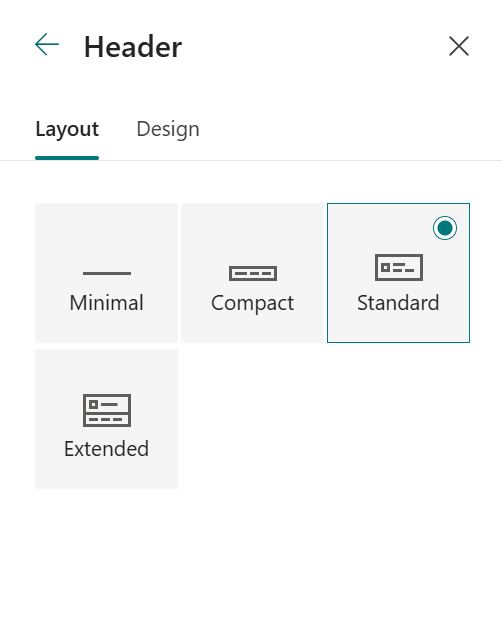
Choose a layout: (Compact layout is the default for all Modern sites):
Minimal layout: Reduced height with all content in a single line including small site logo, site title, site navigation, and site actions and labels.

Compact layout: A larger height layout that uses the full size site logo while keeping content on a single line.

Standard layout: A layout with the full size site logo and content split onto 2 lines.

Extended layout: Our largest layout with content split into 2 content areas with site logo, site title, and an optional background image separate from the other contents below.

Note
If you are using the Extended Header on a Hub site designated as Home, the site navigation will be replaced with the Hub navigation bar.
Go to the Design Tab, in the Background section, select a theme color to change the background color of your site header. Or upload an image as the background and adjust the overlay, opacity, focal point for the background image.

In the Typography section, change the site title font by selecting from available font package list:

In the Display section, do the following:
- Select the Toggle to set the visibility of your site title;
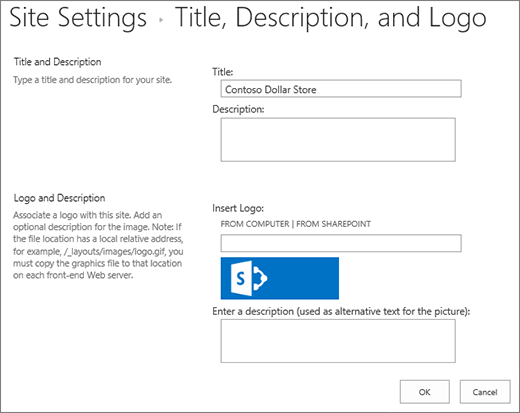
- Select Change to add a site logo thumbnail (must be a square logo for default use in experiences that require a square aspect ratio);
- Select Change to add a site logo. If using Extended layout, select Site logo alignment.
Note
To ensure that your icon renders properly, please pick one that fits within the range of 64 x 64 pixels to 192 x 64 pixels (width x height).

When you're done, select Save.
Change your navigation style
Select Change the look > Navigation.
Under Orientation, select Horizontal or Vertical. If you select Horizontal, you can then select one of the following options:
Megamenu
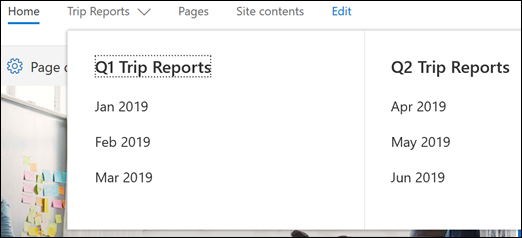
Cascading
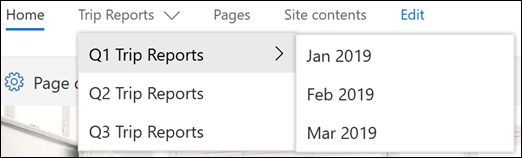
Note
- Megamenu is not supported on sites with the classic publishing feature(s) turned on.
- To change your navigation links, see Customize the navigation on your SharePoint site.
- Links added to the 3rd level when using the megamenu style display as a single vertical list only.
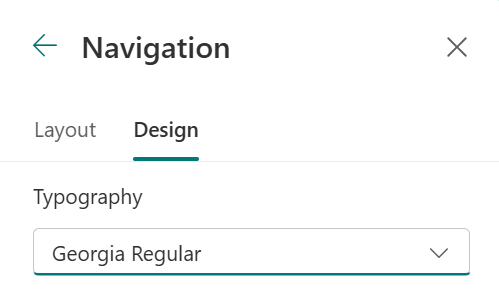
Go to the Design Tab, in the Typography section, change the navigation links font by selecting from available font package list:
Select Save to apply your changes.
Add a site footer
On your site, click Settings
 and then click Change the look > Footer.
Note
- If you don't see Change the look on the Settings menu, you may not have permission to manage this option. For more information, see Understanding permission levels in SharePoint or ask your administrator.
- The site footer feature is only available on communication site pages. They are not available for list pages, library pages, or other pages on your site.

Toggle the Footer visibility switch to On to add a footer to your site.
Choose a layout:
Simple layout: Display one level of links and labels, up to eight columns wide.

Extended layout: Display two level of links and labels, up to eight columns wide.

4. Change the footer Link alignment.
5. Select Upload to add your logo image to the footer. The image is automatically resized.
6. To add a name for your footer, enter a Display name.
7. Go to Design Tab, select a background color or add an image.

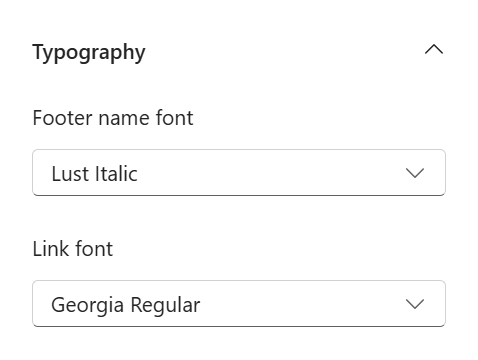
8. In the Typography section, change the footer name and links font by selecting from available font package list:
9. Select Save to save your changes.
Edit footer labels and links
After you've added a footer to your site you can add a links or labels to the footer. Select Edit in the footer on the left hand side of the menu labels and links.

For details about adding or editing links and labels, see Customize the navigation on your SharePoint site. You can add one level of up to eight links or labels.