
Last Updated: July 1, 2026
ISSUE
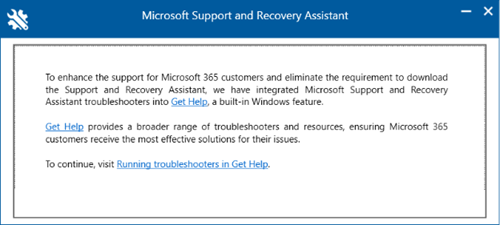
If you download and install the Microsoft Support and Recovery Assistant you find that the installation shows the window below. The diagnostics that were built for the Microsoft Support and Recovery Assistant are being migrated to Windows Get Help troubleshooting.
This dialog refers you to this page to access the Get Help troubleshooters, Running troubleshooters in Get Help.
STATUS: DESIGN CHANGE
Outlook Support and Recovery Assistant diagnostics have been migrated to Windows Get Help.
Use Outlook troubleshooters in Windows Get Help application
To invoke the classic Outlook diagnostics in the Get Help app directly go to Classic Outlook troubleshooters.
Output from the classic Outlook Get Help diagnostic go to this folder, %LocalAppData%\GetHelp.
Note
To run the fiddler trace diagnostic access it here:
Get Help: https://aka.ms/FiddlerTrace-GetHelp
Support Article: https://aka.ms/FiddlerTraceInstructions-GetHelp
There are some scenarios where the Get Help troubleshooters may not work.
- Organizational Restrictions: In some environments, the Get Help feature may be intentionally disabled by the organization, resulting in the tool failing to operate after selecting Get Help or attempting to run troubleshooters. Even if restricted you may be able to install the Get Help app, go to Get Help.
- Virtual Desktop Infrastructure (VDI): Based on current observations, the Get Help troubleshooters do not appear to be optimized for VDI environments and are unlikely to function properly.
Use the command line version of the Outlook GetHelp Admin Tool
On the impacted user's machine, please run the GetHelp Admin tool while Outlook is running (following these specific steps):
Download the GetHelp .zip package: GetHelpCmd.
Extract the files to a file folder, ex: C:\GetHelpCMD.
Open CMD (normal user is ok) and navigate to the extracted folder.
Run GetHelpCmd.exe -S ExpertExperienceAdminTask -AcceptEula.
Type Y to continue.
Wait 1-2 minutes.
Check "%localappdata%\temp\GetHelp\dafs" and make sure the RUN.ps1 script is present.
Open PowerShell [normal user], CD to C:\Users\USERNAME\AppData\Local\Temp\GetHelp\DAFs.
From PowerShell:
.\Run.ps1 -execPath C:\Users\USERNAME\AppData\Local\Temp\GetHelp\DAFsYou should get timestamp and percent numbers.
Example:
PS C:\Users\USERNAME\AppData\Local\temp\GetHelp\DAFs> .\Run.ps1 -execPath C:\Users\USERNAME\AppData\Local\Temp\GetHelp\DAFs
16:57:31.130: 26%
Note
If you get a script error when running the script in PowerShell run: Set-ExecutionPolicy -Scope Process -ExecutionPolicy Bypass -Force
If File Explorer does not open automatically after the script completes, you can find the logs at: %localappdata%\GetHelp.
Note
It can take some time to complete, up to 35 mins depending on how large your Outlook profile is. Also, you can leave the original command prompt window open until it finishes or times out.
More Resources
 Ask the experts
Connect with experts, discuss the latest Outlook news and best practices, and read our blog.
 Get help in the community
Ask a question and find solutions from Support Agents, MVPs, Engineers, and Outlook users.
 Suggest a new feature
We love reading your suggestions and feedback! Share your thoughts. We're listening.
See Also
Fixes or workarounds for recent issues in classic Outlook for Windows