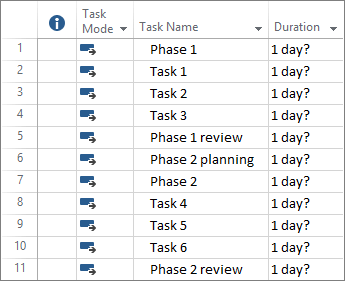
In Project, you can:
- Create project plans.
- Build project teams and allocate resources.
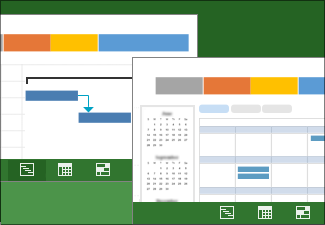
- See different views of task and resources.
- Measure progress.
- Manage budgets.
Note
- This Quick Start is specific to Microsoft Project 2019, 2016, and the Microsoft 365 subscription Project Online Desktop Client. Project Online has some additional features that support online interaction.
- For more detailed information about creating a new project, see Create a new project.
Create a project from a template
- Open Project.
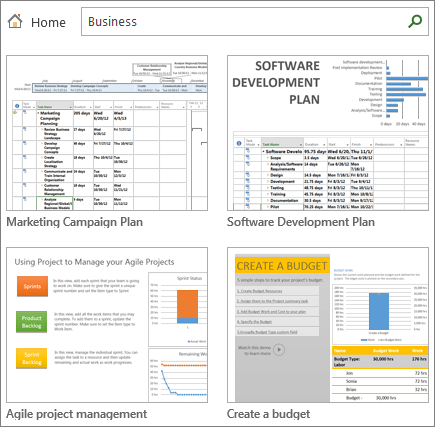
Or select File > New if you're already working in a project plan. - Select a template or type in the Search for online templates box and then press Enter.
Or, choose Blank Project to create a project from scratch. - When you select a template, select the options you want, and select Create.
Change the resources, tasks, and durations in the template so they are right for your project.
Note
To create a new project from an existing project, change the project start and finish dates, and then save the project file with a new name or in a different location.
Add tasks to a project
- Select View > Task Views > Gantt Chart.
- Type a task name in the first empty Task Name field.
- Press Enter.
- Repeat steps 2 and 3 to enter the tasks you want.
If adding tasks one at a time starts to take too long, you can also: