
Use Duplicate plan to create a new plan based on an existing one. Copying a plan helps you reuse task structure, buckets, and details when you run similar projects or repeat the same process.
Copy a plan
In Planner, find the plan that you want to copy.
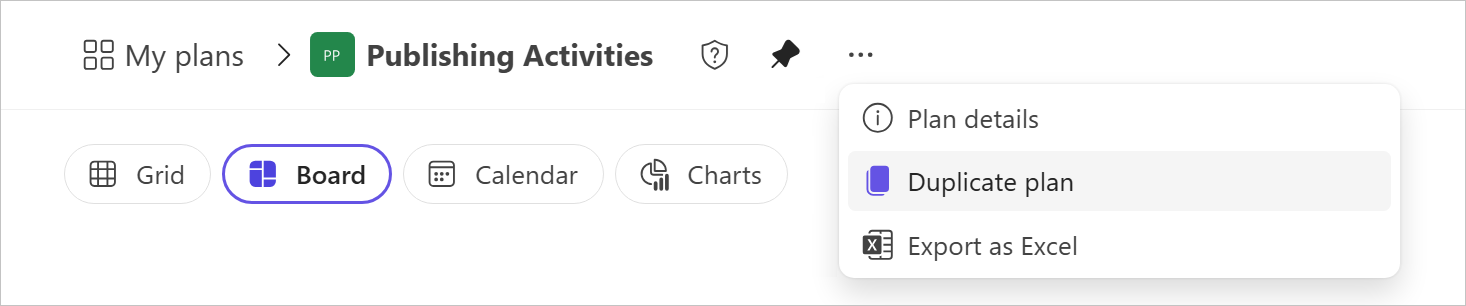
At the top of your plan, select the three dots (. . .) in the plan's upper-right corner, and then select Duplicate plan.
Note
If you aren't able to create groups in Planner, you might not be able to copy plans.
Choose where the copied plan lives
When you copy a plan, selecting a group is optional:
- Personal plan – Copy the plan for your own use.
- Shared plan – Copy the plan into a Microsoft 365 group to collaborate with others.
You can:
- Copy a shared plan and make the copy personal
- Copy a personal plan and share the copy with a group
- Copy a shared plan into another group
What happens when you copy a plan
When you copy a plan:
- A new plan is created using the original plan as a starting point.
- You can choose whether the copied plan is personal or shared with a group.
- Tasks are reset so work can start fresh.
You’ll see a toast notification while the plan is being copied and again when the copy is ready.
Note
Roster‑based plans don’t support copying at this time.
What's copied
The following table describes which elements of a plan can be copied to the new plan.
| Item | Copied to basic plan? | Copied to premium plan? |
|---|---|---|
| Plan name | Yes (with "Copy of" added to beginning of name) | Yes (with "- Copy" added to end of name) |
| Buckets (names and order) | Yes | Yes |
| Task names | Yes | Yes |
| Task order | Yes | Yes |
| Bucket associated with tasks | Yes | Yes |
| Task status | Reset to Not started | Reset to Not started |
| Task priorities | Optional | Yes |
| Dates | Optional | Yes |
| Descriptions | Optional | Yes |
| Checklists | Optional | Yes |
| Labels | Optional | Yes |
| Attachments | Optional; only can be copied to same group | Only can be copied to same group |
| Task chat | No | No |