With Project, you can create and customize striking graphical reports of whatever project data you want, without having to rely on any other software. As you work on the project, the reports change to reflect the latest info — no manual updates required. See a list of all reports and how you can use them.
- Select the Report tab.
- In the View Reports group, select the type of report you want and then pick a specific report.
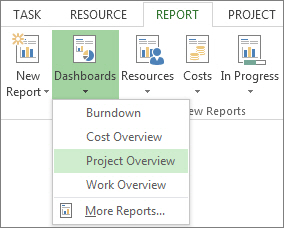
For example, to open the Project Overview report, select Report > Dashboards > Project Overview.
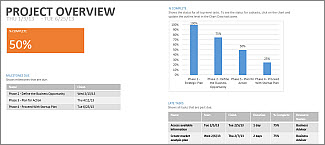
The Project Overview report combines graphs and tables to show where each phase of the project stands, upcoming milestones, and tasks that are past their due dates.
Project provides dozens of reports you can use right away, but you don’t have to let that limit your choices. You can customize the content and the look of any of the reports, or build a new one from scratch.
Work with your report
Make a new report available for future projects
More ways to report project info
Change the data in a report
You can choose the data that Project shows in any part of a report.
- Select the table or chart you want to change.
- Use the Field list pane on the right of the screen to pick fields to show and filter information.
Tip
When you select a chart, three buttons also pop up directly to the right of the chart. Use the Chart Elements
 and Chart Filters
 buttons to quickly pick elements such as data labels and filter the information that goes into the chart.
Example
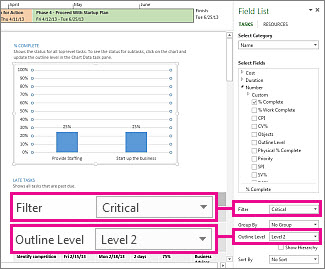
In the Project Overview report, you could change the % Complete chart to show critical subtasks instead of top-level summary tasks:
- Select anywhere in the % Complete chart.
- In the Field List pane, go to the Filter box and pick Critical.
- In the Outline Level box, pick Level 2. For this example, this is the first level of the outline that has subtasks instead of summary tasks.
The chart changes as you make your selections.
Change how a report looks
With Project, you control the look of your reports, from no-nonsense black and white to explosions of colors and effects.
Tip
You can make a report part of a split view so you can see the report change in real time as you work on project data. To learn more, see Split a view.
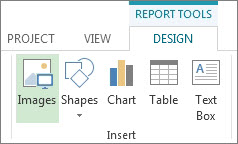
Select anywhere in the report and then select Report Tools Design to see the options for changing the look of the whole report. From this tab, you can change the font, color, or theme of the whole report. You can also add new images (including photos), shapes, charts, or tables here.
When you select individual elements (charts, tables, and so on) of a report, new tabs appear at the top of the screen with options for formatting that part.
- Drawing Tools Format tab. Format shapes and text boxes.
- Picture Tools Format tab. Add effects to pictures.
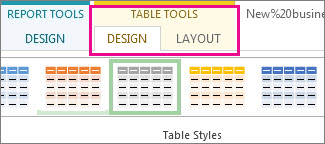
- Table Tools Design and Table Tools Layout tabs. Configure and tweak tables, like you would in other Office programs.
- Chart Tools Design and Chart Tools Format tabs. Configure and tweak charts.
Tip
When you select a chart, three buttons also pop up directly to the right of the chart. Select the Chart Styles button
 to quickly change the color or style of a chart.
Example
Say you decide that the % Complete chart in the Project Overview report needs a facelift.
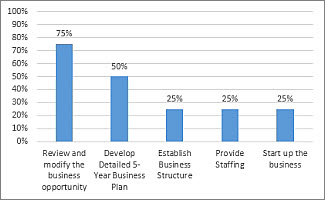
- Select anywhere in the % Complete chart, and then select Chart Tools Design.
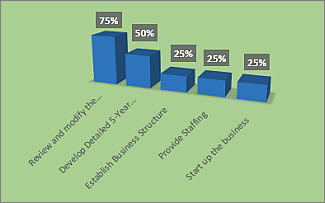
- Pick a new style from the Chart Styles group. This style removes the lines and adds shadows to the columns.

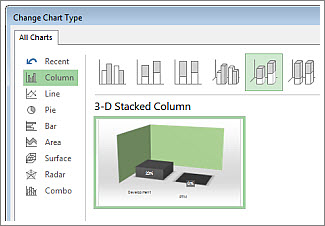
- Give the chart some depth. Select Chart Tools Design > Change Chart Type.

- Select Column > 3-D Stacked Column.
- Add a background color. Select Chart Tools Format > Shape Fill, and then pick a new color.
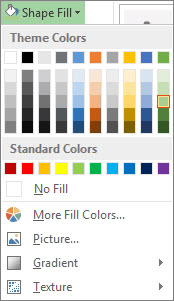
- Change the bar colors. Select the bars to select them, then select Chart Tools Format > Shape Fill, and pick a new color.
- Move the numbers off the bars. Select the numbers to choose them, and then drag them upward.
Just a few clicks make a big difference. And we only scratched the surface of the formatting options.
Make your own report
- Select Report > New Report.
- Pick one of the four options, and then choose Select.
- Give your report a name and start adding information to it.
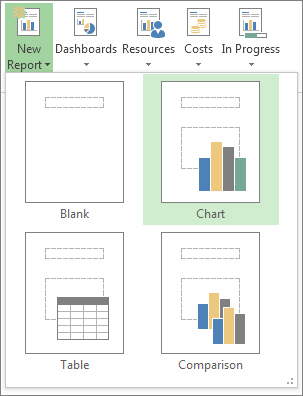
Blank Creates a blank canvas. Use the Report Tools Design tab to add charts, tables, text, and images.
Chart Project creates a chart comparing Actual Work, Remaining Work, and Work by default. Use the Field List pane to pick different fields to compare, and then use the controls to change the color and format of the chart.
Table Use the Field List pane to choose what fields to display in the table (Name, Start, Finish, and % Complete appear by default). The Outline level box lets you select how many levels in the project outline the table should show. You can change the look of the table on the Table Tools Design and Table Tools Layout tabs.
Comparison Sets two charts side-by-side. The charts have the same data at first. Select one chart and pick the data you want in the Field List pane to begin differentiating them.
Any of the charts you create from scratch are fully customizable. You can add and delete elements and change the data to meet your needs.
Share a report
- Click anywhere in the report.
- Select Report Tools Design > Copy Report.
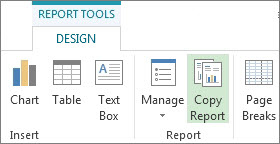
- Paste the report into any program that displays graphics.
Tip
You might need to resize and line up the report when you paste it into its new home.
You can also print the report to share it the old-fashioned way.
Make a new report available for future projects
Use the Organizer to copy a new report into the global template for use in future projects.
More ways to report project info
- See a list of all reports and how you can use them.
- Compare actual work against your estimates with burndown reports.
- Create a timeline of key tasks and milestones.
- Set the status date for project reporting.