If you have a shared notebook, and you don't want other people to see or edit it anymore, you can remove permissions for one or all users, or change the sharing permission settings.
If you want to stop someone from editing your notebook, but still let them view it, change their permissions from Can edit to Can view.
To stop all sharing, delete all the sharing links and stop sharing with people who have direct access.
To prevent a specific person from seeing or editing your notebook, you can change the Shared with permissions.
Open the relevant notebook.
Select
 Share from the upper-right corner of the window.
Select Manage access.
Choose to remove one or more People, or remove and disable your Links.
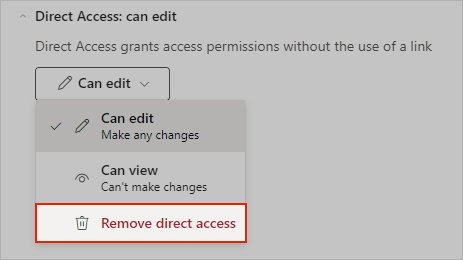
To remove access completely, select the person's
 Can edit or
 Can view option.
Under Direct Access, select
Can edit again then choose
 Remove direct access.