
For an image in an Office file, you can remove the background from it to accentuate the subject or to remove distracting details.
As described below, you start with the automatic background removal. Then, if necessary, you can draw lines to indicate areas to keep and remove.
For vector graphic files—such as Scalable Vector Graphics (SVG), Adobe Illustrator Graphics (AI), Windows Metafile Format (WMF), and Vector Drawing File (DRW)—background removal isn't possible, so in those cases the Remove Background option is grayed out.
Tip: Video not in your language? Try selecting Closed Captions
 .
.
 Original picture
 Same picture with the background removed
Select the picture that you want to remove the background from.
On the toolbar, select Picture Format > Remove Background, or Format > Remove Background.
If you don't see Remove Background, make sure you have selected a picture. You might have to double-click the picture to select it and open the Picture Format tab.The default background area will be colored magenta to mark it for removal, while the foreground will retain its natural coloring.
If the default area isn't correct, go to Background Removal and do one or both of the following:
If parts of the picture that you want to keep are magenta (marked for removal), select Mark Areas to Keep and use the free-form drawing pencil
 to mark the areas on the picture that you want to keep.
To remove more parts of the picture, select Mark Areas to Remove and use the drawing pencil
to mark those areas.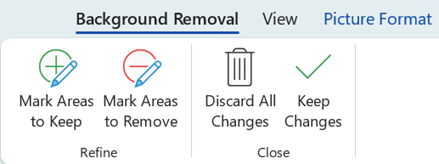
When you're done, select Keep Changes or Discard All Changes.
To save the image in a separate file for later use, right-click the image and select Save as Picture.
You can apply an artistic effect or add picture effects to the picture remaining after you've removed the background.
Another option for removing the background
If your image isn't stored in an Office file, you can use a similar process with Windows Paint 3D or Microsoft Designer. For details, see Remove the background of a photo with Paint 3D or Image background remover.