
To help keep your emails organized, you can create subfolders or personal folders by using the New Folder tool.
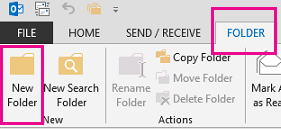
Click Folder > New Folder.
Tip
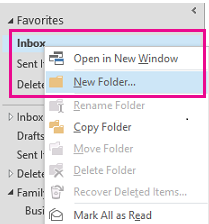
You can also right-click any folder in the Folder Pane and click New Folder.
Type your folder name in the Name text box. In the Folder Contains drop-down menu, click Mail and Post Items.
In the Select where to place the folder box, click the folder under which you want to place your new subfolder.
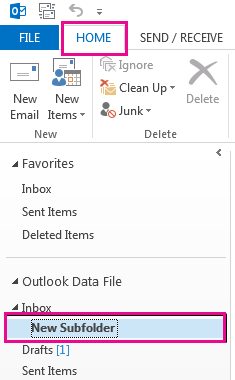
Click OK. The subfolder is created.
Tip
After you create a subfolder, you can move any of your emails to your new subfolder by dragging them from other folders and dropping them in the new subfolder. You can also right-click an email and select Move. Then choose the subfolder you want.