Add an email account to Outlook for Mac

应用对象
Microsoft 365 Mac 版专属 Outlook Outlook 2024 for Mac

Most email accounts, including Microsoft 365, Exchange server accounts, Outlook.com, Hotmail.com, Live.com, and Google accounts can be set up in Outlook for Mac in a few quick steps.

Add a new account in Outlook for Mac

  1. In Outlook for Mac, select the Outlook menu and select Settings.
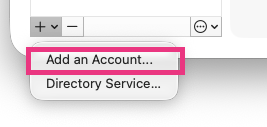
  2. Under Personal Settings, select Accounts > Add Account.
  3. Type your email address, select Continue and follow the prompts.
  4. If adding a Yahoo, or other IMAP or POP account, you might be taken to those sites and asked to allow Outlook to access your mail, contacts, and calendars. Select Allow to continue.
  5. Select Done.

Add more accounts in Outlook for Mac

After your first account is set up, follow these steps to add all subsequent email accounts.

  1. Select Tools, then Accounts.

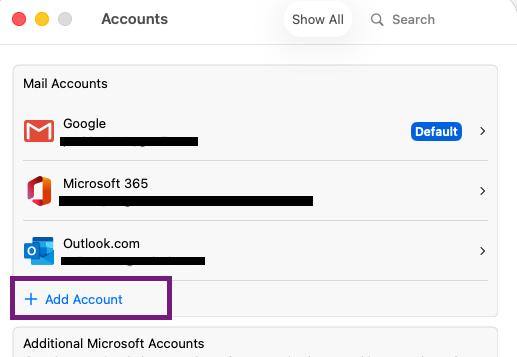
  2. Select the +Add Account option at the bottom of the accounts list window.
    Account_Settings_AddAccount

  3. Enter the email address of the account.

  4. Follow the prompts to complete the account setup.

    Note

    If you're adding a Yahoo, or other IMAP or POP account, you might be taken to those sites and asked to allow Outlook to access your mail, contacts, and calendars. Select Allow to continue.

  5. Select Done.

Add a Gmail account to Outlook for Mac

Add an email account to Outlook for Windows

POP and IMAP email settings for Outlook