If one of your devices isn't sending or receiving email, removing the partnership between the mobile device and your mailbox can help fix sync issues.
Important
If your Microsoft cloud storage is full, you cannot send or receive email. We're sorry, but messages sent to you while your storage was full are bounced back to the sender and are unrecoverable. Check your mailbox storage to see what's taking up space. Learn more about recent changes.
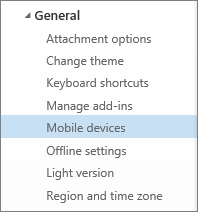
- Go to Settings
 > General > Mobile devices.
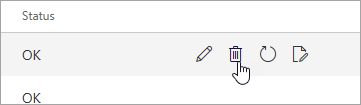
 - Select your device in the list, and then select
 to delete the device partnership.
 - At the top of the window, select Save.
- Go to your mobile device and power it off completely.
- Restart your mobile device after a few seconds, and then sync your mailbox again.
If these tips don't help, try our interactive troubleshooter.
Related topics
Can't send or receive email in Outlook.com
Still need help?

|
To get support in Outlook.com, tap or click here or select Help on the menu bar and enter your query. If the self-help doesn't solve your problem, scroll down to Still need help? and select Yes. If the above steps don't work or if you can't sign in, tap or click here. |
|---|---|

|
For other help with your Microsoft account and subscriptions, visit Account & Billing Help. |

|
To get help and troubleshoot other Microsoft products and services, enter your problem here. |

|
Post questions, follow discussions and share your knowledge in the Outlook.com Community. |