I can’t start Microsoft Outlook or receive the error “Cannot start Microsoft Outlook. Cannot open the Outlook Window”

应用对象
Microsoft 365 专属 Outlook Outlook 2024 Outlook 2021
Guided support can provide digital solutions for Microsoft 365 problems
Try guided support

Are you having trouble starting Outlook or receiving "Cannot start Microsoft Outlook. Cannot open the Outlook window" error messages? We can fix the problem for you, or you can use the troubleshooting steps we're providing below to help resolve these startup issues.

Are you a Microsoft 365 for business customer? Let us fix the problem for you

Use the classic Outlook startup troubleshooter to diagnose and fix several common classic Outlook for Windows issues for you.

  1. Select the button below to start the classic Outlook startup troubleshooter.

  2. Click Open if you get a pop-up window indicating This site is trying to open Get Help.

  3. Follow the prompts in the Get Help window.

Important

  • You need to be on Windows 10 or higher to run the troubleshooter.
  • You need to be on the same Windows PC as classic Outlook to run the troubleshooter.

If the troubleshooter can't fix your issue, or if you'd like to fix it yourself, see the next section.

Start Outlook in safe mode and disable add-ins

Sometimes add-ins can conflict with Outlook. Starting Outlook in safe mode, which starts Outlook without add-ins loaded, can tell you if an add-in is the source of the problem.

Note

If you enabled an ABBYY FineReader add-in, an outdated version of the software might cause an Outlook startup error. For more information, see Microsoft 365 programs may crash with the FineReader add-in installed.

Start Outlook in safe mode

  1. Press the Windows key + R to open the Windows Run dialog. (It will likely appear near the lower left of your screen.)
  2. In the Open box, type Outlook /safe, then choose OK.
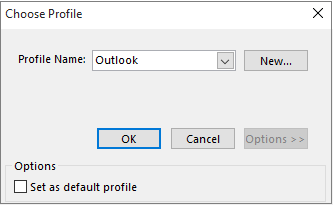
  3. In the Choose Profiles dialog box, accept the default setting of Outlook and choose OK.
    Accept default setting of Outlook in Choose Profile dialog box
  4. If prompted, enter your password and choose Accept.

Tip

  • How do you know you're working in safe mode? You'll see a label similar to the one below at the top of the screen.

    A label at the top of the window tells you the name of the person who owns the Inbox and identifies that Outlook is operating in safe mode

  • The Outlook Outlook icon overlaid with a caution symbol icon on your taskbar includes an exclamation symbol to alert you the program isn't operating normally.

If Outlook is able to start in safe mode, then the problem is likely with one of your add-ins. You'll need to disable all of your add-ins before restarting Outlook, as described in the following procedures:

If Outlook is NOT able to start in safe mode, then try the next proposed solution below, entitled Create a new Outlook profile

Disable add-ins

  1. In the upper-left corner of Outlook, choose File > Options > Add-ins.

  2. At the bottom of the View and manage Office Add-ins, make sure the Manage box shows COM Add-ins, and then choose Go.

  3. As a precaution, when the COM Add-ins listing of your current add-ins opens, do one of the following:

    • Manually record the title of every selected add-in listed under Available Add-ins.
      or
    • Take a screenshot of the property sheet and save the image to a location of your choice.
  4. After you've captured the titles of the selected add-ins, clear all selected check boxes, and then choose OK.

    Caution

    Click a check box to clear it. Don't select an add-in and choose Remove. If you have administrator rights, you could actually delete the add-in. For this troubleshooting exercise, you want to disable, not delete, an add-in.

  5. Choose File > Exit.

Restart

  1. Press the Windows key + R to open the Run dialog.

  2. In the Open box, type Outlook.

    Note

    If the program loads properly, it's likely that one of your add-ins is the source of the error and you need to identify which one. To determine which add-in is the problem, enable one add-in at a time.

  3. In the upper-left corner of Outlook, choose File > Options > Add-ins.

  4. Select the check box next to an add-in you want to re-enable and then choose OK.

  5. Repeat all steps until you've re-enabled all of the original add-ins and revealed the source of the error.

    Important

    Remember, if Outlook opens in safe mode, you've revealed the add-in you just enabled as a source of the error.

    • Restart Outlook again and disable the add-in you enabled that produced the problem and then start Outlook.
    • Make sure you go through the restart-disable-restart process for every add-in that was originally enabled in Outlook. An error could be caused by more than one add-in.

Create a new Outlook profile

Your profile contains your Outlook settings. Occasionally, that profile can become corrupted. You can determine if it's corrupted by creating a new profile and changing which profile is used when Outlook starts.

Please go to Create an Outlook profile for steps on how to create a new Outlook profile, then continue with how to use a different profile.

Use a different profile

  1. Restart Outlook.

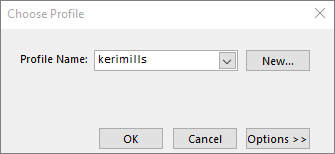
  2. In the drop-down list in the Choose Profile dialog box, choose the new profile name you created.
    Choose profile dialog box with the name of the new profile

  3. Choose OK.

    Note

    If Outlook starts normally, then you've identified your Outlook profile as being corrupt and the source of your problem.

Should you decide to remove a profile, back up the data files first. All offline cached content will be deleted when you choose Remove. For more information, see Introduction to Outlook Data Files (.pst and .ost).

Repair your Outlook data files

Outlook stores all your email messages, meetings and events, contacts, and tasks in data files. These files occasionally might become corrupted. You can run the Inbox Repair Tool (scanpst.exe) to scan your Outlook data files and repair errors.

  1. Exit Outlook to use the Inbox Repair Tool.

    Note

    The content in the left pane is determined by the Outlook version you're using.

  2. Visit the link below for instructions.

Run the /resetnavpane command

The navigation pane is the leftmost pane in Outlook where you'll find your folder list and the icons to move between Mail, Calendar, People, and Tasks. Running the /resetnavpane command removes all customizations to the navigation pane.

Note

If you have more than one computer, run the command on all computers because the navigation pane customizations are specific to the local Outlook on a computer.

  1. Close Outlook.
  2. Press the Windows key + R to open the Run dialog.
  3. In the Open box, type Outlook.exe /resetnavpane, and then choose OK.

Older versions of Outlook may be out of support

For more information, see Support for Office 2016 and 2019 clients connecting to Microsoft 365 services has ended.