
如果您没有使用过触控设备,学习几个手势有助于最大限度地利用触控功能的优势。
在演示文稿中移动
| 若要... | 执行的操作... | 手势 |
|---|---|---|
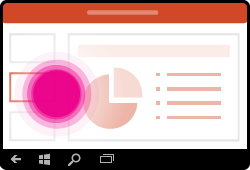
| 更改幻灯片 | 在导航窗格中点击幻灯片。 |
|
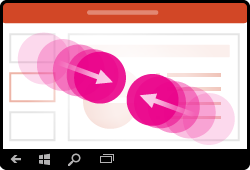
| 放大 | 张开两根手指。 |

|
| 缩小 | 捏合两根手指。 |
|
选择
| 若要... | 执行的操作... | 手势 |
|---|---|---|
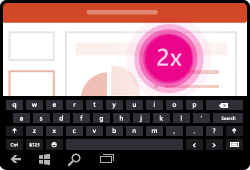
| 激活屏幕键盘 | 点击任务栏上的键盘图标。 |
|
| 放置游標 | 点击文本框中的任意位置一次,将光标置于当前文本的末尾。 在文本框中双击,将光标置于特定位置。 |

|
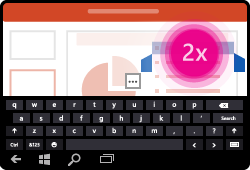
| 选择并编辑单词 | 双击该单词。 |
|
| 選取一個段落 | 双击以选择一个单词,然后拖动指示器以扩展所选内容。 |
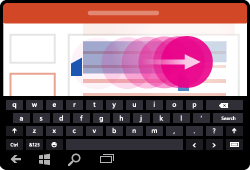
|
| 清除文本选择 | 在屏幕上的任意位置单击。 |

|
| 选择表格 | 点击表格上的任意位置。 |
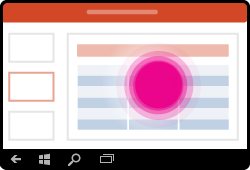
|
处理形状和对象
| 若要... | 执行的操作... | 手势 |
|---|---|---|
| 移动 | 点击对象,然后按住并拖动到所需位置。 |
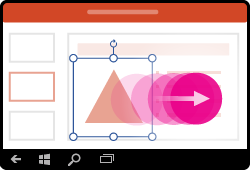
|
| 调整大小 | 点击对象,然后按住并拖动任一调整控点。 |
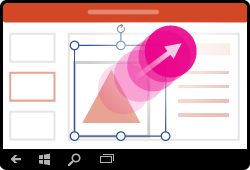
|
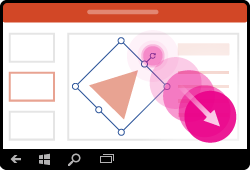
| 旋转 | 点击对象,然后按住并拖动旋转控点。 |
|