Sometimes you want to make adjustments to your diagram, such as changing the size or rotation of a shape. Or you may want to reorder shapes (also called the z-order) that overlap each other.
Tip
Use the Zoom feature to better see small details and to have more fine-point control: Zoom In (or press Ctrl++) and Zoom Out (or press Ctrl+-).
Change the size of a shape
You often want to change the size or look of a shape once it’s on the page. Shapes have up to eight control handles. Besides resizing, you can make other changes such as adjusting the perspective of a cylinder, repositioning the tip of a cone, or moving a shape callout.
Open the diagram for editing.
To reveal the control handles,
, select a shape.Do one of the following:
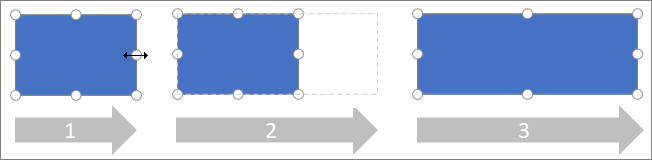
Resize one side:Hover over a side handle until you see a horizontal
or vertical resize pointer
Drag the side handle until the shape is the size you want.
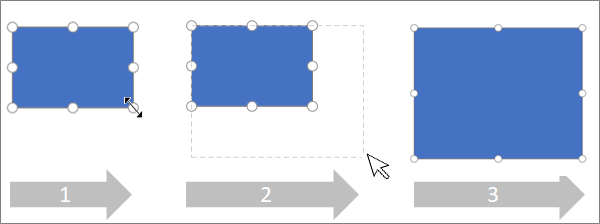
Resize proportionally (to maintain aspect ratio):
Hover over a corner handle until you see a diagonal resize pointer
or
.Drag the corner handle until the shape is the size you want.
Set the precise size of a shape
When you use the Format Options pane to set the size of shape, dimensions can be set in increments of .25 points:
- Right-click the shape and select Format Options.
- In the Format Options pane on the right, under Dimension, set the exact width and height of the shape.
Change the rotation of a shape
- Open the diagram for editing.
- Select the shape.
- To rotate the shape, select Shape > Rotate
, and then select Rotate right 90 degrees or Rotate left 90 degrees. You can also drag the Rotate handle
on the picture in a circle.
Rotate a shape to a precise angle
When you use the Format Options pane to rotate a shape, you can set the rotation angle in one-degree increments, from -359° to 359°.
- Right-click the shape and select Format Options.
- In the Format Options pane on the right, under Dimension, set the exact width and height of the shape.
Re-order overlapping shapes
- Open the diagram for editing.
- Select the shape.
- To send the picture forward, select Shape > Bring to Front
, and then select Bring Forward or Bring to Front. - To send the picture backward, select Send to Back
, and then select Send Backward or Send to Back.
See Also
View, create, and edit a diagram in Visio for the web