
Manage EHR sessions in Dragon Copilot
Dragon Copilot is available as an embedded feature within several partner EHR systems.
If your administrator enables it, you can use the Dragon Copilot web or desktop standalone applications to view and update the information in patient sessions you created with Dragon Copilot in your EHR applications.
Contact your local EHR administrator for help to access and sign in to Dragon Copilot standalone applications.
Important
- At this time, you must initiate and create EHR sessions by using Dragon Copilot in your EHR. If you create a new patient session in the Dragon Copilot web or desktop platforms, it doesn't appear in your EHR. However, you can copy and paste information from that session into your EHR (see the following section).
- After you sign the note associated with the session in your EHR, any EHR sessions in your list are marked as Signed. You can still access the session and use Dragon Copilot features and AI capabilities, but the note summaries are read-only.
- EHR sessions don't appear in the Dragon Copilot mobile application at this time.
View your EHR sessions
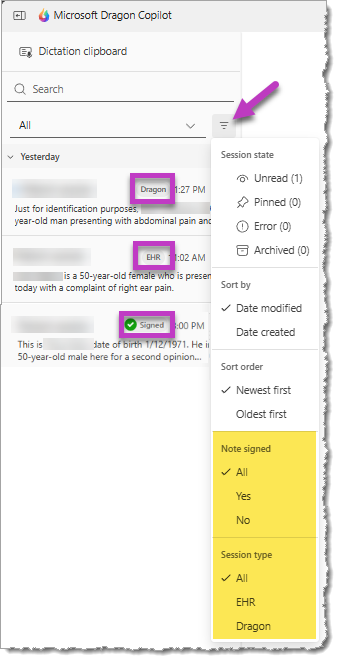
The appearance of the session list changes when Dragon Copilot detects EHR sessions:
- Labels appear beside the title in the session list to indicate whether the session was created in Dragon or your EHR.
- EHR sessions display the patient's name from the EHR as the session title, which you can't modify.
- A separate label appears when the note associated with an EHR session is Signed.
- Additional filter options appear to help you narrow the list of sessions and find the session you want to view or update.
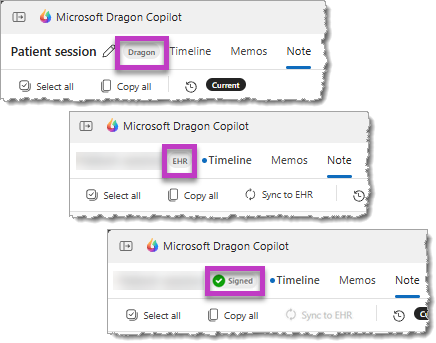
The same labels appear beside the session title when you open a session in Dragon Copilot:
EHR session details
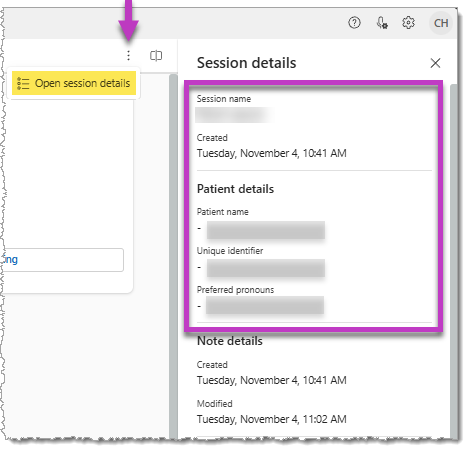
Select Open session details to display information from your EHR in the Session details screen to help you identify the patient.
- The Patient details information that appears is not editable and varies depending on your EHR.
- The Session details screen also includes related information that can be used for troubleshooting.
Update an EHR session
As long as the session isn't signed, you can use any of the available features in the Dragon Copilot standalone applications within your EHR sessions. AI-generated actions in the Timeline tab and updates to the clinical summaries in the Note tab appear when you open the session in Dragon Copilot in your EHR. You can also modify your personal settings or Library items for future use.
Important
Always select Sync to EHR if you make any edits to the clinical summaries in the Note tab in Dragon Copilot. This action helps ensure that your edits transfer to your EHR note.
Create a session outside your EHR

When you use Dragon Copilot outside of your EHR, you can also create separate "Dragon" sessions for a variety of purposes, including:
Practice: explore and learn to use the features in Dragon Copilot. Practice ambient recording, practice editing with your voice and using voice commands, use texts or prompts, and more.
Personalization: modify your note style preferences, create or modify your library items, or update your profile settings. Any updates you make are automatically saved and available for you to use the next time you launch Dragon Copilot in your EHR.
Pre-charting: If your organizational policies allow it, you can create sessions and use ambient recording to begin charting for your patients outside of your EHR.
Dragon sessions allow you to:
- Start charting for patients that aren't yet registered or visible in your EHR (for example, in the Emergency Department or "pre-admits").
- Pre-chart for your scheduled appointments.
- Capture additional information for your assigned EHR patients.
Important
You must transfer information from the Dragon session you create into your EHR session or note by using copy and paste - according to your organizational guidelines.