注意
重要提示 如果您的 Windows 復原環境 (WinRE) 符合以下任何條件,此更新將不會提供:
- 如果 WinRE 復原分割區沒有足夠的空間,請參考「摘要」區塊中的 備註 。 說明中提供了如何增加 WinRE 復原分割區可用空間的說明。
- 如果 WinRE 的復原分割區是透過 Windows RE 中的程序手動更新,且已經是最新的。
- 如果 WinRE 影像的版本大於或等於版本 10.0.20348.2201。 要確定你的 WinRE 映像版本,請參閱「驗證已安裝 WinRE 版本的方法」章節。
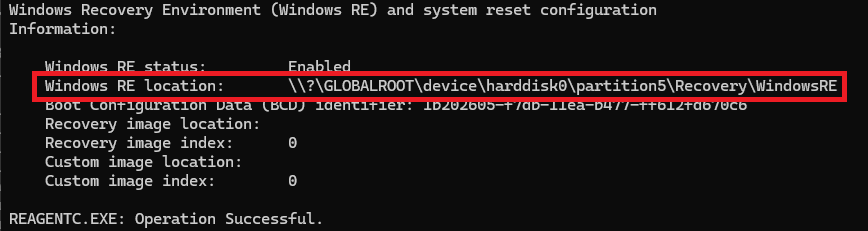
- 如果您執行的電腦沒有 WinRE 修復磁碟分割。 若要確認您是否已啟用 WinRE,請在提升權限的命令提示字元中執行下列命令: reagentc /info。 如果已啟用 WinRE,您會在輸出中看到 Windows RE 狀態,並顯示 [已啟用] 值。 在此案例中,可能需要進行此更新。
變更日誌
| 變更日期 | 變更描述 |
|---|---|
| 2024年8月14日 |
|
| 2024 年 8 月 13 日 |
|
摘要
此更新會自動將安全作業系統動態更新 (KB5034235) 套用到 Windows 復原環境 (Windows RE) 運行中的電腦。 這次更新安裝了 Windows 復原功能的改進。
|
注意 此更新需恢復分割區中 250 MB 空間才能成功安裝。 如果您想確保裝置能獲得此更新,請依 照說明手動調整分割區大小 ,或使用 範例腳本 擴大 WinRE 復原分割區大小。 當你的分割區有足夠的磁碟空間後,點選開始>設定>Windows Update>檢查更新,這樣更新就會提供給你,然後安裝它。 |
|---|
如何取得此更新
此更新可透過下列發行版本通道取得。
| 發行管道 | 可用 |
|---|---|
| Windows Update | 是 |
| Microsoft Update Catalog | 否 |
| Windows Server Update Services (WSUS) 和 Microsoft Endpoint 設定管理員。 | 否 |
| 必要條件 | 裝置必須在修復磁碟分割中有 250 MB 的可用空間,才可獲取並套用此更新。 |
|---|---|
| 重新啟動資訊 | 套用此更新之後,您不需要重新開機您的電腦。 |
| 移除資訊 | 此更新套用至 Windows 映像後,即無法移除。 |
| 更新取代資訊 | 此更新取代先前發布的KB5034439更新。 |
| 確認此更新的安裝 | 安裝此更新後,裝置上安裝的 WinRE 版本應該大於或等於版本 10.0.20348.2201。 |
驗證已安裝 WinRE 版本的方法
請使用系統管理員認證執行下列 PowerShell 指令碼 "GetWinReVersion.ps1"。 執行指令碼後,您應該會收到已安裝的 WinRE 版本,如下列範例所示:
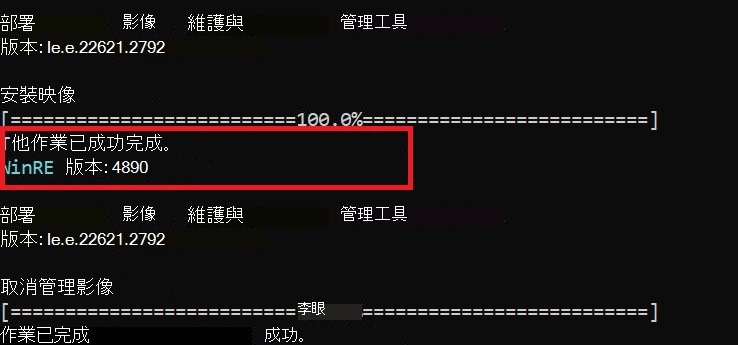
GetWinReVersion.ps1 PowerShell 指令碼
################################################################################################

#

# Copyright (c) Microsoft Corporation.

# Licensed under the MIT License.

#

# THE SOFTWARE IS PROVIDED *AS IS*, WITHOUT WARRANTY OF ANY KIND, EXPRESS OR

# IMPLIED, INCLUDING BUT NOT LIMITED TO THE WARRANTIES OF MERCHANTABILITY,

# FITNESS FOR A PARTICULAR PURPOSE AND NONINFRINGEMENT. IN NO EVENT SHALL THE

# AUTHORS OR COPYRIGHT HOLDERS BE LIABLE FOR ANY CLAIM, DAMAGES OR OTHER

# LIABILITY, WHETHER IN AN ACTION OF CONTRACT, TORT OR OTHERWISE, ARISING FROM,

# OUT OF OR IN CONNECTION WITH THE SOFTWARE OR THE USE OR OTHER DEALINGS IN THE

# SOFTWARE.

#

################################################################################################
# Function to get WinRE path

function GetWinREPath {

    $WinRELocation = (reagentc /info | Select-String "Windows RE location")

    if ($WinRELocation) {

        return $WinRELocation.ToString().Split(':')[-1].Trim()

    } else {

        Write-Host "Failed to find WinRE path" -ForegroundColor Red

        exit 1

    }

}


# Creates and needs to be return the mount directory
function GetMountDir {
    # systemdirve\mnt
    $MountDir = "$env:SystemDrive\mnt"
    if (-not (Test-Path $MountDir)) {
        New-Item -ItemType Directory -Path $MountDir -Force | Out-Null
    }
    return $MountDir
}

# Function to get WinRE version
function GetWinREVersion {

    $mountedPath = GetMountDir
    $filePath = "$mountedPath\Windows\System32\winpeshl.exe"

    $WinREVersion = (Get-Item $filePath).VersionInfo.FileVersionRaw.Revision

    return [int]$WinREVersion

}

# Main Execution

$WinREPath = GetWinREPath

# Make dir C:\mnt if not exists

$TempDir = GetMountDir

# Get the read write permission for this directory

if (-not (Test-Path $TempDir)) {

    New-Item -ItemType Directory -Path $TempDir -Force | Out-Null

}

# Mount WinRE image

dism /Mount-Image /ImageFile:"$WinREPath\winre.wim" /Index:1 /MountDir:"$TempDir"

$WinREVersion = GetWinREVersion

Write-Host "WinRE Version: $WinREVersion" -ForegroundColor Cyan

dism /Unmount-Image /MountDir:"$TempDir" /Discard

Remove-Item -Path $TempDir -Force -Recurse