跳到主要內容
Microsoft
支持
支持
支持
Home
Microsoft 365
Office
產品
Microsoft 365
Outlook
Microsoft Teams
OneDrive
Microsoft Copilot
OneNote
Windows
更多信息 ...
设备
Surface
PC Accessories
Xbox
PC Gaming
HoloLens
Surface Hub
硬件保修
Account & billing
资源
社区论坛
Microsoft 365 管理员
开发人员
教育
上报支持欺诈
Product safety
更多
Buy Microsoft 365
Microsoft 所有
Global
Microsoft 365
Azure
Windows
Surface
XBOX
支援
軟件
軟件
Windows Apps
OneDrive
Outlook
從 Skype 轉用 Teams
Microsoft Teams
PC 及 裝置
PC 及 裝置
PC 與平板電腦
配件
娛樂
娛樂
XBOX Game Pass Ultimate
XBOX Live 金會員
電腦遊戲
企業
企業
Microsoft AI
Microsoft 安全性
Azure
Dynamics 365
商務用 Microsoft 365
Microsoft Power Platform
Windows 365
數位主權
開發人員與資訊科技人員
開發人員與資訊科技人員
Microsoft 開發人員
Microsoft 學習
AI 市集 App 支援
Microsoft 科技社群
Microsoft Marketplace
軟件公司
Visual Studio
其他
其他
Microsoft Rewards
免費下載項目與安全性
教育
查看網站地圖
搜尋
Search for help
沒有結果
Cancel
登入
Sign in with Microsoft
Sign in or create an account.
Hello,
Select a different account.
You have multiple accounts
Choose the account you want to sign in with.
為奇數頁及偶數頁建立不同的頁首或頁尾
Applies To
Word for Microsoft 365
Word for Microsoft 365 for Mac
Word 2024
Word 2024 for Mac
Word 2021
Word 2021 for Mac
根據預設,Word 中每一頁的頁首及頁尾皆相同。 您經常要讓文件的左右兩側有不同的內容。 方法如下:
Windows
Mac
Web
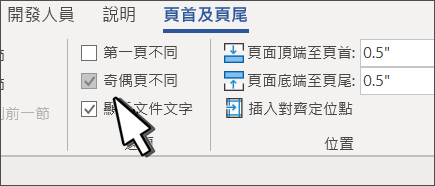
按兩下頁首或頁尾
選取
[奇數頁與偶數頁不同]
。
選取您要變更之其中一個奇數頁的頁首或頁尾。
輸入文件標題,然後按 Tab 鍵兩次。
選取
頁碼
>
、目前位置
,然後選擇樣式。
選取偶數頁。
選取
頁碼
>
、目前位置
,然後選擇樣式。
按 Tab 鍵兩次並輸入文件標題。
選取
[關閉頁首及頁尾]
,或按 Esc 來離開。
建立不同的頁首或頁尾
按兩下頁首或頁尾。
選取
[奇數頁與偶數頁不同]
。
選取您要變更之其中一個奇數頁的頁首或頁尾。
輸入文件標題,然後按 Tab 鍵兩次。
選取
[頁首
] 或 [
頁尾
],然後選擇樣式。
選取偶數頁。
選取
[頁首
] 或 [
頁尾
],然後選擇樣式。
按 Tab 鍵兩次並輸入文件標題。
選取
[關閉頁首及頁尾]
,或按 Esc 來離開。
選取 [
插入
>
頁首 & 頁尾
]。
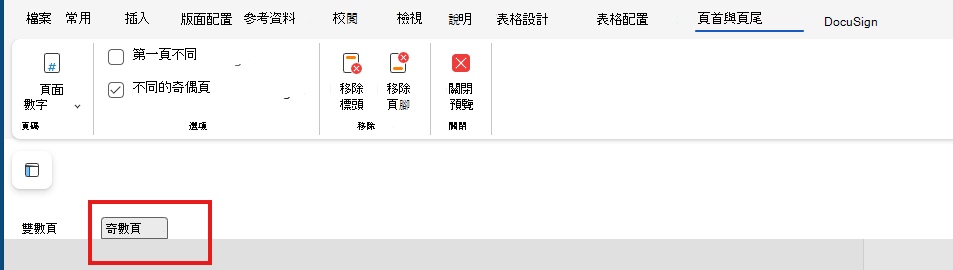
在文件區域頂端白色區域的右側,選取 [
偶數頁] & [奇
>數頁] 選項。
輸入您希望顯示在偶數頁的文字。
選取
[奇數頁]
,然後輸入您希望顯示在奇數頁的文字。
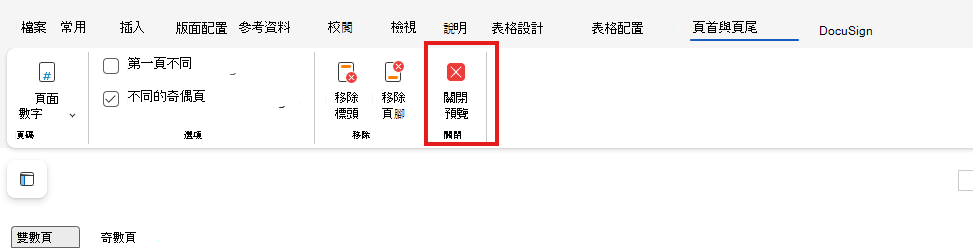
當您完成編輯時,請選取 [
關閉預覽
],然後繼續編輯文件。
立即使用
Word 網頁版
試用。
如需頁首及頁尾的詳細資訊,請參閱
Word 中的 頁首及頁尾
。
Was this information helpful?
Yes
No
Thank you! Any more feedback for Microsoft?
Can you help us improve?
(Send feedback to Microsoft so we can help.)
How satisfied are you with the translation quality?
What affected your experience?
Resolved my issue
Clear instructions
Easy to follow
No jargon
Pictures helped
Translation quality
Didn't match my screen
Incorrect instructions
Too technical
Not enough information
Not enough pictures
Translation quality
Any additional feedback? (Optional)
Submit feedback
By pressing submit, your feedback will be used to improve Microsoft products and services.
Your IT admin will be able to collect this data.
Privacy Statement.
Thank you for your feedback!
×