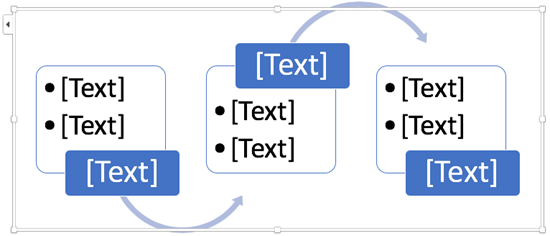
你可以透過使用 SmartArt 圖形,在 PowerPoint 簡報中插入流程圖。
- 在「插入」標籤中,選擇
 「SmartArt」。
![[插入] 索引標籤上的 SmartArt](media/word-2016-insert-tab-smartart.png)
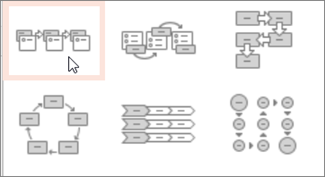
- 在左側的 「選擇 SmartArt 圖形 」對話框中,選擇 「流程 」類別。
- 單點中間窗格的流程圖,即可在對話框右側窗格看到其名稱和描述。
- 選擇你想要的流程圖,然後點擊 確定。
- 流程圖加入投影片後,請將[ Text] 佔位符換成流程圖中的步驟。
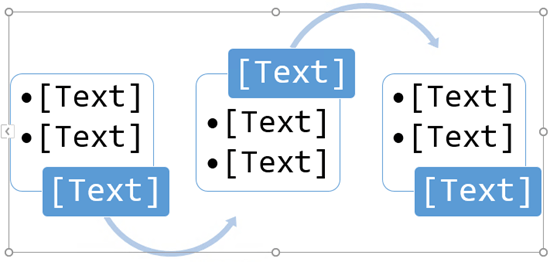
- 你也可以更改 SmartArt 圖形的顏色或風格。 在投影片中選取時,點擊色帶上的 SmartArt Design 標籤,然後點 選「變更顏色」 或開啟 SmartArt Styles 畫廊,查看可選擇的選項。
欲了解更多關於使用 SmartArt 圖像的細節,請參閱 Create a SmartArt 圖像。