
Add and request read receipts and delivery notifications in Outlook for Windows
A delivery receipt confirms delivery of your email message to the recipient's mailbox, but not that the recipient has seen it or read it. A read receipt confirms that your message was opened.
In Outlook, the message recipient can decline to send read receipts. There are other scenarios where read receipts are not sent, such as if the recipient's email program doesn’t support read receipts. There is no way to force a recipient to send a read receipt.
Important: Steps may be different between new and classic Outlook for Windows. To determine which version of Outlook you're using, look for File on the ribbon. If there's no File option, follow the steps under the New Outlook tab. If the File option appears, select the tab for Classic Outlook.
In a message you're composing, go to the Options tab on the ribbon, then select the Request a Delivery Receipt or Request a Read Receipt box.
If you don't see these choices under Options, select More Options at the right end, then select the option you want.
Request read and/or delivery receipts for all messages that you send
-
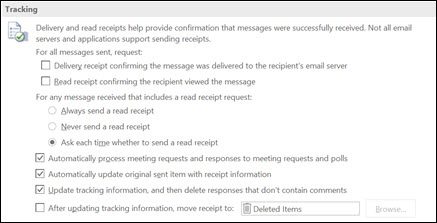
On the File menu, select Options > Mail.
-
Under Tracking, select the Delivery receipt confirming the message was delivered to the recipient's e-mail server or Read receipt confirming the recipient viewed the message check box.
Tip: As a best practice, consider tracking only single messages of importance instead of all messages. Recipients who occasionally receive a notification that a read receipt is requested on your message are more likely to send a read receipt than if they are prompted every time that they receive a message from you.
-
Click OK to apply your changes.
Track a single message
-
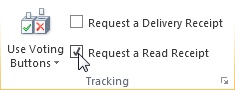
In a new email message, on the Options menu, in the Tracking group, select the Request a Delivery Receipt check box or the Request a Read Receipt check box:
-
Compose your email and click Send.
If you're using the Reading pane
To request a receipt when you're writing email in the Reading pane, do the following.
-
On the ribbon, select the Message tab.
-
In the Tags, group, select

-
In the Properties dialog box, under Voting and Tracking options, select the kind of receipt you want for this message.
Track receipt responses
-
Open the original message that you sent with a request for a delivery or read receipt. This message is usually located in the Sent Items folder.
-
On the Message tab, in the Show group, choose Tracking.
Note: Tracking doesn’t appear until at least one receipt has been received. After you receive the first receipt in your Inbox, it might take several minutes before the Tracking button is available.


Need more help?
Want more options?
Explore subscription benefits, browse training courses, learn how to secure your device, and more.




Communities help you ask and answer questions, give feedback, and hear from experts with rich knowledge.



Find solutions to common problems or get help from a support agent.
