
Recall an email message that you sent in Outlook
Message recall is available after you select Send and is available only if both you and the recipient have a Microsoft 365 or Microsoft Exchange email account in the same organization. Messages sent to or from a Hotmail, Gmail, or live.com account can't be recalled.
Note: This feature isn't available in Outlook for Mac. See Can I recall a sent email in Outlook for Mac?
|
Or, select a tab option below for the version of Outlook you're using. |
Note: If the steps under this New Outlook tab don't work, you may not be using new Outlook for Windows yet. Select the Classic Outlook tab and follow those steps instead.
-
Select Sent Items in the left folder pane, then double-click the sent message to open it in a separate window.
-
From the ribbon, select

-
Shortly thereafter, you'll receive a Message Recall Report in your inbox. Select the link in that message to see whether your recall has succeeded, is pending, or failed.
With message recall, a message that you sent is retrieved from the mailboxes of the recipients who haven’t yet opened it. You can also substitute a replacement message. For example, if you forgot to include an attachment, you can try to retract the message, and then send a replacement message that has the attachment.
To recall and replace a message
-
In the folder pane on the left of the Outlook window, choose the Sent Items folder.
-
Open the message that you want to recall. You must double-click to open the message. Selecting the message so it appears in the reading pane won't allow you to recall the message.
-
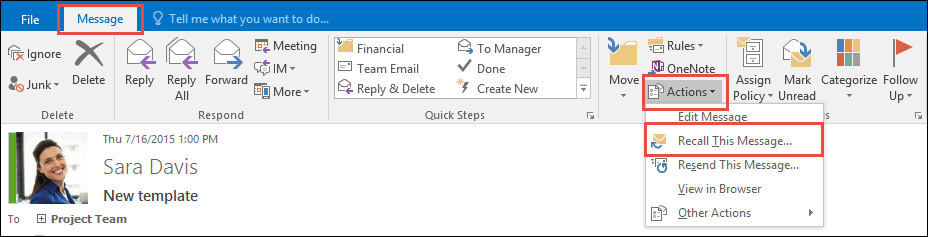
If you have the Classic Ribbon, from the Message tab, select Actions > Recall This Message.
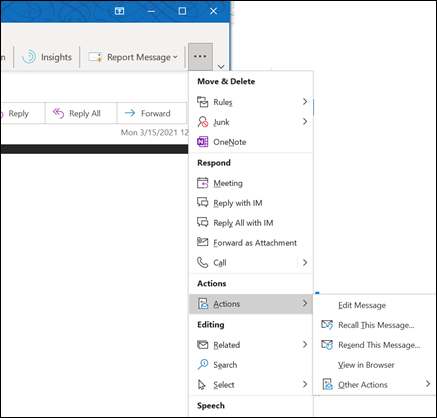
If you have the Simplified Ribbon, select the Message tab and then select More commands (...). Point to Actions and select Recall This Message.
Notes:
-
If you don’t see the Recall This Message command, you probably don’t have an Exchange account or the feature isn’t available within your organization.
-
You can't recall a message that's protected by Azure Information Protection.
-
You can't recall a message in Outlook on the web.
-
-
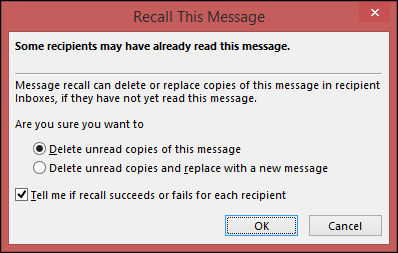
Select Delete unread copies of this message or Delete unread copies and replace with a new message, and then select OK.
-
If you’re sending a replacement message, compose the message, and then select Send.
To check on the recall
After submitting a recall request, usually less than 30 seconds later, you will get an email notification with the subject "Message Recall Report for message [original message subject]".
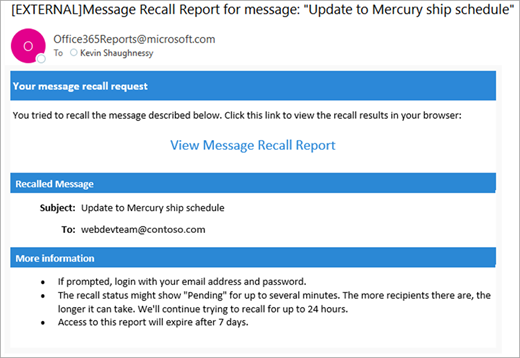
Select the View Message Recall Report link to view the report in your browser. If you’re prompted, log in with your mailbox credentials to view the report.
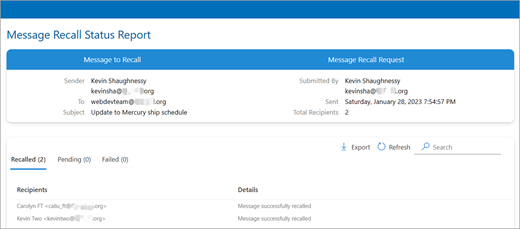
Recall actions are usually quick, regardless of how many recipients are involved. But if the recall request can’t be executed right away for some reason (e.g., the recipient’s mailbox is temporarily unavailable) we'll continue to retry for up to 24 hours before marking the recall as failed.
Status updates are usually pretty quick as well but can sometimes take up to five minutes for a message with up to a few hundred recipients. For a large number of recipients (tens of thousands) the recall itself is still fast, but it can take up to thirty minutes to retrieve the recall status for all recipients.
Note: The steps below are for Outlook.com which is the browser-based version of Outlook and is for personal Microsoft accounts such as Outlook.com, Hotmail.com, MSN.com, etc. If you're using Outlook in a web browser and have a work or school account, see the Outlook.com tab.
Recall a message in Outlook on the web
-
Select Sent Items in the left folder pane, then double-click the sent message to open it in a separate window.
-
From the ribbon, select
-
Shortly thereafter, you'll receive a Message Recall Report in your inbox. Select the link in that message to see whether your recall has succeeded, is pending, or failed.
Note: The steps below are for Outlook.com which is the browser-based version of Outlook for personal accounts such as Outlook.com, Hotmail.com, MSN.com, etc. If you're using Outlook in a browser with a work or school account, see the Outlook on the web tab.
Can I recall a message in Outlook.com?
Let's say you've just sent an email message to someone by mistake in Outlook.com. How do you recall it?
Unfortunately, you can't.
Message recall is not available for users with email addresses ending in @outlook.com, @hotmail.com, @live.com, or @msn.com. These are web-based email services where once you send an email message, it's gone from your email server and out of your control.
Set up undo send in Outlook.com
Although you can't recall a message once it's been sent, when you turn on the undo send option, Outlook.com delays sending the message so you can cancel it if you change your mind.
You can delay sending your message for 5 or 10 seconds. To turn on the undo send option:
-
At the top of the page, select Settings

-
Under Undo send, choose the how long Outlook.com will wait to send your messages.
-
Select Save.
Undo sending in Outlook.com
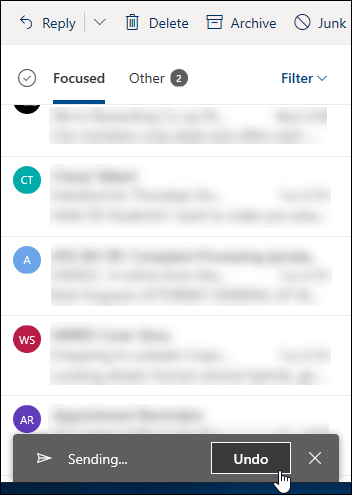
Once undo send is set up, you'll see an Undo send prompt at the bottom of the message list whenever you send a new message. The prompt will be available for the length of time you set in Compose and reply.
Still need help?
|
|
To get support in Outlook.com, click here or select Help on the menu bar and enter your query. If the self-help doesn't solve your problem, scroll down to Still need help? and select Yes. To contact us in Outlook.com, you'll need to sign in. If you can't sign in, click here. |
|
|
|
For other help with your Microsoft account and subscriptions, visit Account & Billing Help. |
|
|
|
To get help and troubleshoot other Microsoft products and services, enter your problem here. |
|
|
|
Post questions, follow discussions and share your knowledge in the Outlook.com Community. |

Related articles
Can I recall a sent email in Outlook for Mac?
Cloud-based Message Recall in Exchange Online - Microsoft Community Hub


Need more help?
Want more options?
Explore subscription benefits, browse training courses, learn how to secure your device, and more.




Communities help you ask and answer questions, give feedback, and hear from experts with rich knowledge.



Find solutions to common problems or get help from a support agent.
