ID Artikel: 213360 - Kajian Terakhir: 07 Desember 2011 - Revisi: 2.2

Bagaimana mengubah nilai numerik menjadi angka dalam Bahasa Inggris di Excel

Tips SistemThis article applies to a different operating system than the one you are using. Article content that may not be relevant to you is disabled.

Pada Halaman ini

Perbesar semua | Perkecil semua
Perkecil tabel iniPerbesar tabel ini
Perkecil gambar iniPerbesar gambar ini
Artikel ini dilokalkan oleh MVP Riwut Libinuko. (https://mvp.support.microsoft.com/profile/Riwut.Libinuko) Microsoft berterimakasih kepada para MVP yang secara proaktif telah membagi pengetahuan mereka dengan para pengguna lainnya. Untuk artikel lainnya yang telah ditulis oleh MVP ini, silakan kunjungi blog-nya (http://blog.libinuko.com/) .

Ringkasan

Artikel ini berisi contoh fungsi Microsoft Visual Basic untuk Aplikasi yang dapat Anda gunakan untuk mengubah nilai numerik didalam sel di lembar kerja Microsoft Excel menjadi angka dalam Bahasa Inggris.

Informasi Lebih Lanjut

Microsoft provides programming examples for illustration only, without warranty either expressed or implied. This includes, but is not limited to, the implied warranties of merchantability or fitness for a particular purpose. This article assumes that you are familiar with the programming language that is being demonstrated and with the tools that are used to create and to debug procedures. Microsoft support engineers can help explain the functionality of a particular procedure. However, they will not modify these examples to provide added functionality or construct procedures to meet your specific requirements.

Bagaimana membuat contoh fungsi bernama SpellNumber

  1. Buka Microsoft Excel.
  2. Tekan ALT+F11 untuk membuka editor Visual Basic.
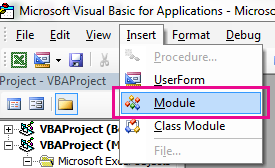
  3. Pada menu Insert, klik Module.
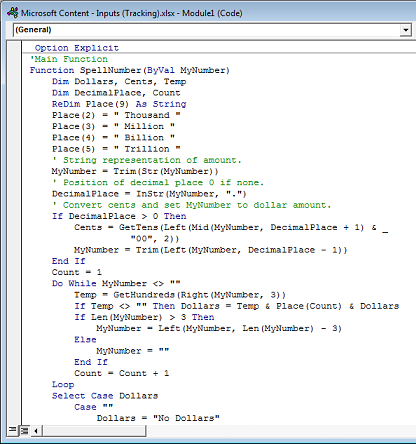
  4. Ketik kode berikut didalam lembar modul.
    Option Explicit
    'Main Function
    Function SpellNumber(ByVal MyNumber)
        Dim Dollars, Cents, Temp
        Dim DecimalPlace, Count
        ReDim Place(9) As String
        Place(2) = " Thousand "
        Place(3) = " Million "
        Place(4) = " Billion "
        Place(5) = " Trillion "
        ' String representation of amount.
        MyNumber = Trim(Str(MyNumber))
        ' Position of decimal place 0 if none.
        DecimalPlace = InStr(MyNumber, ".")
        ' Convert cents and set MyNumber to dollar amount.
        If DecimalPlace > 0 Then
            Cents = GetTens(Left(Mid(MyNumber, DecimalPlace + 1) & _
                      "00", 2))
            MyNumber = Trim(Left(MyNumber, DecimalPlace - 1))
        End If
        Count = 1
        Do While MyNumber <> ""
            Temp = GetHundreds(Right(MyNumber, 3))
            If Temp <> "" Then Dollars = Temp & Place(Count) & Dollars
            If Len(MyNumber) > 3 Then
                MyNumber = Left(MyNumber, Len(MyNumber) - 3)
            Else
                MyNumber = ""
            End If
            Count = Count + 1
        Loop
        Select Case Dollars
            Case ""
                Dollars = "No Dollars"
            Case "One"
                Dollars = "One Dollar"
             Case Else
                Dollars = Dollars & " Dollars"
        End Select
        Select Case Cents
            Case ""
                Cents = " and No Cents"
            Case "One"
                Cents = " and One Cent"
                  Case Else
                Cents = " and " & Cents & " Cents"
        End Select
        SpellNumber = Dollars & Cents
    End Function
          
    ' Converts a number from 100-999 into text 
    Function GetHundreds(ByVal MyNumber)
        Dim Result As String
        If Val(MyNumber) = 0 Then Exit Function
        MyNumber = Right("000" & MyNumber, 3)
        ' Convert the hundreds place.
        If Mid(MyNumber, 1, 1) <> "0" Then
            Result = GetDigit(Mid(MyNumber, 1, 1)) & " Hundred "
        End If
        ' Convert the tens and ones place.
        If Mid(MyNumber, 2, 1) <> "0" Then
            Result = Result & GetTens(Mid(MyNumber, 2))
        Else
            Result = Result & GetDigit(Mid(MyNumber, 3))
        End If
        GetHundreds = Result
    End Function
          
    ' Converts a number from 10 to 99 into text. 
    Function GetTens(TensText)
        Dim Result As String
        Result = ""           ' Null out the temporary function value.
        If Val(Left(TensText, 1)) = 1 Then   ' If value between 10-19...
            Select Case Val(TensText)
                Case 10: Result = "Ten"
                Case 11: Result = "Eleven"
                Case 12: Result = "Twelve"
                Case 13: Result = "Thirteen"
                Case 14: Result = "Fourteen"
                Case 15: Result = "Fifteen"
                Case 16: Result = "Sixteen"
                Case 17: Result = "Seventeen"
                Case 18: Result = "Eighteen"
                Case 19: Result = "Nineteen"
                Case Else
            End Select
        Else                                 ' If value between 20-99...
            Select Case Val(Left(TensText, 1))
                Case 2: Result = "Twenty "
                Case 3: Result = "Thirty "
                Case 4: Result = "Forty "
                Case 5: Result = "Fifty "
                Case 6: Result = "Sixty "
                Case 7: Result = "Seventy "
                Case 8: Result = "Eighty "
                Case 9: Result = "Ninety "
                Case Else
            End Select
            Result = Result & GetDigit _
                (Right(TensText, 1))  ' Retrieve ones place.
        End If
        GetTens = Result
    End Function
         
    ' Converts a number from 1 to 9 into text. 
    Function GetDigit(Digit)
        Select Case Val(Digit)
            Case 1: GetDigit = "One"
            Case 2: GetDigit = "Two"
            Case 3: GetDigit = "Three"
            Case 4: GetDigit = "Four"
            Case 5: GetDigit = "Five"
            Case 6: GetDigit = "Six"
            Case 7: GetDigit = "Seven"
            Case 8: GetDigit = "Eight"
            Case 9: GetDigit = "Nine"
            Case Else: GetDigit = ""
        End Select
    End Function
    					Option Explicit
    'Main Function
    Function SpellNumber(ByVal MyNumber)
        Dim Dollars, Cents, Temp
        Dim DecimalPlace, Count
        ReDim Place(9) As String
        Place(2) = " Thousand "
        Place(3) = " Million "
        Place(4) = " Billion "
        Place(5) = " Trillion "
        ' String representation of amount.
        MyNumber = Trim(Str(MyNumber))
        ' Position of decimal place 0 if none.
        DecimalPlace = InStr(MyNumber, ".")
        ' Convert cents and set MyNumber to dollar amount.
        If DecimalPlace > 0 Then
            Cents = GetTens(Left(Mid(MyNumber, DecimalPlace + 1) & _
                      "00", 2))
            MyNumber = Trim(Left(MyNumber, DecimalPlace - 1))
        End If
        Count = 1
        Do While MyNumber <> ""
            Temp = GetHundreds(Right(MyNumber, 3))
            If Temp <> "" Then Dollars = Temp & Place(Count) & Dollars
            If Len(MyNumber) > 3 Then
                MyNumber = Left(MyNumber, Len(MyNumber) - 3)
            Else
                MyNumber = ""
            End If
            Count = Count + 1
        Loop
        Select Case Dollars
            Case ""
                Dollars = "No Dollars"
            Case "One"
                Dollars = "One Dollar"
             Case Else
                Dollars = Dollars & " Dollars"
        End Select
        Select Case Cents
            Case ""
                Cents = " and No Cents"
            Case "One"
                Cents = " and One Cent"
                  Case Else
                Cents = " and " & Cents & " Cents"
        End Select
        SpellNumber = Dollars & Cents
    End Function
          
    ' Converts a number from 100-999 into text 
    Function GetHundreds(ByVal MyNumber)
        Dim Result As String
        If Val(MyNumber) = 0 Then Exit Function
        MyNumber = Right("000" & MyNumber, 3)
        ' Convert the hundreds place.
        If Mid(MyNumber, 1, 1) <> "0" Then
            Result = GetDigit(Mid(MyNumber, 1, 1)) & " Hundred "
        End If
        ' Convert the tens and ones place.
        If Mid(MyNumber, 2, 1) <> "0" Then
            Result = Result & GetTens(Mid(MyNumber, 2))
        Else
            Result = Result & GetDigit(Mid(MyNumber, 3))
        End If
        GetHundreds = Result
    End Function
          
    ' Converts a number from 10 to 99 into text. 
    Function GetTens(TensText)
        Dim Result As String
        Result = ""           ' Null out the temporary function value.
        If Val(Left(TensText, 1)) = 1 Then   ' If value between 10-19...
            Select Case Val(TensText)
                Case 10: Result = "Ten"
                Case 11: Result = "Eleven"
                Case 12: Result = "Twelve"
                Case 13: Result = "Thirteen"
                Case 14: Result = "Fourteen"
                Case 15: Result = "Fifteen"
                Case 16: Result = "Sixteen"
                Case 17: Result = "Seventeen"
                Case 18: Result = "Eighteen"
                Case 19: Result = "Nineteen"
                Case Else
            End Select
        Else                                 ' If value between 20-99...
            Select Case Val(Left(TensText, 1))
                Case 2: Result = "Twenty "
                Case 3: Result = "Thirty "
                Case 4: Result = "Forty "
                Case 5: Result = "Fifty "
                Case 6: Result = "Sixty "
                Case 7: Result = "Seventy "
                Case 8: Result = "Eighty "
                Case 9: Result = "Ninety "
                Case Else
            End Select
            Result = Result & GetDigit _
                (Right(TensText, 1))  ' Retrieve ones place.
        End If
        GetTens = Result
    End Function
         
    ' Converts a number from 1 to 9 into text. 
    Function GetDigit(Digit)
        Select Case Val(Digit)
            Case 1: GetDigit = "One"
            Case 2: GetDigit = "Two"
            Case 3: GetDigit = "Three"
            Case 4: GetDigit = "Four"
            Case 5: GetDigit = "Five"
            Case 6: GetDigit = "Six"
            Case 7: GetDigit = "Seven"
            Case 8: GetDigit = "Eight"
            Case 9: GetDigit = "Nine"
            Case Else: GetDigit = ""
        End Select
    End Function
    					Option Explicit
    'Main Function
    Function SpellNumber(ByVal MyNumber)
        Dim Dollars, Cents, Temp
        Dim DecimalPlace, Count
        ReDim Place(9) As String
        Place(2) = " Thousand "
        Place(3) = " Million "
        Place(4) = " Billion "
        Place(5) = " Trillion "
        ' String representation of amount.
        MyNumber = Trim(Str(MyNumber))
        ' Position of decimal place 0 if none.
        DecimalPlace = InStr(MyNumber, ".")
        ' Convert cents and set MyNumber to dollar amount.
        If DecimalPlace > 0 Then
            Cents = GetTens(Left(Mid(MyNumber, DecimalPlace + 1) & _
                      "00", 2))
            MyNumber = Trim(Left(MyNumber, DecimalPlace - 1))
        End If
        Count = 1
        Do While MyNumber <> ""
            Temp = GetHundreds(Right(MyNumber, 3))
            If Temp <> "" Then Dollars = Temp & Place(Count) & Dollars
            If Len(MyNumber) > 3 Then
                MyNumber = Left(MyNumber, Len(MyNumber) - 3)
            Else
                MyNumber = ""
            End If
            Count = Count + 1
        Loop
        Select Case Dollars
            Case ""
                Dollars = "No Dollars"
            Case "One"
                Dollars = "One Dollar"
             Case Else
                Dollars = Dollars & " Dollars"
        End Select
        Select Case Cents
            Case ""
                Cents = " and No Cents"
            Case "One"
                Cents = " and One Cent"
                  Case Else
                Cents = " and " & Cents & " Cents"
        End Select
        SpellNumber = Dollars & Cents
    End Function
          
    ' Converts a number from 100-999 into text 
    Function GetHundreds(ByVal MyNumber)
        Dim Result As String
        If Val(MyNumber) = 0 Then Exit Function
        MyNumber = Right("000" & MyNumber, 3)
        ' Convert the hundreds place.
        If Mid(MyNumber, 1, 1) <> "0" Then
            Result = GetDigit(Mid(MyNumber, 1, 1)) & " Hundred "
        End If
        ' Convert the tens and ones place.
        If Mid(MyNumber, 2, 1) <> "0" Then
            Result = Result & GetTens(Mid(MyNumber, 2))
        Else
            Result = Result & GetDigit(Mid(MyNumber, 3))
        End If
        GetHundreds = Result
    End Function
          
    ' Converts a number from 10 to 99 into text. 
    Function GetTens(TensText)
        Dim Result As String
        Result = ""           ' Null out the temporary function value.
        If Val(Left(TensText, 1)) = 1 Then   ' If value between 10-19...
            Select Case Val(TensText)
                Case 10: Result = "Ten"
                Case 11: Result = "Eleven"
                Case 12: Result = "Twelve"
                Case 13: Result = "Thirteen"
                Case 14: Result = "Fourteen"
                Case 15: Result = "Fifteen"
                Case 16: Result = "Sixteen"
                Case 17: Result = "Seventeen"
                Case 18: Result = "Eighteen"
                Case 19: Result = "Nineteen"
                Case Else
            End Select
        Else                                 ' If value between 20-99...
            Select Case Val(Left(TensText, 1))
                Case 2: Result = "Twenty "
                Case 3: Result = "Thirty "
                Case 4: Result = "Forty "
                Case 5: Result = "Fifty "
                Case 6: Result = "Sixty "
                Case 7: Result = "Seventy "
                Case 8: Result = "Eighty "
                Case 9: Result = "Ninety "
                Case Else
            End Select
            Result = Result & GetDigit _
                (Right(TensText, 1))  ' Retrieve ones place.
        End If
        GetTens = Result
    End Function
         
    ' Converts a number from 1 to 9 into text. 
    Function GetDigit(Digit)
        Select Case Val(Digit)
            Case 1: GetDigit = "One"
            Case 2: GetDigit = "Two"
            Case 3: GetDigit = "Three"
            Case 4: GetDigit = "Four"
            Case 5: GetDigit = "Five"
            Case 6: GetDigit = "Six"
            Case 7: GetDigit = "Seven"
            Case 8: GetDigit = "Eight"
            Case 9: GetDigit = "Nine"
            Case Else: GetDigit = ""
        End Select
    End Function
    					

Bagaimana munggunakan contoh fungsi SpellNumber

Untuk menggunakan controh fungsi untuk mengubah nomor menjadi teks, gunakan metoda yang akan didemonstrasikan pada contoh berikut:  

Metoda 1: Entri Langsung

Anda dapat mengubah 32.50 menjadi "Thirty Two Dollars and Fifty Cents" dengan memasukkan formula berikut kedalam sel:
=SpellNumber(32.50)

Metoda 2: Sel Rujukan

Anda dapat merujuk kepada sel lain didalam lembar kerja. Misalnya, masukkan angka 32.50 kedalam sel A1, dan kemudian ketik formula berikut didalam sel yang lain:  
=SpellNumber(A1)

Metoda 3: Paste Fungsi atau Sisip Fungsi

Untuk memasukkan fungsi kustom kedalam lembar kerja, Anda dapat menggunakan Paste Fungsi (Paste Function) dalam Excel 2000, atau Anda dapat menggunakan Sisip Fungsi (Insert Function) dalam Excel 2002 dan Excel 2003. 

Excel 2000

Untuk menggunakan Paste Fungsi (Paste Function), ikuti langkah-langkah berikut: 
  1. Pilih sel yang Anda inginkan.
  2. Klik Paste Function pada toolbar Standard.
  3. Dibawah Function category, klik User Defined.
  4. Dibawah Function name, klik SpellNumber, dan klik OK.
  5. Masukkan angka atau sel rujukan yang Anda inginkan, dan kemudian klik OK.

Excel 2002 dan Excel 2003

Untuk menggunakan Sisip Fungsi (Insert Function), ikuti langkah-langkah berikut:
  1. Pilih sel yang Anda inginkan.
  2. Klik Insert Function pada toolbar Standard.
  3. Dibawah Or select a category, klik User Defined.
  4. Didalam daftar Select a function, klik SpellNumber, dan kemudian klik OK.
  5. Masukkan angka atau sel rujukan yang Anda inginkan, dan kemudian klik OK.

Perkecil gambar iniPerbesar gambar ini
SANGGAHAN KONTEN SOLUSI KOMUNITAS


MICROSOFT CORPORATION DAN/ATAU MASING-MASING PENYUPLAINYA TIDAK MEMBUAT PERNYATAAN-PERNYATAAN TENTANG KESESUAIAN, KEBENARAN, ATAU KEAKURASIAN INFORMASI DAN GRAFIS TERKAIT YANG TERKANDUNG DI DALAMNYA. SEMUA INFORMASI DAN GRAFIS TERKAIT TERSEBUT DIBERIKAN ""APA ADANYA"" TANPA JAMINAN DALAM BENTUK APA PUN. MICROSOFT DAN/ATAU MASING-MASING PENYUPLAINYA DENGAN INI MENYANGGAH SEMUA JAMINAN DAN SYARAT-SYARAT BERKENAAN DENGAN INFORMASI DAN GRAFIS TERKAIT INI, TERMASUK SEMUA JAMINAN DAN SYARAT-SYARAT TERSIRAT MENGENAI KELAYAKAN JUAL, KELAYAKAN UNTUK TUJUAN TERTENTU, UPAYA YANG SELAYAKNYA DIKERJAKAN, HAK, DAN KEADAAN TIDAK MELANGGAR HAK KEKAYAAN INTELEKTUAL PIHAK LAIN. ANDA KHUSUSNYA SETUJU BAHWA MICROSOFT DAN/ATAU PARA PENYUPLAINYA TIDAK PERNAH BERTANGGUNGJAWAB, DALAM KEADAAN APAPUN, ATAS SEGALA BENTUK KERUGIAN YANG BERSIFAT LANGSUNG, TIDAK LANGSUNG, GANTI KERUGIAN SEBAGAI UANG PAKSA, INSIDENTAL, KHUSUS, DAN KERUGIAN KONSEKUENSIAL, ATAUPUN KERUGIAN APA PUN TERMASUK, NAMUN TIDAK TERBATAS PADA, KERUGIAN AKIBAT HILANGNYA KESEMPATAN UNTUK MENGGUNAKAN, HILANGNYA DATA ATAU KEUNTUNGAN, YANG TIMBUL AKIBAT ATAU YANG BERHUBUNGAN DALAM CARA APAPUN DENGAN PENGGUNAAN ATAU KETIDAKMAMPUAN UNTUK MENGGUNAKAN INFORMASI DAN GRAFIS TERKAIT YANG TERKANDUNG DI DALAMNYA, BAIK BERDASARKAN KONTRAK, PERBUATAN MELAWAN HUKUM, KELALAIAN, TANGGUNG JAWAB MUTLAK ATAS KERUGIAN, ATAU LAINNYA, WALAUPUN JIKA MICROSOFT ATAU SALAH SATU PENYUPLAINYA TELAH DIBERITAHU MENGENAI KEMUNGKINAN ADANYA KERUGIAN-KERUGIAN TERSEBUT.

Berlaku bagi:
  • Microsoft Excel 2002 Standard Edition
  • Microsoft Excel 2000 Standard Edition
  • Microsoft Excel 97 Standard Edition
Kata kunci: 
kbdtacode kbhowto kbprogramming kbcommunity kbmvp KB213360