
Excel doesn’t have a default function that displays numbers as English words in a worksheet, but you can add this capability by pasting the following SpellNumber function code into a VBA (Visual Basic for Applications) module. This function lets you convert dollar and cent amounts to words with a formula, so 22.50 would read as Twenty-Two Dollars and Fifty Cents. This can be very useful if you're using Excel as a template to print checks.
If you want to convert numeric values to text format without displaying them as words, use the TEXT function instead.
Note: Microsoft provides programming examples for illustration only, without warranty either expressed or implied. This includes, but is not limited to, the implied warranties of merchantability or fitness for a particular purpose. This article assumes that you are familiar with the VBA programming language, and with the tools that are used to create and to debug procedures. Microsoft support engineers can help explain the functionality of a particular procedure. However, they will not modify these examples to provide added functionality, or construct procedures to meet your specific requirements.
Create the SpellNumber function to convert numbers to words
-
Use the keyboard shortcut, Alt + F11 to open the Visual Basic Editor (VBE).
Note: You can also access the Visual Basic Editor by showing the Developer tab in your ribbon.
-
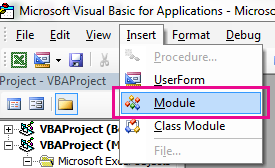
Click the Insert tab, and click Module.
-
Copy the following lines of code.
Note: Known as a User Defined Function (UDF), this code automates the task of converting numbers to text throughout your worksheet.
Option Explicit 'Main Function Function SpellNumber(ByVal MyNumber) Dim Dollars, Cents, Temp Dim DecimalPlace, Count ReDim Place(9) As String Place(2) = " Thousand " Place(3) = " Million " Place(4) = " Billion " Place(5) = " Trillion " ' String representation of amount. MyNumber = Trim(Str(MyNumber)) ' Position of decimal place 0 if none. DecimalPlace = InStr(MyNumber, ".") ' Convert cents and set MyNumber to dollar amount. If DecimalPlace > 0 Then Cents = GetTens(Left(Mid(MyNumber, DecimalPlace + 1) & _ "00", 2)) MyNumber = Trim(Left(MyNumber, DecimalPlace - 1)) End If Count = 1 Do While MyNumber <> "" Temp = GetHundreds(Right(MyNumber, 3)) If Temp <> "" Then Dollars = Temp & Place(Count) & Dollars If Len(MyNumber) > 3 Then MyNumber = Left(MyNumber, Len(MyNumber) - 3) Else MyNumber = "" End If Count = Count + 1 Loop Select Case Dollars Case "" Dollars = "No Dollars" Case "One" Dollars = "One Dollar" Case Else Dollars = Dollars & " Dollars" End Select Select Case Cents Case "" Cents = " and No Cents" Case "One" Cents = " and One Cent" Case Else Cents = " and " & Cents & " Cents" End Select SpellNumber = Dollars & Cents End Function ' Converts a number from 100-999 into text Function GetHundreds(ByVal MyNumber) Dim Result As String If Val(MyNumber) = 0 Then Exit Function MyNumber = Right("000" & MyNumber, 3) ' Convert the hundreds place. If Mid(MyNumber, 1, 1) <> "0" Then Result = GetDigit(Mid(MyNumber, 1, 1)) & " Hundred " End If ' Convert the tens and ones place. If Mid(MyNumber, 2, 1) <> "0" Then Result = Result & GetTens(Mid(MyNumber, 2)) Else Result = Result & GetDigit(Mid(MyNumber, 3)) End If GetHundreds = Result End Function ' Converts a number from 10 to 99 into text. Function GetTens(TensText) Dim Result As String Result = "" ' Null out the temporary function value. If Val(Left(TensText, 1)) = 1 Then ' If value between 10-19... Select Case Val(TensText) Case 10: Result = "Ten" Case 11: Result = "Eleven" Case 12: Result = "Twelve" Case 13: Result = "Thirteen" Case 14: Result = "Fourteen" Case 15: Result = "Fifteen" Case 16: Result = "Sixteen" Case 17: Result = "Seventeen" Case 18: Result = "Eighteen" Case 19: Result = "Nineteen" Case Else End Select Else ' If value between 20-99... Select Case Val(Left(TensText, 1)) Case 2: Result = "Twenty " Case 3: Result = "Thirty " Case 4: Result = "Forty " Case 5: Result = "Fifty " Case 6: Result = "Sixty " Case 7: Result = "Seventy " Case 8: Result = "Eighty " Case 9: Result = "Ninety " Case Else End Select Result = Result & GetDigit _ (Right(TensText, 1)) ' Retrieve ones place. End If GetTens = Result End Function ' Converts a number from 1 to 9 into text. Function GetDigit(Digit) Select Case Val(Digit) Case 1: GetDigit = "One" Case 2: GetDigit = "Two" Case 3: GetDigit = "Three" Case 4: GetDigit = "Four" Case 5: GetDigit = "Five" Case 6: GetDigit = "Six" Case 7: GetDigit = "Seven" Case 8: GetDigit = "Eight" Case 9: GetDigit = "Nine" Case Else: GetDigit = "" End Select End Function -
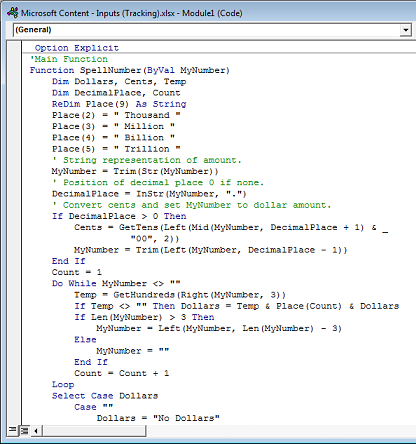
Paste the lines of code into the Module1 (Code) box.
-
Press Alt + Q to return to Excel. The SpellNumber function is now ready to use.
Note: This function works only for the current workbook. To use this function in another workbook, you must repeat the steps to copy and paste the code in that workbook.
Use the SpellNumber function in individual cells
-
Type the formula =SpellNumber(A1) into the cell where you want to display a written number, where A1 is the cell containing the number you want to convert. You can also manually type the value like =SpellNumber(22.50).
-
Press Enter to confirm the formula.
Save your SpellNumber function workbook
Excel cannot save a workbook with macro functions in the standard macro-free workbook format (.xlsx). If you click File > Save. A VB project dialog box opens. Click No.
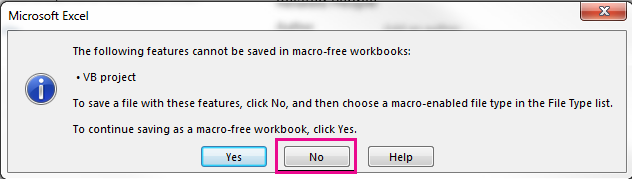
You can save your file as an Excel Macro-Enabled Workbook (.xlsm) to keep your file in its current format.
-
Click File > Save As.
-
Click the Save as type drop-down menu, and select Excel Macro-Enabled Workbook.
-
Click Save.








