
Add an email account to Outlook
There are many different types of email accounts you can add to Outlook, including an Outlook.com or Hotmail.com account, the work or school account you use with Microsoft 365, Gmail, Yahoo, iCloud, and Exchange accounts.
To add an email account to Outlook, you can also try our guided support, or select the tab for your Outlook version and follow the steps.
|
Guided support in your browser can provide digital solutions for Outlook problems |
Important: Steps may be different between new and classic Outlook for Windows. To determine which version of Outlook you're using, look for File on the ribbon. If there's no File option, follow the steps under the New Outlook tab. If the File option appears, select the tab for Classic Outlook.
For specific help with setting up Gmail (Google) or iCloud accounts, see Add a Gmail account or Add an iCloud account.
Select a tab for your version of Outlook
Not sure which version you're using? See What version of Outlook do I have?
Note: If the steps under this New Outlook tab don't work, you may not be using new Outlook for Windows yet. Select Classic Outlook and follow those steps instead.
Add a new account, or manage existing accounts
-
On the View tab, select View settings.
-
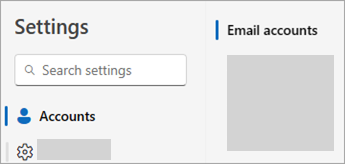
Select Accounts > Email accounts.
-
You can now add a new account, or manage or delete existing accounts.
Note: Some third-party email providers, like Gmail, Yahoo, and iCloud, require you to change some settings on their websites before you can add these accounts to Outlook.
To add an account:
-
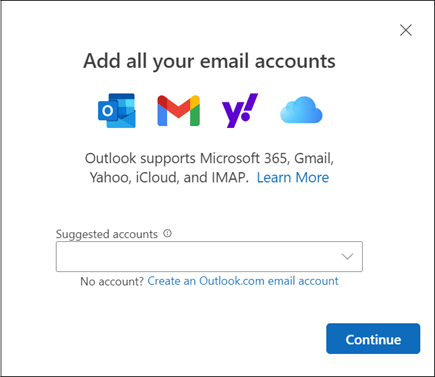
Select Add Account, select a suggested account from the dropdown menu or enter a different email address, and select Continue.
-
If prompted, enter your password for the account and select Done.
To delete or manage an account:
-
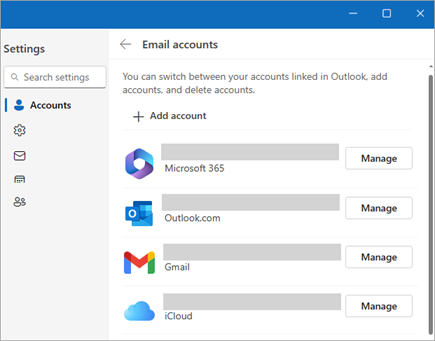
In the Email accounts section, find the account you want to delete or manage, and then beside the account name, select Manage.
-
Under Account details, select an option such as Remove, or Set as primary account.
-
When you're finished, select Return to accounts page, or close the Settings window.
-
Troubleshoot password issues when adding an account
Forgot your password
If you forgot the password for a Microsoft account, use our sign-in helper to get back into your account, or see Reset a forgotten Microsoft account password.
If you forgot your password for a work or school account, see Reset your work or school password using security info.
You get a message about app passwords
If you know you’re using the correct password for your email account and you get a message that says something like:
-
Please create an app password for Outlook on your email provider's site.
App passwords are randomly generated one-time use passwords that provide temporary access to your online accounts. Temporary passwords act as a security layer, preventing the need to share your main account credentials with potentially less secure or unknown applications.
Depending on the provider, an app password may be necessary to add certain account types to Outlook such as IMAP or iCloud accounts.
You'll need to go to your email provider to get the app password. Your email provider will provide instructions on how to generate an app password for your email account so you can use it in email applications such as Outlook.
After you get the app password from your provider, copy it and then paste it when prompted for your account password in Outlook.
For specific help with adding a Gmail or iCloud account, see Add a Gmail account or Add or manage an iCloud email account.
See Also
Note: Some third-party email providers, like Gmail, Yahoo, and iCloud, require you to change some settings on their websites before you can add these accounts to Outlook.
These steps are the same whether you're adding your first email account or additional email accounts to Outlook.
-
Select File > Add Account.
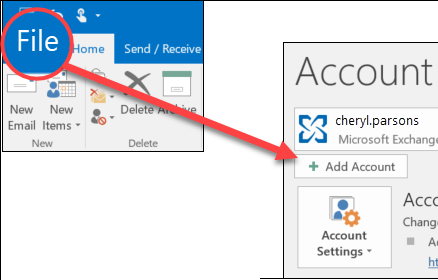
(If you don't see a File tab, perhaps you are using New Outlook for Windows. Go to New Outlook for instructions."
-
Enter your email address and click Connect.
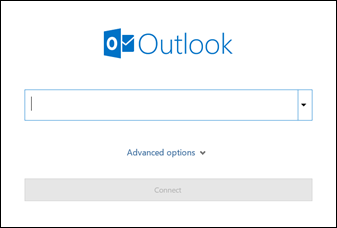
-
If prompted, enter your password again, then select OK > Finish to start using your email account in Outlook.
Outlook won't accept my password
If you've forgotten the password for a Microsoft account, user our sign-in helper to get back into your account.
If you know you’re using the correct password for your email account but Outlook won’t accept it, you might have an email account that requires additional security.
Gmail, Yahoo, iCloud, Outlook.com, and AOL accounts all use two-factor authentication to help verify that you’re the person trying to access your email account.
To add your email account to Outlook, depending on your provider you might need an app password, also known as an application password. This is a different password than your regular email account password. One way you'll know you need an app password is if you see the following message: 2-factor authentication is set up for your account. Please sign in using your application password.
The steps to obtain an app password are different for each email provider. Select your email provider in the drop-down immediately below for instructions:
- Select your email account
- Gmail
- Outlook.com
- Yahoo
- iCloud
Outlook 2019, Outlook 2021, Outlook for Microsoft 365
With the newer versions of Outlook, you can add your Gmail account as an IMAP account without setting up two-factor authentication, and you don't need an app password. However, for increased account security we recommend enabling two-factor authentication for your Gmail account. This adds an extra layer of security after you enter your password by requesting you to enter a code from your phone to authenticate.
Outlook 2016 and earlier versions, or if using a POP account
If you're using Outlook 2016 or an earlier version, or if you want to add your Gmail account as a POP account, you'll need to enable two-factor authentication and create an app password. You'll use the app password in place of your regular password to add your account to Outlook.
To turn on two-factor authentication and get an app password, use the following steps.
-
Go to Gmail from your browser, then select the Google apps icon in the upper right corner of the screen.

-
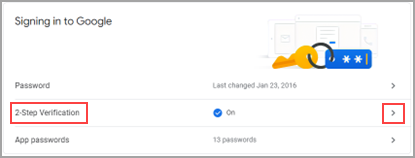
Select Account. Under Security, select Signing in to Google.
-
Under Password, if 2-Step Verification is OFF, click the > next to OFF. Otherwise, skip to step 4.
-
On the first screen, click Get Started.
-
If prompted, enter your Gmail password and then click NEXT.
-
Enter your phone number and select whether you want to receive your verification codes by text message or a phone call. Then click NEXT.
-
Enter the code you received and click NEXT.
-
Click TURN ON to finish setting up 2-step verification.
-
Return to the previous screen by clicking the left arrow at the top of the screen next to 2-Step Verification.

-
-
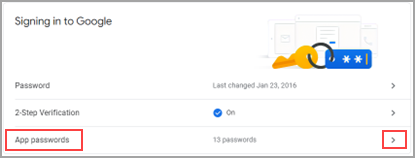
Under Password, select App passwords.
-
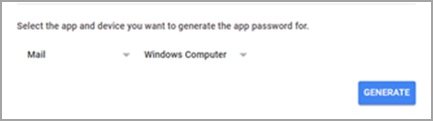
Enter the password for your Google account and then select Sign in. At the bottom of the next screen, select Mail and Windows Computer from the drop-down lists, and then select Generate.
-
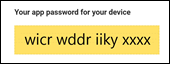
Google will display an app password for you. Copy this password (without the spaces) and enter this password when Outlook prompts you for a password.
If you're using two-factor authentication for Outlook.com, use the following steps to generate an app password.
-
Go to https://outlook.com, click your initials in the upper right, and then select View Account.
-
Under Security, select Update.
-
Under More security options, select Explore.
-
Scroll down to the app passwords section, and then choose Create a new app password.
-
Your app password will be displayed on the next screen. Make a note of this password, as you'll need it when you add your account to Outlook.
-
Use the instructions at the beginning of this article to add your account to Outlook, but when Outlook asks for your password, enter your app password.
When you add your Yahoo account to Outlook Desktop you may see the Yahoo OAuth prompt. If you see this prompt, simply enter the password that you normally use to log into webmail. You can learn more here. If you do not see this prompt, you need to create an App Password as explained below.
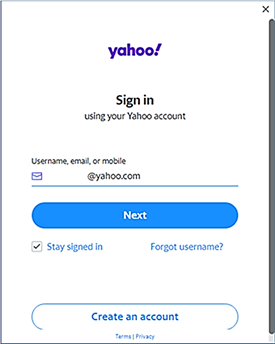
< Yahoo OAuth prompt >
-
Go to the Yahoo website from your browser and select the settings icon in the upper right corner of the screen...

-
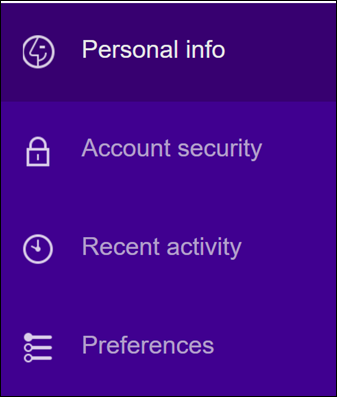
Select Account info > Account security. You may need to sign in again.
-
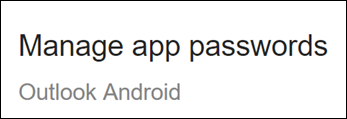
If Two-step verification isn't turned on, you'll need to do that before you continue. Then select Manage app passwords.
-
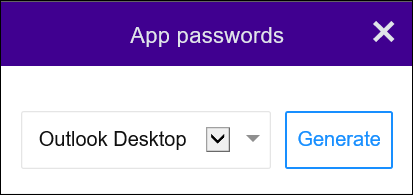
Select Outlook Desktop from the drop-down list, and then select Generate.
-
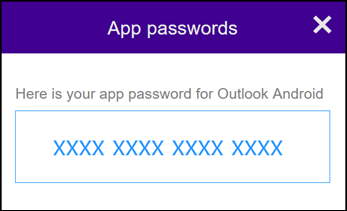
Yahoo will display an app password for you. Copy this password (without the spaces) and enter this password when Outlook prompts you for a password.
-
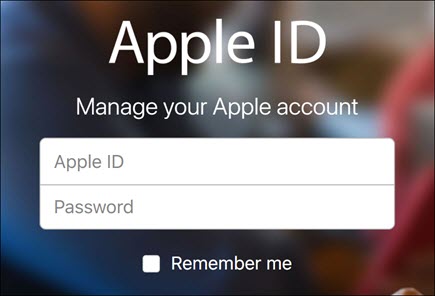
Go to the Apple ID website from your browser and enter your Apple ID and password.
-
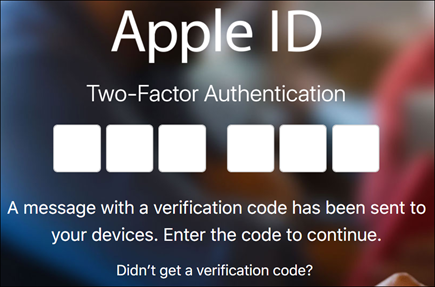
If you've already turned on two-factor authentication, you'll receive a code on one of your devices. Enter this code to continue. Otherwise, turn on two-factor authentication.
-
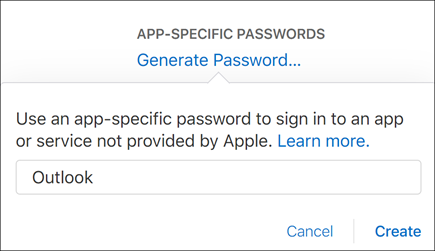
In the Security section, under APP-SPECIFIC PASSWORDS, select Generate Password...
-
Enter a name for your password, such as Outlook, and select Create.
-
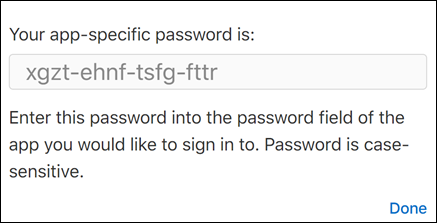
Apple will display an app password for you. Copy this password (without the spaces) and enter this password when Outlook prompts you for a password.
Problems adding your email account? Use advanced setup.
You may need to manually add your email account. Choose from one of the advanced methods below:
Use advanced setup to add a POP or IMAP email account in Outlook for Windows
If you need to enter specific values for incoming and outgoing server names, port numbers, or SSL settings, you can use Outlook's advanced setup option. You can use these instructions to add a POP or IMAP account to Outlook.
-
Open Outlook and select File > Add Account.
-
On the next screen, enter your email address, select Advanced options, then check the box for Let me set up my account manually and select Connect.
-
Select your account type. Most of the time when you need to use this option, you'll select IMAP.
-
The Account settings screen should be pre-populated with most of the account settings you need. However, if you need to look up your settings, see the POP and IMAP account settings topic. Enter your incoming and outgoing server settings and then select Next.
-
Enter your password and then select Connect.
Use advanced setup to add a third-party MAPI email account to Outlook for Windows
If you are using a third-party MAPI provider, download and configure the MAPI email provider application as suggested by provider company.
-
Open Outlook and select File > Add Account.
-
On the next screen, enter your email address, select Advanced options, check the box for Let me set up my account manually, and select Connect.
-
On the Advanced Setup screen, select Other.
-
On the Other screen, choose the type of server to connect to from the list.
Note: The Other option and your account type listed under it will only appear if you’ve properly installed and configured the MAPI provider.
-
Click Connect.
-
The third-party MAPI provider application installed on your machine should launch.
-
Finalize the account setup by following the MAPI provider's instructions.
Need to update settings for an existing email account in Outlook?
If you already created an email account but need to update existing settings because of recent problems, go to Change or update email account settings in Outlook for Windows.
See Also
Change or update email account settings in Outlook for Windows
Note: Some third-party email providers, like Gmail, Yahoo, and iCloud, require you to change some settings on their websites before you can add these accounts to Outlook.
Note: AOL and Verizon customers who need to update their account settings after AOL's recent change to their server settings should see the section Update your email settings in Outlook for Mac. When checking your encryption settings, make sure they're set to SSL, SSL/TLS, or Auto and not TLS only.
Add a new account quickly
Most email accounts, including Microsoft 365, Exchange server accounts, Outlook.com, Hotmail.com, Live.com and Google accounts can be set up in a few quick steps.
-
Select Outlook > Preferences > Account.
-
Click the plus (+) sign > New Account.
-
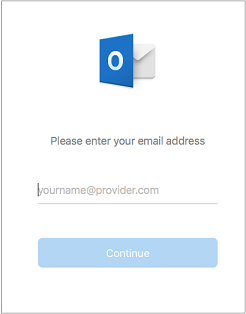
Type your email address > Continue.
-
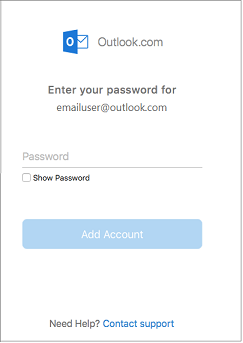
Type your password > Add Account. (Your screen might look different from this one depending on the account you're adding.)
-
If adding a Yahoo, or other IMAP or POP account, you might be taken to those sites and asked to allow Outlook to access your mail, contacts, and calendars. Click Allow to continue.
-
If you are adding Gmail, you will get a prompt within Outlook to sign-in to your Google account. This is for users who are on Build 16.15.18070902 and higher.
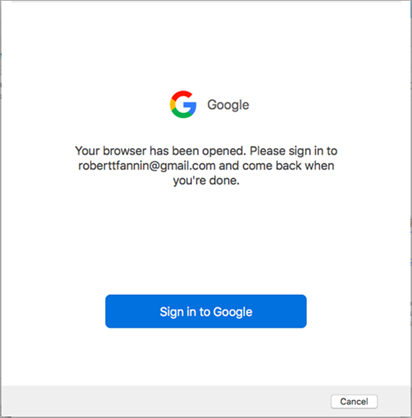
Have you already added your Gmail account to Outlook then see, Improved authentication for existing Gmail users.
-
Select Done.

If you have a Google account added to Outlook for Mac earlier to the release of improved authentication experience for Google IMAP accounts, then you will need to sign-in using the browser to connect to your account.
-
Select Sign in to Google.
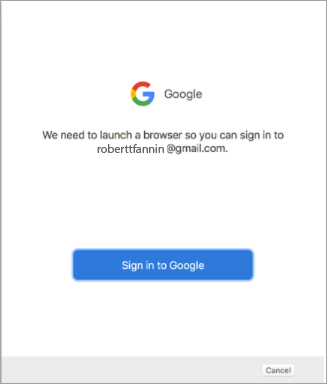
-
Choose an account.
-
You will be asked to allow Outlook to access your mail, contacts, and calendars. Choose Allow.
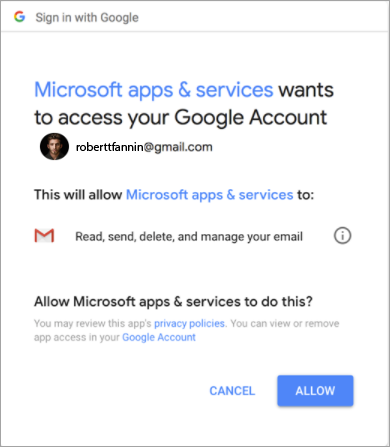
-
You will be asked to return back to Outlook. Choose Allow.
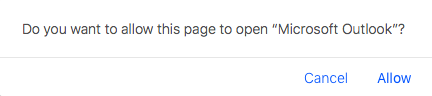
-
Select Done.
-
Select Tools > Accounts.
-
Select the email account you want to change.
-
Update your account description, personal information, username and password, or other settings, depending on the type of account you're editing.
-
When finished with your updates, select OK.
After your first account is set up, follow these steps to add all subsequent email accounts.
-
Select Tools > Accounts.
-
Click the plus (+) sign > New Account.
-
Enter the email address of the account.
-
Follow the prompts to complete the account setup.
Two-factor authentication is an extra layer of security for your account. Each time you log in to your Gmail account from a new device, you'll receive a single-use code on your phone. Enter this code to complete the sign-in.
-
Go to Gmail from your browser, then select the Google apps icon in the upper right corner of the screen.
-
Select My Account. Under Sign-in & security, select Signing in to Google.
-
Select 2-Step Verification and follow the prompts.
-
Go to the Yahoo website from your browser and select the settings icon in the upper right corner of the screen.
-
Select Account info > Account security. You may need to sign in again.
-
If Two-step verification isn't turned on, you'll need to do that before you continue. Then select Manage app passwords.
-
Select Outlook Desktop from the drop-down list, and then select Generate.
-
Yahoo will display an app password for you. Make a note of this password (without the spaces) and use this as the password when adding a new account to Outlook.
-
Go to the Apple ID website from your browser and enter your Apple ID and password.
-
If you've already turned on two-factor authentication, you'll receive a code on one of your devices. Enter this code to continue. Otherwise, turn on two-factor authentication.
-
In the Security section, under APP-SPECIFIC PASSWORDS, select Generate Password...
-
Enter a name for your password, such as Outlook, and select Create.
-
Apple will display an app password for you. Make a note of this password (without the spaces) and use this as the password when adding a new account to Outlook.
See Also
Tip: If you're a small business owner looking for more information on how to get Microsoft 365 set up, visit Small business help & learning.


Need more help?
Want more options?
Explore subscription benefits, browse training courses, learn how to secure your device, and more.




Communities help you ask and answer questions, give feedback, and hear from experts with rich knowledge.



Find solutions to common problems or get help from a support agent.
