

This is a Step-By-Steparticle
Scenario Description
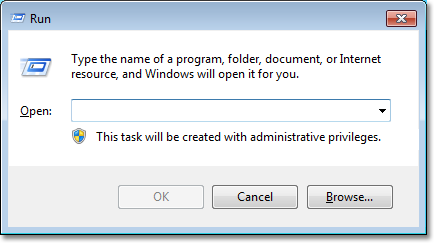
Why can't I delete the history in "Run" on the Start menu in Windows 7/Windows Vista? Especially for those commands that have not been used for a long time?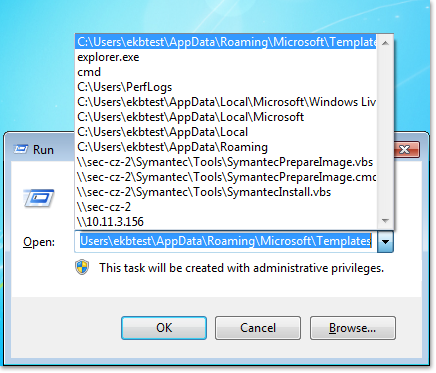
Simple solutions 123 123
Windows 7 Scenario
Please remember that in Windows 7, clearing the history in "Run" will also clear the record of recently opened programs on the Start menu.
First, right click "Start", then click “Properties”.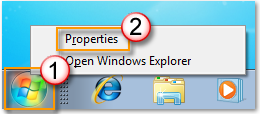
Uncheck the "Store and display recently opened programs in the Start menu", when done, click "Apply".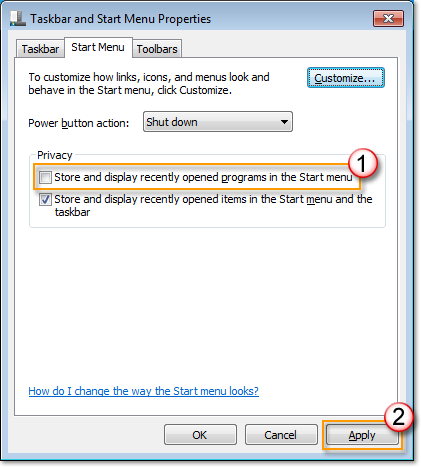
Recheck the "Store and display recently opened programs in the Start menu", and then click "Apply".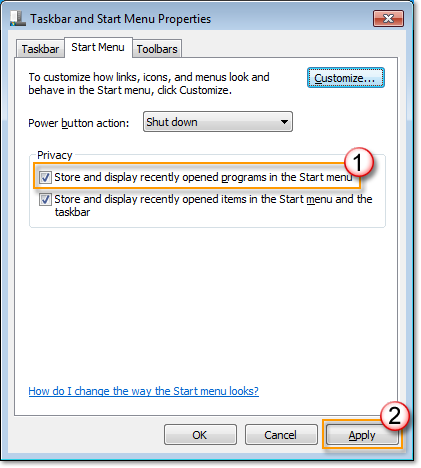
History in "Run" is now cleared.
Windows Vista Scenario
Though you can also use the above steps to clear the history in "Run" in Windows Vista, however, a better way is available in Windows Vista for you to clear "Run" history while keeping the record of recently opened programs. First, click "Start",
button, then click "Control Panel".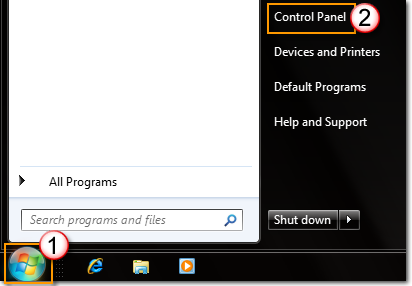
Click "Network and Internet,

then Click "Internet options".

Click "Delete".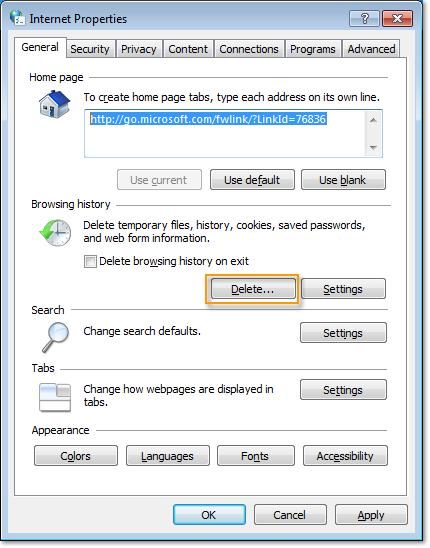
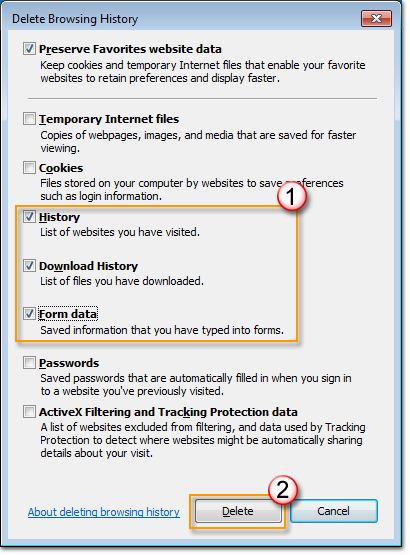
Check "History", "Download history" and "Form data", when done, click "Delete".
Please let us know
 |
Are you satisfied with our |








