
You can share any of your Exchange Server account contact folders with another person who is also using an Exchange Server account in your organization. If supported by your organization’s sharing policies, you may also be able to share a contacts folder with people outside your organization.
For example, you can share your contacts folder with people. Or, you can create a new contacts folder for a specific project and share it people. You can also grant them permission to change the contacts.
Notes:
-
This feature requires a Microsoft Exchange Server account.
-
Sharing or viewing a shared contacts folder is not supported in Outlook on the web.
Share with specific people in your organization
The default Contacts folder in Outlook is created in each Outlook profile. This folder can’t be renamed or deleted. You might have additional contact folders. You can share any of these folders by doing the following:
-
In People, in the folder pane, click the contact folder that you want to share with a person in your organization.
-
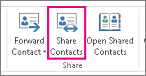
Click Home. Then, in the Share group, click Share Contacts.
-
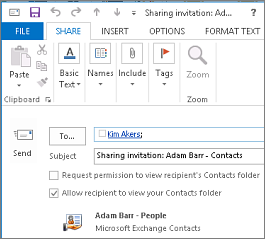
Select the To box. When prompted via the Address Book window, select Global Address List then search the name of the recipient for your sharing-invitation message. Optionally change the Subject.
-
If you want to, request permission to view the recipient's default People folder. To do so, select the Request permission to view recipient's Contacts folder check box.
Note: If you want to request access to a contacts folder other than the recipient’s default People folder, you must send an email message that asks for permissions to that particular folder. This option only requests access to the recipient's default People folder.
-
In the message body, type any information that you want to include, and then click Send. Review the confirmation dialog box, and then if correct, click OK.
-
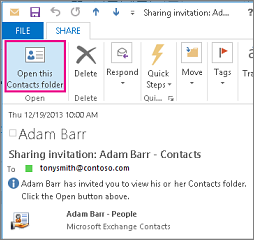
The person in your organization receives the sharing invitation in email, and clicks Open this Contacts folder.

Share with specific people outside your organization
The default Contacts folder in Outlook is created in each Outlook profile. This folder can’t be renamed or deleted. You might have additional contact folders. You can share any of these folders by doing the following:
-
In People, in the folder pane, click the contact folder that you want to share with a person outside your organization.
-
Click Home. Then, in the Share group, click Share Contacts.
-
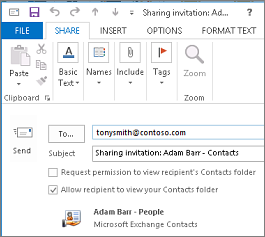
In the To box, enter the name of the recipient for the sharing invitation message. If you want to, you can change the Subject.
-
If you want to, request permission to view the recipient's default People folder. To do so, select the Request permission to view recipient's Contacts folder check box.
Note: If you want to request access to a contacts folder other than the recipient’s default People folder, you must send an email message that asks for permissions to that particular folder. This option only requests access to the recipient's default People folder.
-
In the message body, type any information that you want to include, and then click Send. Review the confirmation dialog box, and then if correct, click OK.
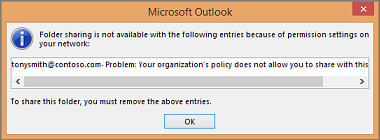
If the following error displays when you try to send the sharing invitation, sharing contacts with people outside of your organization is not supported by the sharing policy for your organization. Only an admin in your organization can change the sharing policy for your organization. For more information, see the end of this section.
-
The person outside your organization receives the sharing invitation in email, and clicks Open this Contacts folder.
If you receive an error when you try to share your contacts with someone outside your organization, contact the person that manages your email account.
Share a contacts folder with everyone
-
In People, in the folder pane, click Contacts.
-
Click Folder. Then, in the Properties group, click Folder Permissions.
-
In the Name box, click Default.
-
Under Permissions, in the Permission Level list, click Publishing Editor or any of the other options.
Revoke or change other people's access
To change or revoke someone's access permissions to your contacts folders, do the following:
-
In People, in the Folder Pane, click the contacts folder for which you want to change permissions.
-
Click Folder. Then, in the Properties group, click Folder Permissions.
-
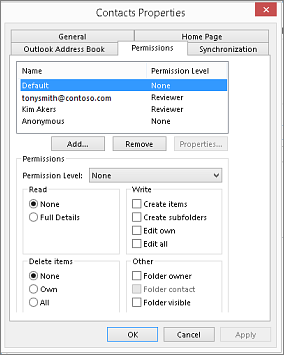
On the Permissions tab, do one of the following:
-
Revoke or change access permissions for everyone In the Name box, click Default.. Under Permissions, in the Permission Level list, click None to revoke permissions or any of the other options to change permissions.
-
Revoke or change access permissions for one person In the Name box, click the name of the person whose access permissions you want to change. Under Permissions, in the Permission Level list, click None to revoke permissions or any of the other options to change permissions.
-
-
Click OK.
Folder sharing permissions
|
With this permission level (or role) |
You can |
|---|---|
|
Owner |
Create, read, change, and delete all items and files, and create subfolders. As the folder owner, you can change the permission levels that other people have for the folder. (Doesn’t apply to delegates.) |
|
Publishing Editor |
Create, read, change, and delete all items and files, and create subfolders. (Doesn’t apply to delegates.) |
|
Editor |
Create, read, change, and delete all items and files. |
|
Publishing Author |
Create and read items and files, create subfolders, and change and delete items and files that you create. (Doesn’t apply to delegates.) |
|
Author |
Create and read items and files, and change and delete items and files that you create. |
|
Nonediting Author |
Create and read items and files, and delete items and files that you create. |
|
Reviewer |
Read items and files only. |
|
Contributor |
Create items and files only. The contents of the folder don’t appear. (Does not apply to delegates.) |
|
None |
You have no permission. You can’t open the folder. |
You can create custom permissions by selecting the appropriate check boxes and options under Permissions.
What is contacts sharing?
When you use Microsoft Outlook with a Microsoft Exchange Server account, contacts can be shared between people. Contact sharing is not limited to the default Contacts folder that is created in all Outlook profiles. You can create additional contacts folders and choose which of those folders to share. For example, you can create a contacts folder for a specific project and share it with your coworkers. Optionally, you can grant them permission to modify the contacts.
Tip: Any message, contact, or task in Outlook can be marked private so that others don't see the item in a shared folder.
Contact sharing works through sharing invitation and sharing request e-mail messages. Sharing invitations offer the recipient access to your contacts folder. When you send a sharing invitation for your default Contacts folder, you can request access to the recipient's default Contacts folder.
Note: If you want to request access to an additional contacts folder that the recipient has created — not the default Contacts folder — you must send an e-mail message asking for permission to access that folder. The recipient can then send you a sharing invitation for the specific contacts folder.
Share a contacts folder with specific people
The default Contacts folder in Outlook is created in each Outlook profile. This folder cannot be renamed or deleted. You might have additional contact folders that you created or were automatically created by the Outlook Social Connector for each of the configured social networks. You can share any of these folders by doing the following:
-
In Contacts, in the Navigation Pane, under My Contacts, click the contact folder that you want to share.
-
On the Home tab, in the Share group, click Share Contacts.
-
In the To box, enter the name of the recipient for the sharing invitation message.
-
If you want to, you can change the Subject.
-
If you want to, request permission to view the recipient's default Contacts folder. To do so, select the Request permission to view recipient's Contacts folder check box.
Note: If you want to request access to a contacts folder other than the default Contacts folder, you must send an e-mail message asking for permissions to that particular folder. This option only requests access to the recipient's default Contacts folder.
-
In the message body, type any information that you want to include.
-
Click Send.
-
Review the confirmation dialog box, and then if correct, click OK.
Share a contacts folder with everyone
-
In Contacts, in the Navigation Pane, under My Contacts, click Contacts.
-
On the Folder tab, in the Properties group, click Folder Permissions.
-
In the Name box, click Default.
-
Under Permissions, in the Permission Level list, click Publishing Editor or any of the other options.
View descriptions of permission levels
With this permission level (or role)
You can
Owner
Create, read, modify, and delete all items and files, and create subfolders. As the folder owner, you can change the permission levels that other people have for the folder. (Does not apply to delegates.)
Publishing Editor
Create, read, modify, and delete all items and files, and create subfolders. (Does not apply to delegates.)
Editor
Create, read, modify, and delete all items and files.
Publishing Author
Create and read items and files, create subfolders, and modify and delete items and files that you create. (Does not apply to delegates.)
Author
Create and read items and files, and modify and delete items and files that you create.
Contributor
Create items and files only. The contents of the folder do not appear. (Does not apply to delegates.)
Reviewer
Read items and files only.
Custom
Perform activities defined by the folder owner. (Does not apply to delegates.)
None
You have no permission. You cannot open the folder.
You can create custom permissions by selecting the appropriate check boxes and options under Permissions.
Revoke or change other people's access to your contacts folders
At any time, you can change or revoke someone's access permissions to your contacts folders.
-
In Contacts, in the Navigation Pane, click the contacts folder for which you want to change permissions.
-
On the Folder tab, in the Properties group, click Folder Permissions.
-
Do one of the following:
-
Revoke or change access permissions for everyone
-
In the Name box, click Default.
-
Under Permissions, in the Permission Level list, click None to revoke permissions or any of the other options to change permissions.
View descriptions of permission levels
With this permission level (or role)
You can
Owner
Create, read, modify, and delete all items and files, and create subfolders. As the folder owner, you can change the permission levels that other people have for the folder. (Does not apply to delegates.)
Publishing Editor
Create, read, modify, and delete all items and files, and create subfolders. (Does not apply to delegates.)
Editor
Create, read, modify, and delete all items and files.
Publishing Author
Create and read items and files, create subfolders, and modify and delete items and files that you create. (Does not apply to delegates.)
Author
Create and read items and files, and modify and delete items and files that you create.
Contributor
Create items and files only. The contents of the folder do not appear. (Does not apply to delegates.)
Reviewer
Read items and files only.
Custom
Perform activities defined by the folder owner. (Does not apply to delegates.)
None
You have no permission. You cannot open the folder.
You can create custom permissions by selecting the appropriate check boxes and options under Permissions.
-
-
Revoke or change access permissions for one person
-
In the Name box, click the name of the person whose access permissions you want to change.
-
Under Permissions, in the Permission Level list, click None to revoke permissions or any of the other options to change permissions.
View descriptions of permission levels
With this permission level (or role)
You can
Owner
Create, read, modify, and delete all items and files, and create subfolders. As the folder owner, you can change the permission levels that other people have for the folder. (Does not apply to delegates.)
Publishing Editor
Create, read, modify, and delete all items and files, and create subfolders. (Does not apply to delegates.)
Editor
Create, read, modify, and delete all items and files.
Publishing Author
Create and read items and files, create subfolders, and modify and delete items and files that you create. (Does not apply to delegates.)
Author
Create and read items and files, and modify and delete items and files that you create.
Contributor
Create items and files only. The contents of the folder do not appear. (Does not apply to delegates.)
Reviewer
Read items and files only.
Custom
Perform activities defined by the folder owner. (Does not apply to delegates.)
None
You have no permission. You cannot open the folder.
You can create custom permissions by selecting the appropriate check boxes and options under Permissions.
-
Repeat step 2 for each person whose access permissions you want to modify.
-
-
What is contact sharing?
When you use Microsoft Office Outlook 2007 with a Microsoft Exchange account, contacts can be shared between people. Contact sharing is not limited to the default Contacts folder that is created in all Outlook profiles. You can create additional contacts folders and choose which of those folders to share. For example, you can create a contacts folder for a specific project and share it with your coworkers. Optionally, you can grant them permission to modify the contacts.
Tip: Any message, contact, or task in Outlook can be marked private so that others don't see the item in a shared folder.
Contact sharing works through sharing invitation and sharing request e-mail messages. Sharing invitations offer the recipient access to your contacts folder. When you send a sharing invitation for your default Contacts folder, you can request access to the recipient's default Contacts folder.
Note: If you want to request access to an additional contacts folder that the recipient has created — not the default Contacts folder — you must send an e-mail message asking for permission to access that folder. The recipient can then send you a sharing invitation for the specific contacts folder.
Share your default Contacts folder with specific people
The default Contacts folder in Outlook is created in each Outlook profile. This folder cannot be renamed or deleted.
-
In Contacts, in the Navigation Pane, click Share My Contacts folder.
Note: If you are using the Navigation Pane in Minimized view, in Contacts,

-
In the To box, enter the name of the recipient for the sharing invitation message.
-
If you want to, you can change the Subject.
-
If you want to, request permission to view the recipient's default Contacts folder. To do so, select the Request permission to view recipient's Contacts folder check box.
Note: If you want to request access to a contacts folder other than the default Contacts folder, you must send an e-mail message asking for permissions to that particular folder. This option only requests access to the recipient's default Contacts folder.
-
In the message body, type any information that you want to include.
-
Click Send.
-
Review the confirmation dialog box, and then if correct, click OK.
Share your default Contacts folder with everyone
The default Contacts folder in Outlook is created in each Outlook profile. This folder cannot be renamed or deleted.
-
In Contacts, in the Navigation Pane, right-click the default Contacts folder.
This is usually under My Contacts, and is displayed as Contacts.
-
If you are using the Navigation Pane in Minimized view, in Contacts,
This is usually under My Contacts and is displayed as Contacts.
-
Click Change Sharing Permissions.
-
On the Permissions tab, in the Name box, click Default.
-
Under Permissions, in the Permission Level list, click Publishing Editor or any of the other options.
View descriptions of permission levels
With this permission level (or role)
You can
Owner
Create, read, modify, and delete all items and files, and create subfolders. As the folder owner, you can change the permission levels that other people have for the folder. (Does not apply to delegates.)
Publishing Editor
Create, read, modify, and delete all items and files, and create subfolders. (Does not apply to delegates.)
Editor
Create, read, modify, and delete all items and files.
Publishing Author
Create and read items and files, create subfolders, and modify and delete items and files that you create. (Does not apply to delegates.)
Author
Create and read items and files, and modify and delete items and files that you create.
Contributor
Create items and files only. The contents of the folder do not appear. (Does not apply to delegates.)
Reviewer
Read items and files only.
Custom
Perform activities defined by the folder owner. (Does not apply to delegates.)
None
You have no permission. You cannot open the folder.
You can create custom permissions by selecting the appropriate check boxes and options under Permissions.
Share a custom contacts folder with specific people
The default Contacts folder in Outlook is created in each Outlook profile. This folder cannot be renamed or deleted. You can create additional contacts folders and these folders can be renamed or deleted. This section includes instructions to share contacts folders that you create.
-
In Contacts, in the Navigation Pane, right-click the contacts folder that you want to share.
Note: If you are using the Navigation Pane in Minimized view, in Contacts,
-
Click Share folder name.
-
In the To box of the sharing invitation, enter the name of the recipient.
-
If you want to, change the Subject.
-
If you want to, grant permissions to the recipient to change your contact items by selecting the Recipient can add, edit, and delete items in this contacts folder check box.
-
In the message body, type any information that you want to include.
-
Click Send.
-
Review the confirmation dialog box, and then, if correct, click OK.
Share a custom contacts folder with everyone
The default Contacts folder in Outlook is created in each Outlook profile. This folder cannot be renamed or deleted. You can create additional contacts folders and these folders can be renamed or deleted. This section includes instructions to share contacts folders that you create.
-
In Contacts, in the Navigation Pane, right-click the contacts folder that you want to share.
Note: If you are using the Navigation Pane in Minimized view, in Contacts,
-
Click Change Sharing Permissions.
-
On the Permissions tab, in the Name box, click Default.
-
Under Permissions, in the Permission Level list, click Publishing Editor or any of the other options.
View descriptions of permission levels
With this permission level (or role)
You can
Owner
Create, read, modify, and delete all items and files, and create subfolders. As the folder owner, you can change the permission levels that other people have for the folder. (Does not apply to delegates.)
Publishing Editor
Create, read, modify, and delete all items and files, and create subfolders. (Does not apply to delegates.)
Editor
Create, read, modify, and delete all items and files.
Publishing Author
Create and read items and files, create subfolders, and modify and delete items and files that you create. (Does not apply to delegates.)
Author
Create and read items and files, and modify and delete items and files that you create.
Contributor
Create items and files only. The contents of the folder do not appear. (Does not apply to delegates.)
Reviewer
Read items and files only.
Custom
Perform activities defined by the folder owner. (Does not apply to delegates.)
None
You have no permission. You cannot open the folder.
You can create custom permissions by selecting the appropriate check boxes and options under Permissions.
Revoke or change other people's access to your contacts folders
At any time, you can change or revoke someone's access permissions to your contacts folders.
-
In Contacts, in the Navigation Pane, right-click the contacts folder for which you want to change permissions.
Note: If you are using the Navigation Pane in Minimized view, in Contacts,
-
Click Change Sharing Permissions.
-
Do one of the following:
-
Revoke or change access permissions for everyone
-
On the Permissions tab, in the Name box, click Default.
-
Under Permissions, in the Permission Level list, click None to revoke permissions or any of the other options to change permissions.
View descriptions of permission levels
With this permission level (or role)
You can
Owner
Create, read, modify, and delete all items and files, and create subfolders. As the folder owner, you can change the permission levels that other people have for the folder. (Does not apply to delegates.)
Publishing Editor
Create, read, modify, and delete all items and files, and create subfolders. (Does not apply to delegates.)
Editor
Create, read, modify, and delete all items and files.
Publishing Author
Create and read items and files, create subfolders, and modify and delete items and files that you create. (Does not apply to delegates.)
Author
Create and read items and files, and modify and delete items and files that you create.
Contributor
Create items and files only. The contents of the folder do not appear. (Does not apply to delegates.)
Reviewer
Read items and files only.
Custom
Perform activities defined by the folder owner. (Does not apply to delegates.)
None
You have no permission. You cannot open the folder.
You can create custom permissions by selecting the appropriate check boxes and options under Permissions.
-
-
Revoke or change access permissions for one person
-
On the Permissions tab, in the Name box, click the name of the person whose access permissions you want to change.
-
Under Permissions, in the Permission Level list, click None to revoke permissions or any of the other options to change permissions.
View descriptions of permission levels
With this permission level (or role)
You can
Owner
Create, read, modify, and delete all items and files, and create subfolders. As the folder owner, you can change the permission levels that other people have for the folder. (Does not apply to delegates.)
Publishing Editor
Create, read, modify, and delete all items and files, and create subfolders. (Does not apply to delegates.)
Editor
Create, read, modify, and delete all items and files.
Publishing Author
Create and read items and files, create subfolders, and modify and delete items and files that you create. (Does not apply to delegates.)
Author
Create and read items and files, and modify and delete items and files that you create.
Contributor
Create items and files only. The contents of the folder do not appear. (Does not apply to delegates.)
Reviewer
Read items and files only.
Custom
Perform activities defined by the folder owner. (Does not apply to delegates.)
None
You have no permission. You cannot open the folder.
You can create custom permissions by selecting the appropriate check boxes and options under Permissions.
-
Repeat step 2 for each person whose access permissions you want to modify.
-
-








