This article describes methods to configure Microsoft Outlook 2013, 2010, 2007, or 2003 to connect to a Microsoft Network, also known as MSN, email account.
To use these methods, you have to have Outlook installed on your computer and you have to have an MSN email account.
Note In most cases, if MSN is your Internet service provider (ISP), you probably have a POP3 account.
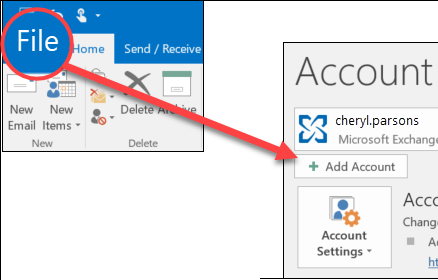
In Outlook 2013, click on the File menu, and then click Add Account.
Click to select Manual setup or additional server types, and then click Next.
Click to select POP or IMAP, and then click Next.
On the POP and IMAP Account Settings screen, type the following setting information:
In the Your Name box, type your name as you want it to be displayed to recipients.
In the Email Address box, type your email address. For example, type yourusername@msn.com.
In Account Type, select POP3.
In the Incoming mail server box, type pop3.live.com.
In the Outgoing mail server (SMTP) box, type smtp.live.com.
In the User Name box, type your MSN account name.
In the Password box, type your MSN password.
Click to select the Remember Password check box, if you want to save it.
Leave the Require logon using Secure Password Authentication (SPA) check box unchecked.
Click More Settings.
Click the Outgoing Server tab, and then click to select the My outgoing server (SMTP) requires authentication check box.
Click the Advanced tab, and then click to select the This server requires an encrypted connection (SSL) check box under Incoming Server (POP3). Note The Incoming Server (POP3) box should be set to port 995.
Select TLS for Use the following type of encrypted connection under Outgoing server (SMTP), and then click OK. Note The Outgoing Server (SMTP) box should be set to port 25. If port 25 is blocked in the network or by your ISP, you can set SMTP port to 587.
On the right side of the POP and IMAP Account Settings screen, click Test Account Settings.
If you do not receive errors, your email account is set up correctly. Go to step 6.
If you receive an error, make sure that you have entered all the information correctly, and then click Test Account Settings again. If all the information is correct and you continue to receive errors, go to the "Next Steps" section for more help.
In Outlook 2010, click on the File menu, and then click Add Account.
Click to select Manually configure server settings or additional server types, and then click Next.
Click to select Internet E-mail, and then click Next.
On the Internet E-mail Settings screen, type the following setting information:
In the Your Name box, type your name as you want it to be displayed to recipients.
In the E-mail Address box, type your email address. For example, type yourusername@msn.com.
In Account Type, select POP3.
In the Incoming mail server box, type pop3.live.com.
In the Outgoing mail server (SMTP) box, type smtp.live.com.
In the User Name box, type your MSN account name.
In the Password box, type your MSN password.
Click to select the Remember Password check box, if you want to save it.
Leave the Require logon using Secure Password Authentication (SPA) check box unchecked.
Click More Settings.
Click the Outgoing Server tab, and then click to select the My outgoing server (SMTP) requires authentication check box.
Click the Advanced tab, and then click to select the This server requires an encrypted connection (SSL) check box under Incoming Server (POP3). Note The Incoming Server (POP3) box should be set to port 995.
Select TLS for Use the following type of encrypted connection under Outgoing server (SMTP), and then click OK. Note The Outgoing Server (SMTP) box should be set to port 25. If port 25 is blocked in the network or by your ISP, you can set SMTP port to 587.
On the right side of the Internet E-mail Settings screen, click Test Account Settings.
If you do not receive errors, your email account is set up correctly. Go to step 6.
If you receive an error, make sure that you have entered all the information correctly, and then click Test Account Settings again. If all the information is correct and you continue to receive errors, go to the "Next Steps" section for more help.
In Outlook 2007, click on the Tools menu, and then click Account Settings.
Click the E-mail tab, and then click New.
Click to select Microsoft Exchange, POP3, IMAP, or HTTP, and then click Next.
Click to select the Manually configure server settings or additional server types check box, and then click Next.
Click to select Internet E-mail, and then click Next.
On the Internet E-mail Settings screen, type the following setting information:
In the Your Name box, type your name as you want it to be displayed to recipients.
In the E-mail Address box, type your email address. For example, type yourusername@msn.com.
In Account Type, select POP3.
In the Incoming mail server box, type pop3.live.com.
In the Outgoing mail server (SMTP) box, type smtp.live.com.
In the User Name box, type your MSN account name.
In the Password box, type your MSN password.
Click to select the Remember Password check box, if you want to save it.
Leave the Require logon using Secure Password Authentication (SPA) check box unchecked.
Click More Settings.
Click the Outgoing Server tab, and then click to select the My outgoing server (SMTP) requires authentication check box.
Click the Advanced tab, and then click to select the This server requires an encrypted connection (SSL) check box under Incoming Server (POP3). Note The Incoming Server (POP3) box should be set to port 995.
Select TLS for Use the following type of encrypted connection under Outgoing server (SMTP), and then click OK. Note The Outgoing Server (SMTP) box should be set to port 25. If port 25 is blocked in the network or by your ISP, you can set SMTP port to 587.
On the right side of the Internet E-mail Settings scree, click Test Account Settings.
If you do not receive errors, your email account is set up correctly. Go to step 8.
If you receive an error, make sure that you have entered all the information correctly, and then click Test Account Settings again. If all the information is correct and you continue to receive errors, go to the "Next Steps" section for more help.
If you used these methods but still have problems connecting your MSN email account to Outlook, you can use the Microsoft Customer Support Services website to find other solutions to your problem. Some services that the Microsoft Customer Support Services website provide include the following: