Excel help & learning

Learn from live instructors
Microsoft offers live coaching to help your learn excel formulas, tip and more to save you time and to take your skills to the next level.
Explore Excel
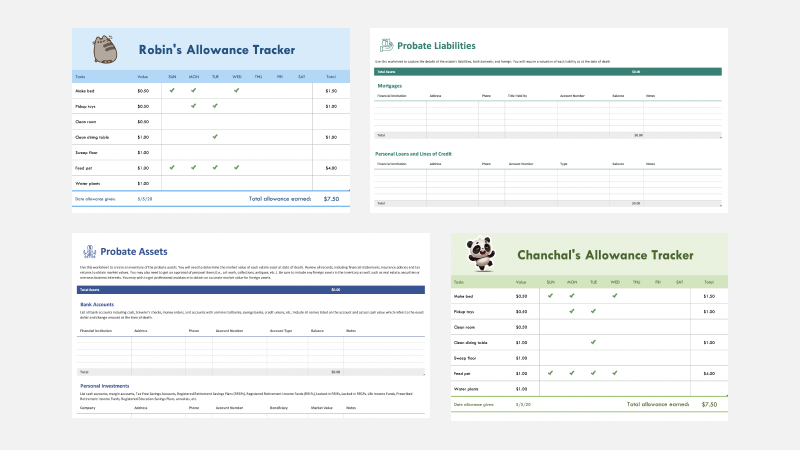
Find Excel templates
Bring your ideas to life and streamline your work by starting with professionally designed, fully customizable templates from Microsoft Create.

Analyze Data
Ask questions about your data without having to write complicated formulas. Not available in all locales.

Are you a small business?
Visit the small business help & learning page to learn how you can use Microsoft 365 in your small business.

Support for Excel 2013 has ended
Learn what end of Excel 2013 support means for you and find out how you can upgrade to Microsoft 365.
Trending topics
Customize your data
Follow your stocks
Use linked data types to track and analyze stock data. Or analyze trends based on geographical locales.