
Numbers that are stored as text can cause unexpected results, like an uncalculated formula showing instead of a result.
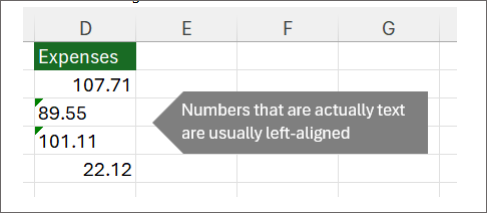
Most of the time, Excel will recognize this, and you'll see an alert next to the cell where numbers are being stored as text. If you see the alert:
-
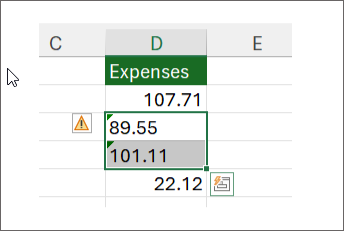
Select the cells you want to convert, and then select

-
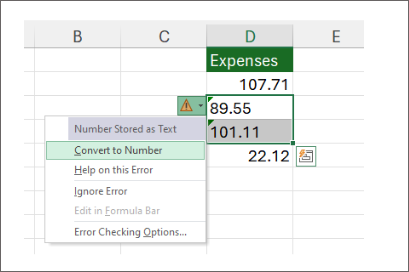
Select Convert to Number from the menu.
-
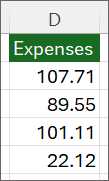
You will see the values left aligned and green triangle warning removed.
Check out Format numbers to learn more about formatting numbers and text in Excel.
Notes:
-
If the alert button is not available, you can enable error alerts through the following steps:
-
On the Excel menu, click Preferences.
-
Under Formulas and Lists, click Error Checking

Other ways to convert
You can use the VALUE function to return just the numeric value of the text.
-
Insert a new column
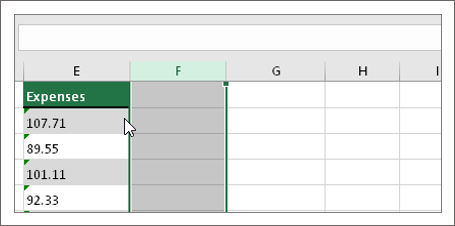
Insert a new column next to the cells with text. In this example, column E contains the text stored as numbers. Column F is the new column.
-
Use the VALUE function
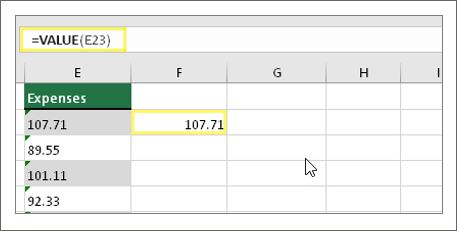
In one of the cells of the new column, type =VALUE() and inside the parentheses, type a cell reference that contains text stored as numbers. In this example it's cell E23. -
Rest your cursor here
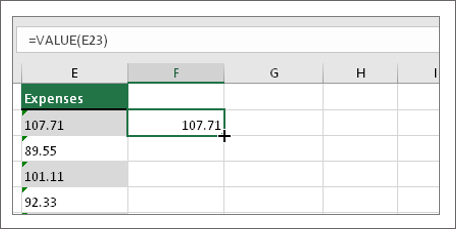
Next, fill the cell's formula down, into the other cells.
To do this, rest your cursor on the lower-right corner of the cell until it changes to a plus sign.
-
Click and drag down
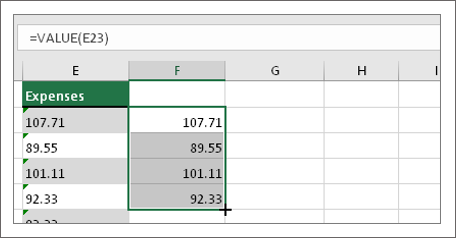
Click and drag down to fill the formula to the other cells. You can now use this new column, or you can copy and paste these new values to the original column.
To do this:
-
Select the cells with the new formula.
-
Press Ctrl + C. Click the first cell of the original column.
-
On the Home tab, click the arrow below Paste, and then click Paste Special > Values
or use the keyboard shortcut Ctrl + Shift + V.
-
Select a column
Select a column with this problem. If you don't want to convert the whole column, you can select one or more cells instead. Just be sure the cells you select are in the same column, otherwise this process won't work. (See Use Paste Special and Multiply below if you have this problem in more than one column.)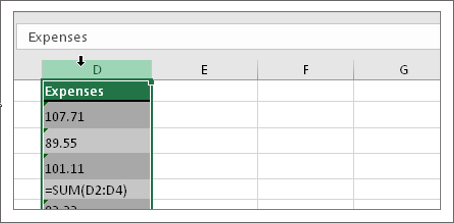
-
Select Text to Columns
The Text to Columns button is typically used for splitting a column, but it can also be used to convert a single column of text to numbers. On the Data tab, click Text to Columns.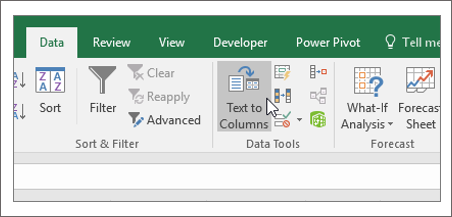
-
Select Apply
The rest of the Text to Columns wizard steps are best for splitting a column. Since you're just converting text in a column, you can click Finish right away, and Excel will convert the cells. -
Set the format
Press Ctrl + 1 (Windows) or +1 (Mac), then select the format you want to use.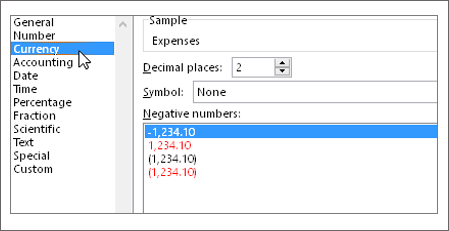
Note: If you still see formulas that are not showing as numeric results, then you may have Show Formulas turned on. Go to the Formulas tab and make sure Show Formulas is turned off.
Use Paste Special and Multiply
If the steps above didn't work, you can use this method, which can be used if you're trying to convert more than one column of text.
-
Select a blank cell that doesn't have this problem, type the number 1 into it, and then press Enter.
-
Press Ctrl + C to copy the cell.
-
Select the cells that have numbers stored as text.
-
On the Home tab, select Paste > Paste Special.
-
Select Multiply, and then click OK. Excel multiplies each cell by 1, and in doing so, converts the text to numbers.
Numbers that are stored as text can cause unexpected results, like an uncalculated formula showing instead of a result.
Use a formula to convert from text to numbers
You can use the VALUE function to return just the numeric value of the text.
-
Insert a new column
Insert a new column next to the cells with text. In this example, column E contains the text stored as numbers. Column F is the new column.
-
Use the VALUE function
In one of the cells of the new column, type =VALUE() and inside the parentheses, type a cell reference that contains text stored as numbers. In this example it's cell E23. -
Rest your cursor here
Next, fill the cell's formula down, into the other cells.
To do this, rest your cursor on the lower-right corner of the cell until it changes to a plus sign.
-
Click and drag down
Click and drag down to fill the formula to the other cells. You can now use this new column, or you can copy and paste these new values to the original column.
To do this:
-
Select the cells with the new formula.
-
Press Ctrl + C. Click the first cell of the original column.
-
On the Home tab, click the arrow below Paste, and then click Paste Special > Values.
or use the keyboard shortcut Ctrl+ Shift + V.
Related topics
Replace a formula with its result
Top ten ways to clean your data
CLEAN function








