
Formulas can sometimes result in error values in addition to returning unintended results. The following are some tools that you can use to find and investigate the causes of these errors and determine solutions.
Note: This topic contains techniques that can help you correct formula errors. It's not an exhaustive list of methods for correcting every possible formula error. For help on specific errors, you can search for questions like yours in the Excel Community Forum, or post one of your own.

Learn how to enter a simple formula
Formulas are equations that perform calculations on values in your worksheet. A formula starts with an equal sign (=). For example, the following formula adds 3 to 1.
=3+1
A formula can also contain any or all of the following: functions, references, operators, and constants.
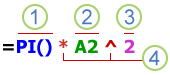
Parts of a formula
-
Functions: included with Excel, functions are engineered formulas that carry out specific calculations. For example, the PI() function returns the value of pi: 3.142...
-
References: refer to individual cells or ranges of cells. A2 returns the value in cell A2.
-
Constants: numbers or text values entered directly into a formula, such as 2.
-
Operators: The ^ (caret) operator raises a number to a power, and the * (asterisk) operator multiplies. Use + and – add and subtract values, and / to divide.
Note: Some functions require what are referred to as arguments. Arguments are the values that certain functions use to perform their calculations. When required, arguments are placed between the function’s parentheses (). The PI function does not require any arguments, which is why it’s blank. Some functions require one or more arguments and can leave room for additional arguments. You need to use a comma to separate arguments, or a semi-colon (;) depending on your location settings.
The SUM function for example, requires only one argument, but can accommodate 255 total arguments.
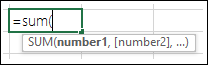
=SUM(A1:A10) is an example of a single argument.
=SUM(A1:A10, C1:C10) is an example of multiple arguments.
The following table summarizes some of the most common errors that a user can make when entering a formula, and explains how to correct them.
|
Make sure that you |
More information |
|
Start every function with the equal sign (=) |
If you omit the equal sign, what you type could be displayed as text or as a date. For example, if you type SUM(A1:A10), Excel displays the text string SUM(A1:A10) and does not perform the calculation. If you type 11/2, Excel displays the date 2-Nov (assuming the cell format is General) instead of dividing 11 by 2. |
|
Match all open and closing parentheses |
Make sure that all parentheses are part of a matching pair (opening and closing). When you use a function in a formula, it's important for each parenthesis to be in its correct position for the function to work correctly. For example, the formula =IF(B5<0),"Not valid",B5*1.05) will not work because there are two closing parentheses and only one open parenthesis, when there should only be one each. The formula should look like this: =IF(B5<0,"Not valid",B5*1.05). |
|
Use a colon to indicate a range |
When you refer to a range of cells, use a colon (:) to separate the reference to the first cell in the range and the reference to the last cell in the range. For example, =SUM(A1:A5), not =SUM(A1 A5), which would return a #NULL! Error. |
|
Enter all required arguments |
Some functions have required arguments. Also, make sure that you have not entered too many arguments. |
|
Enter the correct type of arguments |
Some functions, such as SUM, require numerical arguments. Other functions, such as REPLACE, require a text value for at least one of their arguments. If you use the wrong type of data as an argument, Excel could return unexpected results or display an error. |
|
Nest no more than 64 functions |
You can enter, or nest, no more than 64 levels of functions within a function. |
|
Enclose other sheet names in single quotation marks |
If a formula refers to values or cells on other worksheets or workbooks, and the name of the other workbook or worksheet contains spaces or non-alphabetical characters, you must enclose its name within single quotation marks ( ' ), like ='Quarterly Data'!D3, or =‘123’!A1. |
|
Place an exclamation point (!) after a worksheet name when you refer to it in a formula |
For example, to return the value from cell D3 in a worksheet named Quarterly Data in the same workbook, use this formula: ='Quarterly Data'!D3. |
|
Include the path to external workbooks |
Make sure that each external reference contains a workbook name and the path to the workbook. A reference to a workbook includes the name of the workbook and must be enclosed in brackets ([Workbookname.xlsx]). The reference must also contain the name of the worksheet in the workbook. If the workbook that you want to refer to is not open in Excel, you can still include a reference to it in a formula. You provide the full path to the file, such as in the following example: =ROWS('C:\My Documents\[Q2 Operations.xlsx]Sales'!A1:A8). This formula returns the number of rows in the range that includes cells A1 through A8 in the other workbook (8). Note: If the full path contains space characters, as does the preceding example, you must enclose the path in single quotation marks (at the beginning of the path and after the name of the worksheet, before the exclamation point). |
|
Enter numbers without formatting |
Do not format numbers when you enter them in formulas. For example, if the value that you want to enter is $1,000, enter 1000 in the formula. If you enter a comma as part of a number, Excel treats it as a separator character. If you want numbers displayed so that they show thousands or millions separators, or currency symbols, format the cells after you enter the numbers. For example, if you want to add 3100 to the value in cell A3, and you enter the formula =SUM(3,100,A3), Excel adds the numbers 3 and 100 and then adds that total to the value from A3, instead of adding 3100 to A3, which would be =SUM(3100,A3). Or, if you enter the formula =ABS(-2,134), Excel displays an error because the ABS function accepts only one argument: =ABS(-2134). |
You can implement certain rules to check for errors in formulas. These rules do not guarantee that your worksheet is error free, but they can go a long way toward finding common mistakes. You can turn any of these rules on or off individually.
Errors can be marked and corrected in two ways: one error at a time (like a spell checker), or immediately when they occur on the worksheet as you enter data.
You can resolve an error by using the options that Excel displays, or you can ignore the error by selecting Ignore Error. If you ignore an error in a particular cell, the error in that cell does not appear in further error checks. However, you can reset all previously ignored errors so that they appear again.
-
For Excel on Windows, go to File > Options > Formulas, or
for Excel on Mac, select the Excel menu > Preferences > Error Checking. -
Under Error Checking, check Enable background error checking. Any error that is found is marked with a triangle in the top-left corner of the cell.

-
To change the color of the triangle that marks where an error occurs, in the Indicate errors using this color box, select the color that you want.
-
Under Excel checking rules, select or clear the check boxes of any of the following rules:
-
Cells containing formulas that result in an error: A formula does not use the expected syntax, arguments, or data types. Error values include #DIV/0!, #N/A, #NAME?, #NULL!, #NUM!, #REF!, and #VALUE!. Each of these error values has different causes and is resolved in different ways.
Note: If you enter an error value directly in a cell, it's stored as that error value but is not marked as an error. However, if a formula in another cell refers to that cell, the formula returns the error value from that cell.
-
Inconsistent calculated column formula in tables: A calculated column can include individual formulas that are different from the master column formula, which creates an exception. Calculated column exceptions are created when you do any of the following:
-
Type data other than a formula in a calculated column cell.
-
Type a formula in a calculated column cell, and then use Ctrl +Z or select Undo

-
Type a new formula in a calculated column that already contains one or more exceptions.
-
Copy data into the calculated column that does not match the calculated column formula. If the copied data contains a formula, this formula overwrites the data in the calculated column.
-
Move or delete a cell on another worksheet area that is referenced by one of the rows in a calculated column.
-
-
Cells containing years represented as 2 digits: The cell contains a text date that can be misinterpreted as the wrong century when it is used in formulas. For example, the date in the formula =YEAR("1/1/31") could be 1931 or 2031. Use this rule to check for ambiguous text dates.
-
Numbers formatted as text or preceded by an apostrophe: The cell contains numbers stored as text. This typically occurs when data is imported from other sources. Numbers stored as text can cause unexpected sorting results, so it's best to convert them to numbers. ‘=SUM(A1:A10) is seen as text.
-
Formulas inconsistent with other formulas in the region: The formula does not match the pattern of other formulas near it. In many cases, formulas adjacent to other formulas differ only in the references used. In the following example of four adjacent formulas, Excel displays an error next to the formula =SUM(A10:C10) in cell D4 because the adjacent formulas increment by one row, and that one increments by 8 rows — Excel expects the formula =SUM(A4:C4).
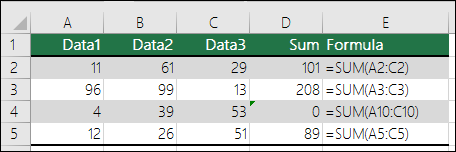
If the references used in a formula are not consistent with those in the adjacent formulas, Excel displays an error.
-
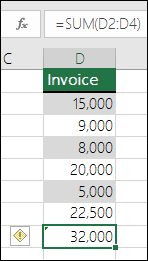
Formulas which omit cells in a region: A formula may not automatically include references to data that you insert between the original range of data and the cell that contains the formula. This rule compares the reference in a formula against the actual range of cells that is adjacent to the cell that contains the formula. If the adjacent cells contain additional values and are not blank, Excel displays an error next to the formula.
For example, Excel inserts an error next to the formula =SUM(D2:D4) when this rule is applied, because cells D5, D6, and D7 are adjacent to the cells referenced in the formula and the cell that contains the formula (D8), and those cells contain data that should have been referenced in the formula.
-
Unlocked cells containing formulas: The formula is not locked for protection. By default, all cells on a worksheet are locked so they can’t be changed when the worksheet is protected. This can help avoid inadvertent mistakes like accidentally deleting or altering formulas. This error indicates that the cell has been set to be unlocked, but the sheet has not been protected. Check to make sure that you do not want the cell locked.
-
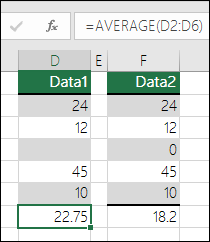
Formulas referring to empty cells: The formula contains a reference to an empty cell. This can cause unintended results, as shown in the following example.
Suppose you want to calculate the average of the numbers in the following column of cells. If the third cell is blank, it's not included in the calculation and the result is 22.75. If the third cell contains 0, the result is 18.2.
-
Data entered in a table is invalid: There is a validation error in a table. Check the validation setting for the cell by going to the Data tab > Data Tools group > Data Validation.
-
-
Select the worksheet you want to check for errors.
-
If the worksheet is manually calculated, press F9 to recalculate.
If the Error Checking dialog box is not displayed, then select Formulas > Formula Auditing > Error Checking.
-
If you have previously ignored any errors, you can check for those errors again by doing the following: go to File > Options > Formulas. For Excel on Mac, select the Excel menu > Preferences > Error Checking.
In the Error Checking section, select Reset Ignored Errors > OK.
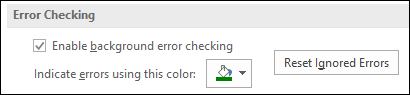
Note: Resetting ignored errors resets all errors in all sheets in the active workbook.
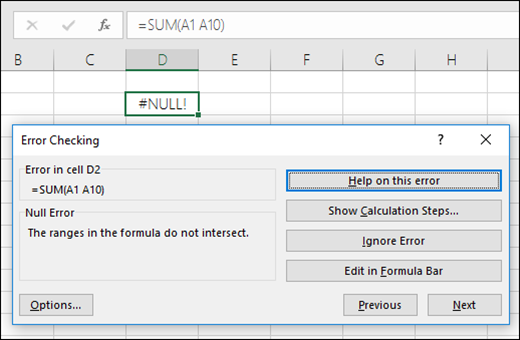
Tip: It might help if you move the Error Checking dialog box just below the formula bar.
-
Select one of the action buttons on the right side of the dialog box. The available actions differ for each type of error.
-
Select Next.
Note: If you select Ignore Error, the error is marked to be ignored for each consecutive check.
-
Next to the cell, select Error Checking

If you select Ignore Error, the error is marked to be ignored for each consecutive check.
If a formula cannot correctly evaluate a result, Excel displays an error value, such as #####, #DIV/0!, #N/A, #NAME?, #NULL!, #NUM!, #REF!, and #VALUE!. Each error type has different causes, and different solutions.
The following table contains links to articles that describe these errors in detail, and a brief description to get you started.
|
Topic |
Description |
|
Excel displays this error when a column is not wide enough to display all the characters in a cell, or a cell contains negative date or time values. For example, a formula that subtracts a date in the future from a date in the past, such as =06/15/2008-07/01/2008, results in a negative date value. Tip: Try to auto-fit the cell by double-clicking between the column headers. If ### is displayed because Excel can’t display all of the characters this corrects it. 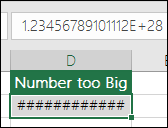 |
|
|
Excel displays this error when a number is divided either by zero (0) or by a cell that contains no value. Tip: Add an error handler like in the following example, which is =IF(C2,B2/C2,0) 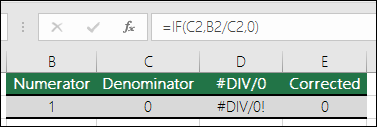 |
|
|
Excel displays this error when a value is not available to a function or formula. If you’re using a function like VLOOKUP, does what you’re trying to lookup have a match in the lookup range? Most often it doesn’t. Try using IFERROR to suppress the #N/A. In this case you could use: =IFERROR(VLOOKUP(D2,$D$6:$E$8,2,TRUE),0) 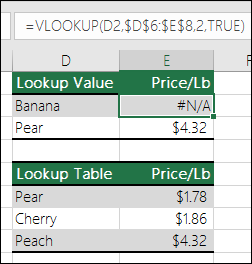 |
|
|
This error is displayed when Excel does not recognize text in a formula. For example, a range name or the name of a function could be spelled incorrectly. Note: If you’re using a function, make sure the function name is spelled correctly. In this case SUM is spelled incorrectly. Remove the “e” and Excel corrects it. 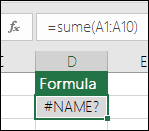 |
|
|
Excel displays this error when you specify an intersection of two areas that do not intersect (cross). The intersection operator is a space character that separates references in a formula. Note: Make sure your ranges are correctly separated - the areas C2:C3 and E4:E6 do not intersect, so entering the formula =SUM(C2:C3 E4:E6) returns the #NULL! error. Putting a comma between the C and E ranges corrects it =SUM(C2:C3,E4:E6) 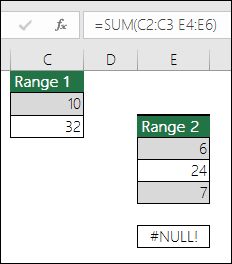 |
|
|
Excel displays this error when a formula or function contains invalid numeric values. Are you using a function that iterates, such as IRR or RATE? If so, the #NUM! error is probably because the function can’t find a result. Refer to the help topic for resolution steps. |
|
|
Excel displays this error when a cell reference is not valid. For example, you might have deleted cells that were referred to by other formulas, or you might have pasted cells that you moved on top of cells that were referred to by other formulas. Did you accidentally delete a row or column? We deleted column B in this formula, =SUM(A2,B2,C2), and look what happened. Either use Undo (Ctrl+Z) to undo the deletion, rebuild the formula, or use a continuous range reference like this: =SUM(A2:C2), which would have automatically updated when column B was deleted. 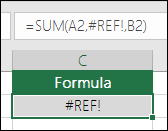 |
|
|
Excel can display this error if your formula includes cells that contain different data types. Are you using Math operators (+, -, *, /, ^) with different data types? If so, try using a function instead. In this case =SUM(F2:F5) would correct the problem. 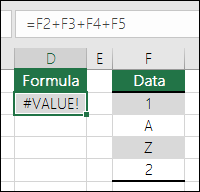 |
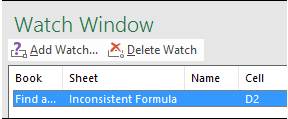
When cells aren't visible on a worksheet, you can watch those cells and their formulas in the Watch Window toolbar. The Watch Window makes it convenient to inspect, audit, or confirm formula calculations and results in large worksheets. By using the Watch Window, you don't need to repeatedly scroll or go to different parts of your worksheet.
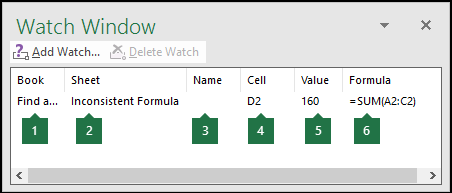
This toolbar can be moved or docked like any other toolbar. For example, you can dock it on the bottom of the window. The toolbar keeps track of the following cell properties: 1) Workbook, 2) Sheet, 3) Name (if the cell has a corresponding Named Range), 4) Cell address, 5) Value, and 6) Formula.
Note: You can have only one watch per cell.
Add cells to the Watch Window
-
Select the cells that you want to watch.
To select all cells on a worksheet with formulas, go to Home > Editing > select Find & Select (or you can use Ctrl+G, or Control+G on the Mac)> Go To Special > Formulas.

-
Go to Formulas > Formula Auditing > select Watch Window.
-
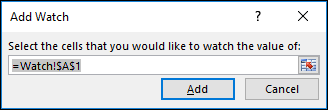
Select Add Watch.

-
Confirm that you've selected all of the cells you want to watch and select Add.
-
To change the width of a Watch Window column, drag the boundary on the right side of the column heading.
-
To display the cell that an entry in Watch Window toolbar refers to, double-click the entry.
Note: Cells that have external references to other workbooks are displayed in the Watch Window toolbar only when the other workbooks are open.
Remove cells from the Watch Window
-
If the Watch Window toolbar is not displayed, go to Formulas > Formula Auditing > select Watch Window.
-
Select the cells that you want to remove.
To select multiple cells, press CTRL and then select the cells.
-
Select Delete Watch.
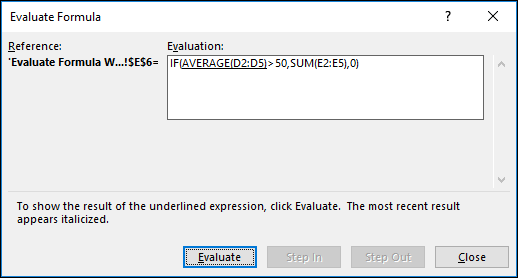
Sometimes, understanding how a nested formula calculates the final result is difficult because there are several intermediate calculations and logical tests. However, by using the Evaluate Formula dialog box, you can see the different parts of a nested formula evaluated in the order the formula is calculated. For example, the formula =IF(AVERAGE(D2:D5)>50,SUM(E2:E5),0) is easier to understand when you can see the following intermediate results:
|
In the Evaluate Formula dialog box |
Description |
|
=IF(AVERAGE(D2:D5)>50,SUM(E2:E5),0) |
The nested formula is initially displayed. The AVERAGE function and the SUM function are nested within the IF function. The cell range D2:D5 contains the values 55, 35, 45, and 25, and so the result of the AVERAGE(D2:D5) function is 40. |
|
=IF(40>50,SUM(E2:E5),0) |
The cell range D2:D5 contains the values 55, 35, 45, and 25, and so the result of the AVERAGE(D2:D5) function is 40. |
|
=IF(False,SUM(E2:E5),0) |
Because 40 is not greater than 50, the expression in the first argument of the IF function (the logical_test argument) is False. The IF function returns the value of the third argument (the value_if_false argument). The SUM function is not evaluated because it is the second argument to the IF function (value_if_true argument), and it is returned only when the expression is True. |
-
Select the cell that you want to evaluate. Only one cell can be evaluated at a time.
-
Go to Formulas > Formula Auditing > Evaluate Formula.
-
Select Evaluate to examine the value of the underlined reference. The result of the evaluation is shown in italics.
If the underlined part of the formula is a reference to another formula, select Step In to display the other formula in the Evaluation box. Select Step Out to go back to the previous cell and formula.
The Step In button is not available for a reference the second time the reference appears in the formula, or if the formula refers to a cell in a separate workbook.
-
Continue selecting Evaluate until each part of the formula has been evaluated.
-
To see the evaluation again, select Restart.
-
To end the evaluation, select Close.
Notes:
-
Some parts of formulas that use the IF and CHOOSE functions are not evaluated — in these cases, #N/A is displayed in the Evaluation box.
-
If a reference is blank, a zero value (0) is displayed in the Evaluation box.
-
The following functions are recalculated each time the worksheet changes, and can cause the Evaluate Formula dialog box to give results different from what appears in the cell: RAND, AREAS, INDEX, OFFSET, CELL, INDIRECT, ROWS, COLUMNS, NOW, TODAY, RANDBETWEEN.
Need more help?
You can always ask an expert in the Excel Tech Community or get support in Communities.








