
If you use a Microsoft 365 or Microsoft Exchange account with Outlook, you can use the Scheduling Assistant and Room Finder to help schedule your meetings.
Note: The new Room Finder was first available in Outlook for Microsoft 365 starting in Version 2012 (Build 13530.20316). Room Finder has a dependency on WebView2, which started rolling out to Microsoft 365 applications on April 1, 2021, version 2101 (Build 13628.20274) and higher. For more information on WebView2, see the admin documentation: Microsoft Edge WebView2 and Microsoft 365 Apps.
-
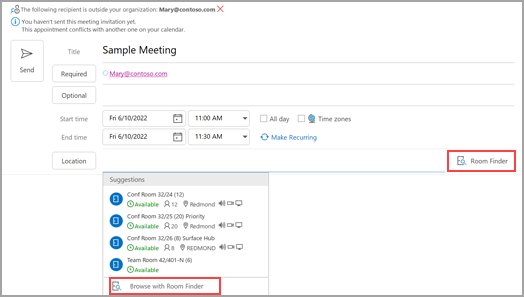
In a new meeting, add the Required attendees, the Start time and the End time, then click the Room Finder button at the end of the Location field.
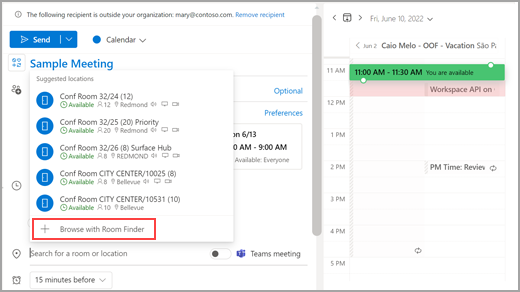
Alternatively, you can click in the Location field and select Browse with Room Finder at the bottom in the list of suggested locations.
-
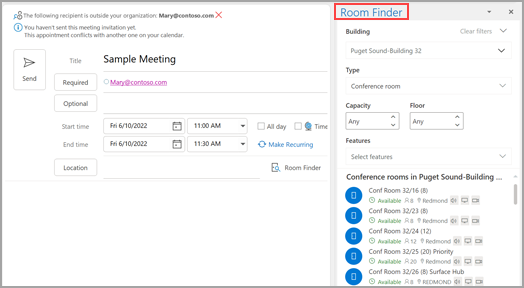
Choose the room specifics on the Room Finder. These conference rooms are set up by your Microsoft Exchange or Microsoft 365 administrator.
-
If the meeting has multiple attendees and busy conference rooms, it can be difficult to find a time that works for everyone. To find availability for people and rooms, select the Scheduling Assistant button on the ribbon, then select AutoPick and choose the appropriate criteria.
Note: This feature replaces the Suggested Times feature from earlier versions of Outlook.
-
After you find an appropriate time slot and add a conference room to the meeting, select Meeting on the ribbon. You can then close the Room Finder. When you're done setting up your meeting, select Send.
Use the Scheduling Assistant
-
From the Inbox, select New Items > Meeting or in the Calendar, select New Meeting. You also can use the keyboard shortcut Ctrl+Shift+Q to create a new meeting request.
-
Add attendees in the To box.
-
In the Subject box, enter a description of the meeting or event.
-
Select Scheduling Assistant from the Ribbon. You'll see a row for every recipient you entered in the To box. If you want to add more attendees, you can type their name in any blank row in the Scheduling Assistant.
-
Times that your attendees are busy are shown in dark blue. Times that your attendees have a tentative appointment are shown in a light blue hashed block, and times outside of your attendees' working hours are shown in light gray. Select an available time for all of your attendees.
-
To select an optimal time for all of your attendees, use the Room Finder in the right column. You can see what times your attendees have conflicts.
Use the Room Finder
-
In a new meeting, select the Scheduling Assistant button on the ribbon. Select the Room Finder button to the right of the Location field or select Browse with Room Finder at the bottom in the list of suggested locations.
-
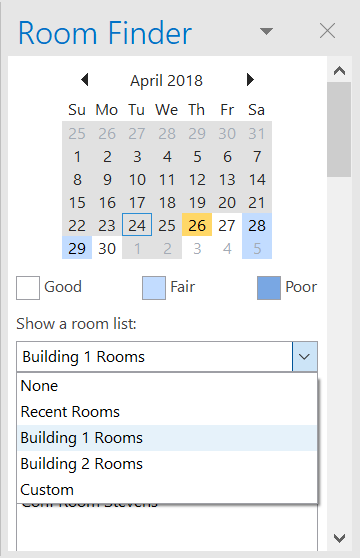
Use the Show a room list drop-down to pick a list of rooms. These lists are set up by your Microsoft Exchange or Microsoft 365 administrator.
-
Select an available room to add the room to the Scheduling Assistant and to the meeting as a recipient.
-
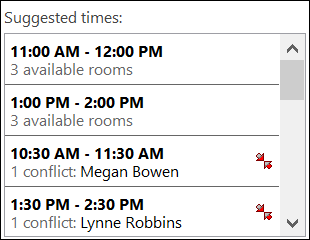
The Suggested Times pane locates the best time for your meeting, which is defined as the time when most attendees are available. The best meeting time appears at the top of the pane. To select any one of the suggested times, click the time suggestion in the Suggested Times pane. You can also manually select a time on the free/busy grid.
-
If you want to make the meeting recur, on the Meeting menu, in the Options group, click Recurrence, select the recurrence pattern, and then click OK.
When you add a recurrence pattern to a meeting request, the Meeting menu changes to Recurring Meeting.
-
-
When you're done setting up your meeting, click Send.
Locate Room Finder
In a new meeting, select Browse with Room Finder at the bottom of Suggested locations.
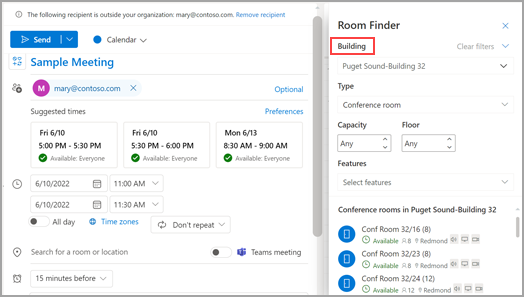
Next, browse for a building in the city where you'd like to meet by using the drop-down menu in the Building field or search by typing in the Building field.
After selecting a building, you can browse and filter the rooms in that building by Type, Capacity, Floor, and Features.
Use the Room Finder
In a new meeting, select Browse more rooms under the Add a location section, and then select Room Finder.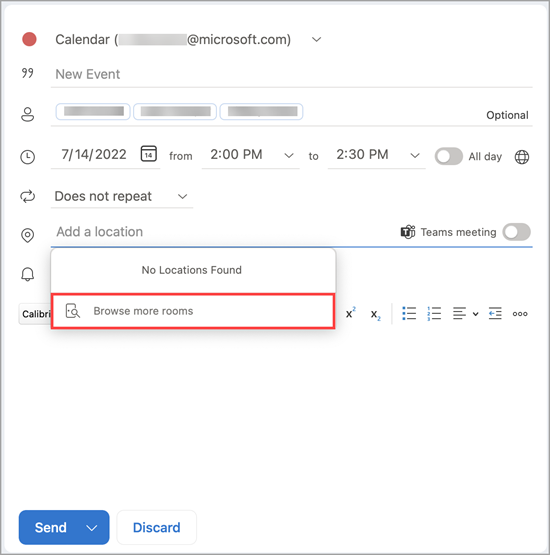
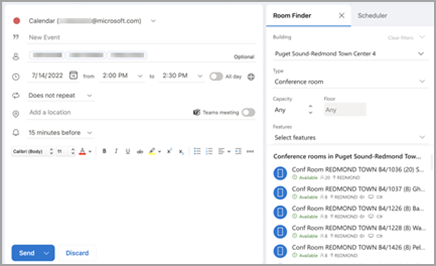
Next, browse for a building in the city where you'd like to meet by using the drop-down menu in the Building field or search by typing in the Building field.
After selecting a building, you can browse and filter the rooms in that building by Type, Capacity, Floor, and Features.
Use the Room Finder
Search for and book conference rooms from the New Event screen with Browse conference rooms.
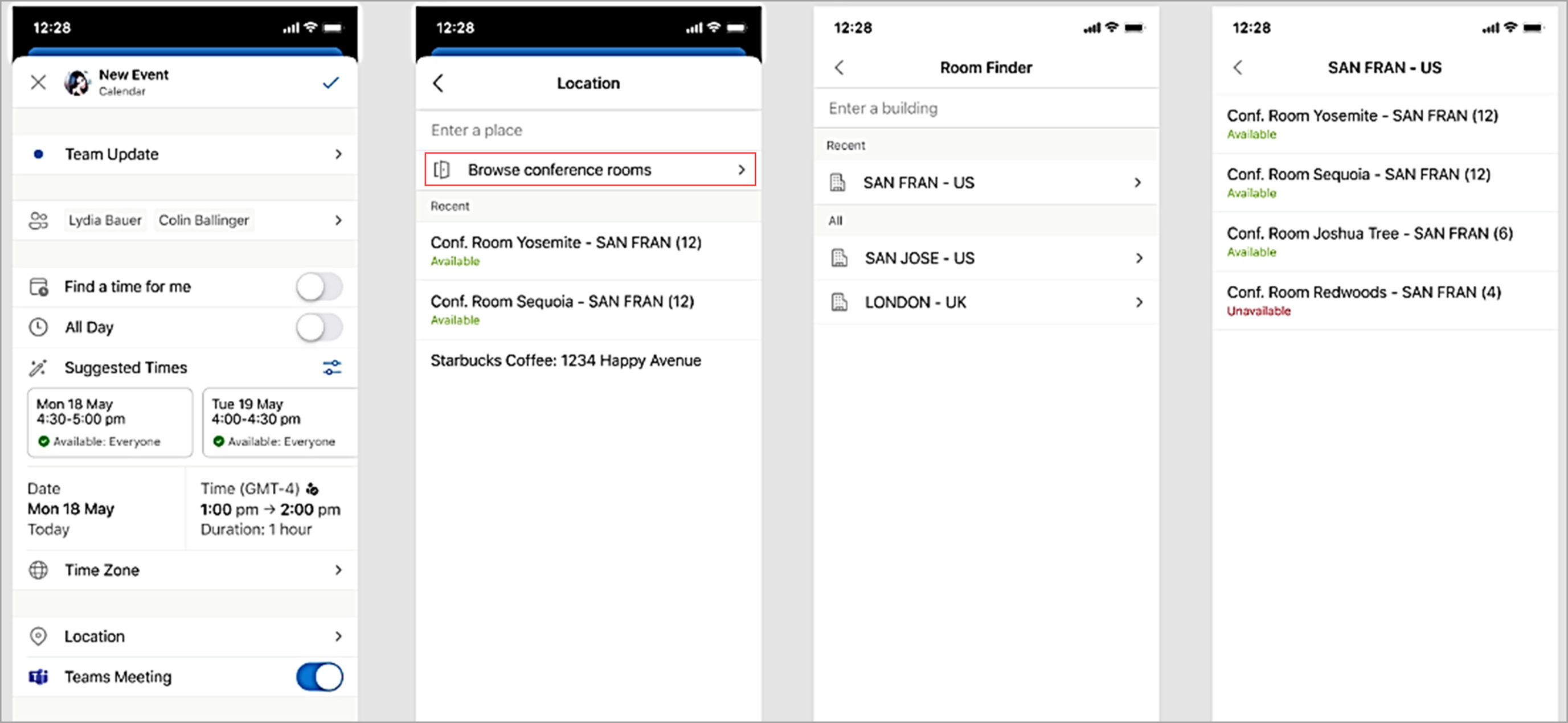
Next, browse for a building in the city where you'd like to meet by using the drop-down menu in the Building field or search by typing in the Building field.








