
What you can customize: You can personalize your ribbon to arrange tabs and commands in the order you want them, hide or unhide your ribbon, and hide those commands you use less often. Also, you can export or import a customized ribbon.
What you can't customize: You can't reduce the size of your ribbon, or the size of the text or the icons on the ribbon. The only way to do this is to change your display resolution, which would change the size of everything on your page.
When you customize your ribbon: Your customizations apply only to the Office program you're working in at the time. For example, if you personalize your ribbon in PowerPoint, those same changes won't be visible in Excel. If you want similar customizations in your other Office apps, you'll have to open each of those apps to make the same changes. Although you can't share customizations between apps, you can export your customizations to share with others or use on other devices.
Tip: You can't change the color of the ribbon, or its icons, but you can change the color scheme that Office uses throughout. For more information see Change the Office theme.
Select any subheading below to expand it and see the instructions:
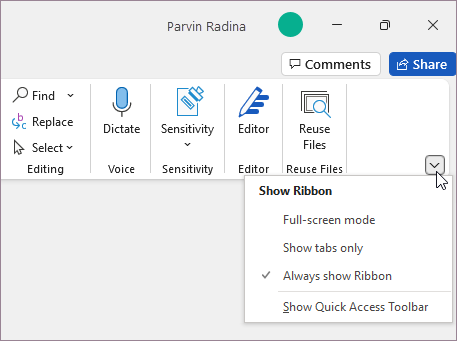
You can toggle between having the ribbon expanded or collapsed in multiple ways.
If the ribbon is collapsed, expand it by doing do one of the following:
-
Double-click any of the ribbon tabs.
-
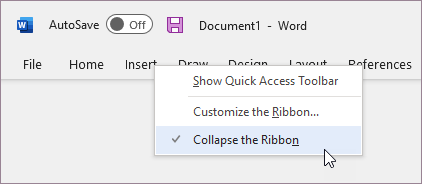
Right-click any of the ribbon tabs, and then select Collapse the ribbon.
-
Press Ctrl+F1.
If the ribbon is expanded, collapse it by doing do one of the following:
-
Double-click any of the ribbon tabs.
-
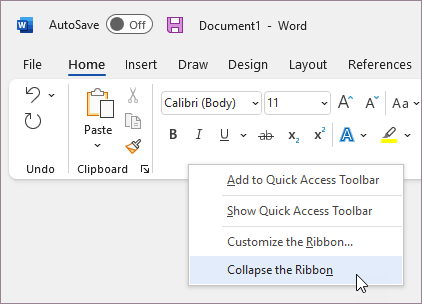
Right-click any of the ribbon tabs, and then select Collapse the ribbon.
-
Right-click Ribbon display options in the lower right of the ribbon, and then select Collapse the ribbon.
-
Press Ctrl+F1.
If the ribbon isn't visible at all
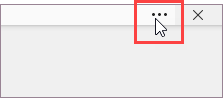
If the ribbon isn’t visible at all (no tabs are showing), then you probably have the state set to Full-screen mode. Select More at the top right of the screen. This will temporarily restore the ribbon.
When you return to the document, the ribbon will be hidden again. To keep the ribbon displayed, select a different state from the Ribbon Display Options menu.
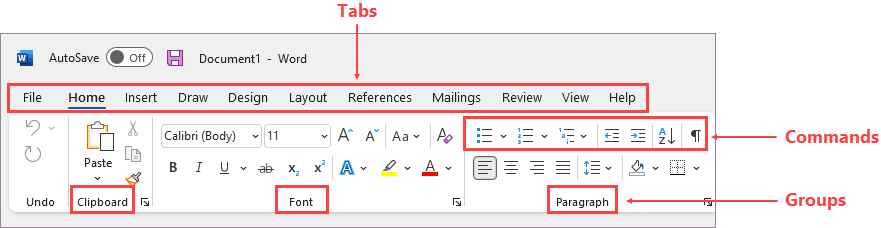
The tabs on your ribbon are Home, Insert, Design, etc. For example, the picture below shows the tabs in Word.

You can add custom tabs or rename and change the order of the default tabs that are built in to Office. Custom tabs in the Customize the Ribbon list have (Custom) after the name, but the word (Custom) does not appear in the ribbon.
Open the "Customize the Ribbon" window
To work with your ribbon, you need to get to the Customize the Ribbon window. Here's how you do that.
-
Open the app you want to customize your ribbon in, such as PowerPoint or Excel.
-
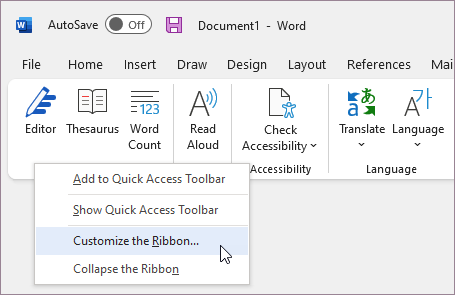
Place your mouse in any empty space in the ribbon and then right-click.
-
Click Customize the Ribbon.
Now you're ready to do the steps below to customize your ribbon.
Change the order of default or custom tabs
You can change the order of Home, Insert, Draw, Design, and other tabs. You cannot change the placement of the File tab.
-
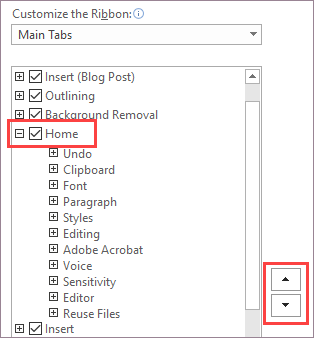
In the Customize the Ribbon window under the Customize the Ribbon list, click the tab that you want to move.
-
Click the Move Up or Move Down arrow until you have the order you want.
-
To see and save your changes, click OK.
Add a custom tab
When you click New Tab, you add a custom tab and custom group. You can only add commands to custom groups.
-
In the Customize the Ribbon window under the Customize the Ribbon list, click New Tab.
-
To see and save your changes, click OK.
Rename a default or custom tab
-
In the Customize the Ribbon window under the Customize the Ribbon list, click the tab that you want to rename.
-
Click Rename, and then type a new name.
-
To see and save your changes, click OK.
Hide a default or custom tab
You can hide both custom and default tabs. But you can only remove custom tabs. You cannot hide the File tab.
-
In the Customize the Ribbon window under the Customize the Ribbon list, clear the check box next to the default tab or custom tab that you want to hide.
-
To see and save your changes, click OK.
Remove a custom tab
You can hide both custom and default tabs, but you can only remove custom tabs. The custom tabs and groups have (Custom) after the name, but the word (Custom) does not appear in the ribbon.
-
In the Customize the Ribbon window under the Customize the Ribbon list, click the tab that you want to remove.
-
Click Remove.
-
To see and save your changes, click OK.
You can add custom groups or rename and change the order of the default groups that are built in to Office. Custom groups in the Customize the Ribbon list have (Custom) after the name, but the word (Custom) does not appear in the ribbon.
Change the order of the default and custom groups
-
In the Customize the Ribbon window under the Customize the Ribbon list, click the group that you want to move.
-
Click the Move Up or Move Down arrow until you have the order you want.
-
To see and save your changes, click OK.
Add a custom group to a tab
You can add a custom group to either a custom tab or a default tab.
-
In the Customize the Ribbon window, under the Customize the Ribbon list, click the tab that you want to add a group to.
-
Click New Group.
-
To rename the New Group (Custom) group, right-click the group, click Rename, and then type a new name.
Note: You can also add an icon to represent the custom group by clicking the custom group, then Rename. When the Symbol dialog opens, choose an icon to represent the group.
-
To hide the labels for the commands that you add to this custom group, right-click the group, and then click Hide Command Labels. Repeat to un-hide them.
-
To see and save your changes, click OK.
Rename a default or custom group
-
In the Customize the Ribbon window under the Customize the Ribbon list, click the tab or group that you want to rename.
-
Click Rename, and then type a new name.
-
To see and save your changes, click OK.
Remove a default or custom group
-
In the Customize the Ribbon window under the Customize the Ribbon list, click the group that you want to remove.
-
Click Remove.
-
To see and save your changes, click OK.
Replace a default group with a custom group
You can’t remove a command from a group built in to Microsoft Office. However, you can make a custom group with the commands that you want to replace the default group.
-
In the Customize the Ribbon window under the Customize the Ribbon list, click the default tab where you want to add the custom group.
-
Click New Group.
-
Right-click the new group, and then click Rename.
-
Type a name for the new group and select an icon to represent the new group when the ribbon is resized.
-
In the Choose Commands from list, click Main Tabs.
-
Click the plus sign (+) next to the default tab that contains the group that you want to customize.
-
Click the plus sign (+) next to the default group that you want to customize.
-
Click the command that you want to add to the custom group, and then click Add.
-
Right-click the default group, and click Remove.
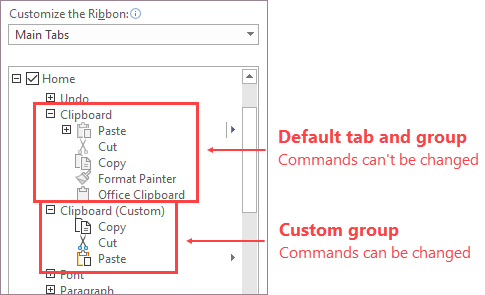
To add commands to a group, you must first add a custom group to a default tab or to a new custom tab. Only commands added to custom groups can be renamed.
Default commands appear in gray text. You can't rename them, change their icons, or change their order.
Change the order of the commands in custom groups
-
In the Customize the Ribbon window under the Customize the Ribbon list, click the command that you want to move.
-
Click the Move Up or Move Down arrow until you have the order you want.
-
To see and save your changes, click OK.
Add commands to a custom group
-
In the Customize the Ribbon window under the Customize the Ribbon list, click the custom group that you want to add a command to.
-
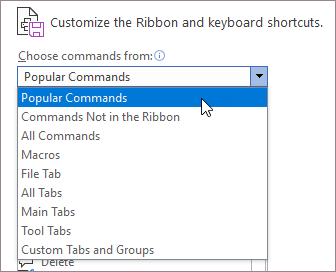
In the Choose commands from list, click the list you want to add commands from, for example, Popular Commands or All Commands.
-
Click a command in the list that you choose.
-
Click Add.
-
To see and save your changes, click OK.
Remove a command from a custom group
You can only remove commands from a custom group.
-
In the Customize the Ribbon window, under the Customize the Ribbon list, click the command that you want to remove.
-
Click Remove.
-
To see and save your changes, click OK.
Rename a command that you added to a custom group
-
In the Customize the Ribbon window under the Customize the Ribbon list, click the command that you want to rename.
-
Click Rename, and then type a new name.
-
To see and save your changes, click OK.
You can reset all tabs to their original state, or you can reset select tabs to their original state . When you reset all tabs on the ribbon, you also reset the Quick Access Toolbar to show only the default commands.
Follow these steps to reset the ribbon:
-
In the Customize the Ribbon window, click Reset.
-
Click Reset all customizations.
Reset only the selected tab to the default setting
You can only reset default tabs to their default settings.
-
In the Customize the Ribbon window, select the default tab that you want to reset to the default settings.
-
Click Reset, and then click Reset only selected Ribbon tab.
You can share your ribbon and Quick Access Toolbar customizations into a file that can be imported and used by a coworker or on another computer.
Step 1: Export your customized ribbon:
-
In the Customize the Ribbon window, click Import/Export.
-
Click Export all customizations.
Step 2: Import the customized ribbon and Quick Access Toolbar on your other computer
Important: When you import a ribbon customization file, you lose all prior ribbon and Quick Access Toolbar customizations. If you think that you might want to revert to the customization you currently have, you should export them before importing any new customizations.
-
In the Customize the Ribbon window, click Import/Export.
-
Click Import customization file.
Related Topics
You can personalize the Ribbon and toolbars in Office just the way you like them, showing frequently used commands and hiding the ones you rarely use. You can change default tabs, or create custom tabs and custom groups to contain your frequently used commands.
Note: You cannot rename the default commands, change the icons associated with these default commands, or change the order of these commands.
-
To customize the Ribbon, open or create an Excel, Word, or PowerPoint document.
-
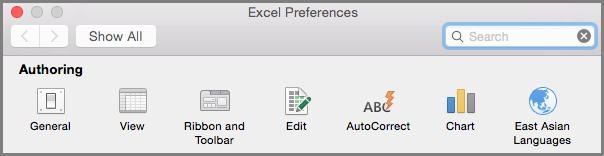
Go to the app Preferences and select Ribbon and Toolbar.
-
On the Ribbon tab window, select the commands you want to add or remove from your Ribbon and select the add or remove arrows.
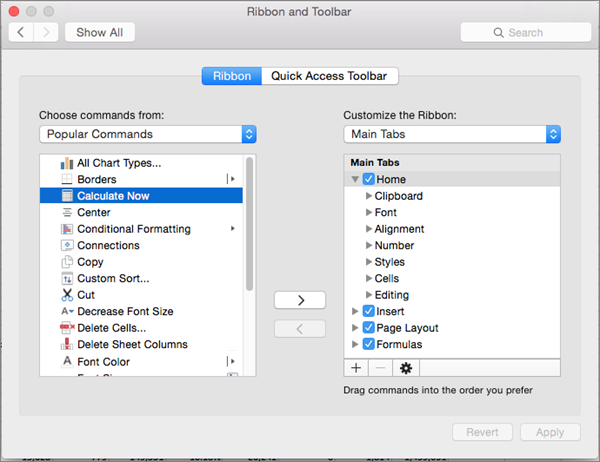
Note: To remove the default tabs or commands like the Home or Insert tab from the Ribbon, uncheck the relevant checkbox in the Customize the Ribbon box.
Here's what you can customize on the Ribbon:
-
Rename the tabs: To rename, select a tab, like Home, Insert, Design in the Customize the Ribbon box, select
-
Add new tab or new group: To add new tab or new group, select

-
Remove tabs: You can remove custom tabs only from the Ribbon. To remove, select your tab in the Customize the Ribbon box and select


Customize the Quick Access Toolbar
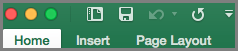
If you just want a few commands on your fingertips, you want to use the Quick Access Toolbar. Those are the icons that are above the Ribbon and they are always on no matter what tab you are on in the Ribbon.
-
To customize the Quick Access Toolbar, open or create an Excel, Word, or PowerPoint document.
-
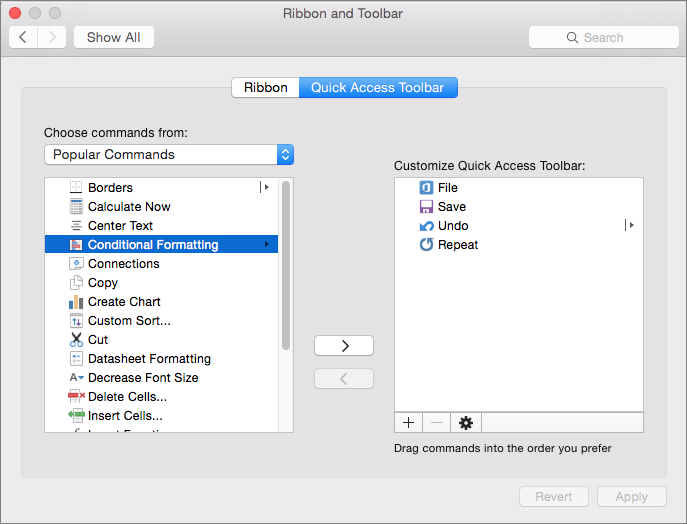
Go to the app Preferences and select Quick Access Toolbar.
-
On the Quick Access Toolbar tab window, select the commands and select the arrows to add or remove from the Customize Quick Access Toolbar box.
Note: If you don't see the commands to add to the Quick Access Toolbar, it is because we don't support it at this time.
Once you select a command, it will appear at the end of the Quick Access toolbar.
Here are the default commands on the Quick Access Toolbar:
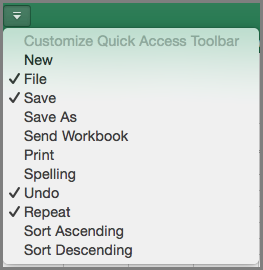
If you want just want to add one of these commands, just select the command name to add or remove it from the toolbar. Items that appear in the Quick Access Toolbar will have a checkmark

Minimize or Expand the ribbon
You can minimize the ribbon so that only the tabs appear.
|
Expanded ribbon |
Collapsed ribbon |
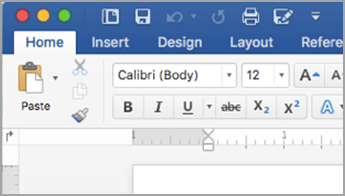
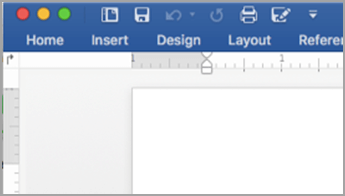
Minimize the ribbon while you are working
-
On the right side of the ribbon, select

Expand the ribbon while you are working
-
On the right side of the ribbon, select

Minimize the ribbon when a file opens
By default, the ribbon is expanded every time that you open a file, but you can change that setting so that the ribbon is always minimized.
-
On the View menu, clear the Ribbon check mark.
-
To once again display the ribbon when you open a file, on the View menu, select Ribbon or simply expand the ribbon by selecting








