
To be able to send bulk email via mail merge, you must already have installed a MAPI-compatible email program such as Outlook or Gmail.
The following process assumes that you already have the message you intend to send created and open in Microsoft Word.
-
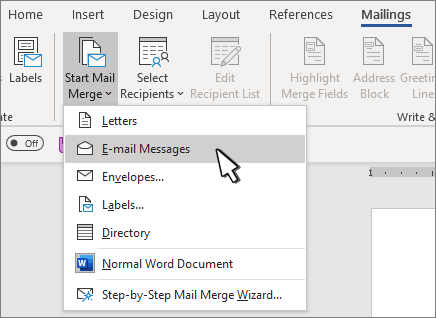
Go to Mailings > Start Mail Merge > E-mail Messages.
The mailing list is your data source. For more information, see Data sources you can use for a mail merge.
Tips
-
If you don’t have a mailing list, you will be able to create one during mail merge.
-
If you are using an Excel spreadsheet as your data source, format the ZIP/postal codes as text to avoid auto-deletion of any leading zeroes. For more information, see Format mail merge numbers, dates, and other values in Excel.
-
If you want to use your Outlook contacts as a list source, make sure Outlook is your default email program and is the same version as Word.
Make sure your data source has a column for email addresses and that there is an email address for every intended recipient.
-
Go to Mailings > Select Recipients.
-
Choose a data source. For more information, see Data sources you can use for a mail merge.
-
Choose File > Save.
To learn more about editing, sorting, or filtering your mailing list, see Mail merge: Edit recipients.
-
Go to Mailings > Greeting Line.
-
Choose a format.
-
Choose OK to insert the merge field.
-
Choose File > Save .
You can add other fields from your data source to your email message. For more information about this, see Insert mail merge fields.
Note: After inserting fields, you will need to format your email manually.
To learn how to fix any missing part of your addresses or other fields, see Mail merge: Match Fields.
To change the font, size, or spacing of the merged content, select the merge field name and make the needed changes.
-
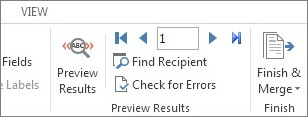
Choose Preview Results, and then choose Next

-
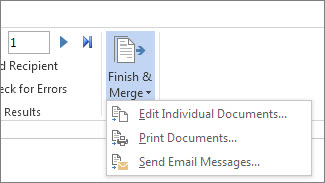
Choose Finish & Merge > Send E-mail Messages.
-
In the To box, choose the email address column or field from your mailing list.
Note: Word sends an individual message to each email address. You cannot CC or BCC other recipients. You cannot add attachments, but you can include links,
-
In the Subject line box, type a subject line for the message.
-
In the Mail format box, choose HTML (the default setting) or choose Plain text to send the document as the body of the email message.
-
Under Send records, select one of the following:
-
All records (default).
-
Current record only the record viewable on your screen is sent the message.
-
From and To send only a range of records.
-
-
Choose OK to run mail merge.

Go to File > Save. When you save the main document, you also save its connection to the data source. To reuse, open the document and answer Yes when prompted to keep the connection to the data source.
See also
To be able to send bulk email via mail merge, you must already have installed a MAPI-compatible email program such as Outlook or Gmail.
-
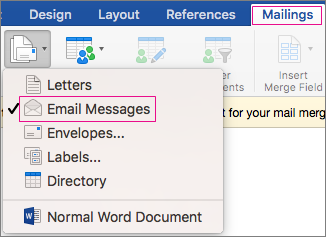
Go to Mailings > Start Mail Merge > Email Messages.
-
In Word, created the email message that you intend to send.
The mailing list is your data source. For more info, see Data sources you can use for a mail merge.
Tips
-
If you don’t have a mailing list, you can create one during mail merge.
-
If you're using an Excel spreadsheet, format the ZIP/postal codes column as text to avoid auto deletion of leading zeroes. For more information about this, see Format mail merge numbers, dates, and other values in Excel.
-
If you want to use your Outlook contacts, make sure Outlook is your default email program and is the same version as Word.
Make sure your data source has a column for email addresses and that there's an email address for each intended recipient.
-
Go to Mailings > Select Recipients.
-
Choose a data source. For more info, see Data sources you can use for a mail merge.
-
Choose File > Save.
Learn how to edit, sort, or filter your mailing list here: Mail merge: Edit recipients.
-
Go to Mailings > Insert Merge Field, and then choose the fields to add.

-
In your document, select Drag fields into this box or type text, and select the text to remove it.
-
Add and format the fields you want to be included in the email message, then select OK.
-
Go to Mailings > Preview Results to see how the email messages look.

To scroll through each email message, use the left and right arrow buttons on the Mailings tab.
-
Select Preview Results again to add or remove merge fields.
-
When ready, go to Mailings > Finish & Merge > Merge to E-Mail.
Merge to E-Mail is unavailable if you have not selected your default email program.
-
Choose the To merge field, the subject, and whether to send as text, HTML, or as an attachment. When you send as an attachment, the email has no body text; instead, the message is sent as an attached document.
-
Select Mail Merge To Outbox.









