
Symptoms of the problem
When you start or play any one of the games that is listed in the "Applies to" section, you experience one or more of the following symptoms:
-
The game crashes (stops responding)
-
The game closes unexpectedly
-
The computer restarts unexpectedly
-
The game window is minimized to the taskbar and cannot be restored
Additionally, you may receive the following error message after you receive the Gathering Exception Data dialog box:
<Game Name> has encountered a problem and needs to close.
The error message asks you to send the error report details to Microsoft.
To resolve this issue, use the following methods in the order in which they are presented.
Method 1: Check for the latest update for the game
Download the latest updates for the game from their respective Web sites:
-
Age of Empires: http://www.agecommunity.com
-
Fable: The Lost Chapters: http://www.microsoft.com/games/fable/
-
Flight Simulator X: http://www.fsinsider.com
-
Gears of War: http://gearsofwar.xbox.com/en-US/AgeGate?source=%252f
Method 2: Restart the computer by using a clean startup procedure
When you start Microsoft Windows, typically there are several programs that start automatically and run in the background that may interfere with the game. These programs may include antivirus and system utility programs. When you perform a clean startup procedure, you prevent these programs from starting automatically.
To restart the computer by using a clean startup procedure, click the following article number to view the article in the Microsoft Knowledge Base:
For more information or to view steps for other operating systems, click the following article number to view the article in the Microsoft Knowledge Base:
331796 Perform a Clean Startup to determine whether background programs are interfering with your games or programs
If the issue continues to occur, go to the next method.
Method 3: Create a new user account
Follow these steps for your version of Windows.
Windows 7 or Windows Vista
Step 1: Open User Accounts
-
Click Start

-
Click User Accounts.

Step 2: Add a new user
-
On the Users tab, click
Add. -
Type a name for your user account, type your full name, and then type a description for your account.
-
If the computer is set up as part of a client/server network, type the domain name, and then click Next.
Note If the computer is set up as an individual computer without a network or in a peer-to-peer network, you do not have to provide a domain name. -
Type a user password, and then type the user password again to confirm it.
Important Passwords are case-sensitive. For example, “MyPassword” and “mypassword” are treated as different passwords. -
Click Next.
-
Select the level of access for your user account, and then click Finish.
Note Some games require a user account that has administrator-level access to run.
Windows XP Home Edition
-
Click Start, click Control Panel, and then click User Accounts.
-
In the Pick a task list, click
Create a new account. -
Type the name that you want to use for the account, and then click Next.
-
Select the account type that you want, and then click
Create Account.
Note Some games require a user account that uses the administrator account type to run.
Windows XP Professional Edition
Step 1: Open User Accounts
To open User Accounts, click Start, click Run, type Control nusrmgr.cpl in the Open box, and then click OK.
Step 2: Add a new user
-
On the Users tab, click
Add. -
Type a name for your user account, type your full name, and type a description for your account.
-
If the computer is set up as part of a client/server network, type the domain name, and then click Next.
Note If the computer is set up as an individual computer without a network or in a peer-to-peer network, you do not have to provide a domain name. -
Type a user password, and then type the user password again to confirm it.
Important Passwords are case-sensitive. For example, “MyPassword” and “mypassword” are treated as different passwords. -
Click Next.
-
Select the level of access for your user account, and then click Finish.
Note Some games require a user account that has administrator-level access to run.
If the issue continues to occur, go to the next method.
More information
If creating a new user account fixes the problem, sign out of this new user account, and then sign in to your usual user account to see whether the problem reappears there. If there is still a problem in your usual user account, you may want to use the Fix It button in the following article to restore the default security settings in this account. Then check whether that fixes the problem. Otherwise you must move your data from the account that has the problem into the user account that you just created so that you can access it when you use the new user account.
313222 How do I restore security settings to the default settings?
For more information about how to copy data to your new user profile when you are using Windows XP, click the following article number to view the article in the Microsoft Knowledge Base:
811151 How to copy data from a corrupted user profile to a new profile in Windows XP
For more information about how to copy data to your new user profile when you are using Windows Vista, click the following topic title to view the topic in Windows Help and How-to:
Fix a corrupted user profile If the issue continues to occur, go to the next method.
Method 4: Change the compatibility setting
Note This method may not work for newer games that require advanced features.
-
Right-click the game icon, and then click Properties. -
Click the Compatibility tab.
-
Click to select the Run this program in compatibility mode for check box, and then select Windows 98/Windows Me from the list.
-
Click OK.
If the issue continues to occur, go to the next method.
Method 5: Update the video driver
Contact the manufacturer of the video adapter for information about how to obtain and install the latest version of the video driver for your video adapter. To see whether applicable driver updates are available, visit the following Microsoft Windows Update Web site:
http://update.microsoft.com
Click Play to view this streaming media demonstration.
For information about your hardware manufacturer, visit the following Web site:
http://support.microsoft.com/gp/vendors/en-us
Microsoft provides third-party contact information to help you find technical support. This contact information may change without notice. Microsoft does not guarantee the accuracy of this third-party contact information.
To determine the name and the manufacturer of your video adapter, follow these steps for your version of Windows.
Windows 7 or Windows Vista
-
Click Start
-
Click the Display tab.
-
Under Device, look for
Name and Manufacturer. -
Click Exit.
Windows XP
-
Click Start, click Run, type dxdiag in the Open box, and then click OK.
-
Click the Display tab.
-
Under Device, look for
Name and Manufacturer. -
Click Exit.
Click Play to view this streaming media demonstration.
If the issue continues to occur, go to the next method.
Method 6: Temporarily disable the sound card in Windows
To temporarily disable the sound card, follow the steps for your version of Windows.
Windows 7 or Windows Vista
-
Click Start
-
Right-click the driver that you want to disable.
-
Click Disable, and then click Yes.
-
Click OK.
-
Restart Windows, and then test the game.
Windows XP
-
Click Start, click Run, type system.cpl in the Open box, and then click OK.
-
Click the Hardware tab, and then click
Device Manager. -
Double-click Sound, Video and Game Controllers.
-
Double-click the sound card.
-
Under Device Usage, click Do Not Use This Device (Disable).
-
Restart Windows, and then test the game.
If the issue continues to occur, go to the next method.
Method 7: Reduce sound acceleration
Windows XP
-
Click Start, click Run, type dxdiag in the Open box, and then click OK.
-
On the Sound tab, in the DirectX Features section, change the Hardware Sound Acceleration Level to Basic acceleration.
-
Click Exit.
Click Play to view this streaming media demonstration.
If the issue continues to occur, go to the next method.
Method 8: Download and install the most recent version of DirectX
-
To download the latest version of DirectX, visit the following Microsoft Web site:
http://www.gamesforwindows.com/en-US/AboutGFW/Pages/DirectX10-a.aspx
-
Click Download the latest DirectX.
-
Click Continue, and then click Download.
-
Follow the directions to install the latest version of DirectX.
If the issue continues to occur, go to the next method.
Method 9: Update the sound driver
Contact the manufacturer of the sound card to ask about how to obtain and install the latest version of the sound driver for the sound card or visit the Windows Update site to look for applicable drivers. (See Method 5 for contact information.)
To determine the name and manufacturer of your sound card, follow the steps for your version of Windows.
Windows 7 or Windows Vista
-
Click Start
-
Click the Sound tab.
-
Under Device, look for
Name. Under Drivers, look for Provider. -
Click Exit.
Windows XP
-
Click Start, click Run, type dxdiag in the Open box, and then click OK.
-
Click the Sound tab.
-
Under Device, look for
Name. Under Driver, look for
Provider. -
Click Exit.
Click Play to view this streaming media demonstration.
If the issue continues to occur, go to the next method.
Method 10: Remove and then reinstall the game
Step1: Perform a clean startup of Windows
Follow the steps in Method 2 to perform a clean startup of Windows. Then continue to step 2.
Step 2: Remove and then reinstall the game
To remove and then reinstall the game, follow the steps for your version of Windows.
Windows 7 or Windows Vista
-
Click Start
-
In the list of installed programs, click the Microsoft game that you want to remove, and then click
Uninstall. -
Follow the instructions to complete the removal process.
-
Insert the game CD into the CD or DVD drive.
-
Follow the instructions to complete the installation process.
If the Setup program does not start automatically, follow these steps:
-
Click Start
drive:\setup.exe in the Start Search box, and then press ENTER.
Note In this example, drive represents the drive letter of the CD or DVD drive. -
Follow the instructions that appear on the screen to complete the installation process.
Windows XP
-
Click Start, point to
Settings, and then click Control Panel. -
Double-click Add or Remove Programs.
-
In the list of installed programs, double-click the Microsoft game that you want to remove, and then click
Uninstall or click Change/Remove. -
Follow the instructions to complete the removal process.
-
Insert the game CD into the CD or DVD drive.
-
Follow the instructions to complete the installation process.
If the Setup program does not start automatically, follow these steps:
-
Click Start, click
Run, type
drive:\setup.exe in the Open box, and then click OK.
In this example, drive is the drive letter of the CD or DVD drive. -
Follow the instructions to complete the installation process.
If the issue continues to occur, go to the next method.
Method 11: Check Solution Center for your game
At the Games for Windows Solution Center you can find solutions for most common issues. These solutions let you do the following:
-
Look up top product issues, error messages, and troubleshooting tips
-
Find product help from a discussion group or from a support professional
-
Find technical product contact information, such as telephone numbers and e-mail addresses
http://support.microsoft.com/games If the issue continues to occur, go to the next method.
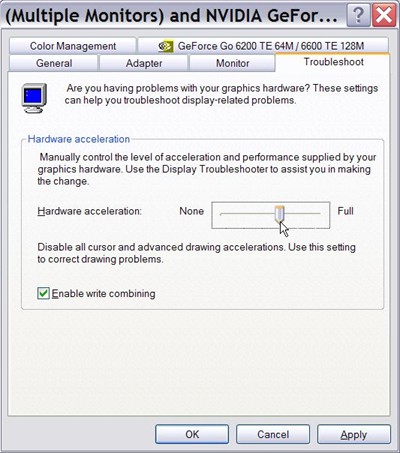
Method 12 - Windows XP only: Adjust graphics hardware acceleration
-
Click Start, click Run, type desk.cpl in the Open box, and then click OK.
-
On the Settings tab, click Advanced. -
Click the Troubleshoot tab.
-
Move the Hardware Acceleration slider two notches to the left of Full to the Disable all cursor and advanced drawing accelerations setting.
-
Click OK , and then click OK again.
-
Test the game.
If the issue continues to occur, go to the next method.
Method 13: Scan the computer for viruses
The game may close, generate an error, or crash during start or during play if your computer is infected by a virus.
Important If you already have antivirus software installed, update your antivirus program by installing the latest signature files before you scan your computer for viruses. Most companies that create antivirus software release a new signature file each month. After you obtain the latest signature files, scan your computer. For help obtaining the antivirus signature files, contact the antivirus software manufacturer.
If you do not have antivirus software installed, to view a list of antivirus software vendors, click the following article number view the article in the Microsoft Knowledge Base:
49500 List of antivirus software vendors
If you have cleaned your computer of viruses, follow Method 10 remove and then reinstall the game.
If the issue continues to occur, go to the next method.
Method 14: Remove spyware and other unwanted software
To learn more about the symptoms of spyware and other unwanted software, about how to remove spyware, and about how you can help protect your computer, visit the following Microsoft Web site:
http://www.microsoft.com/protect/computer/spyware/default.mspx To run a scan for unwanted software in Windows 7 or in Windows Vista, follow these steps:
-
Click Start
-
Click Windows Defender.
-
Click the down arrow next to Scan, and then click Full Scan.
If you have cleaned unwanted software from the computer, follow Method 10 to remove and then reinstall the game.
Next steps
If you need more help, visit the Microsoft Customer Support Services Web site to find other solutions. This Web site provides the following services:
-
Microsoft Community online (http://answers.microsoft.com/en-us/windows/default.aspx): Interact with peers and with Microsoft Most Valuable Professionals (MVPs).
-
Solution Centers (http://support.microsoft.com/select/?target=hub): View product-specific frequently asked questions (FAQ) and support highlights.
-
Searchable Knowledge Base (http://support.microsoft.com/search/?adv=1): Search technical support information and self-help tools for Microsoft products.
-
Other Support Options (http://support.microsoft.com/default.aspx?pr=csshome): Use the Web to ask a question, to contact Microsoft Customer Support Services, or to provide feedback.








