
If you run into problems trying to connect to a Bluetooth device, here are some troubleshooting steps to try.
Note: For general info about how to connect a Bluetooth device to your PC, see Pair a Bluetooth device in Windows.
Before you start
Check these things before you start troubleshooting Bluetooth on your device:
Check your product information
If you’re setting up a new device and Bluetooth is missing, check the product specifications to make sure it has Bluetooth capabilities. Some devices don’t have Bluetooth.
Make sure Bluetooth is turned on
If you're using a laptop with a physical Bluetooth switch on the body, make sure it’s switched on.
In Windows 11, there are two ways to check if Bluetooth is turned on. Here’s how:
-
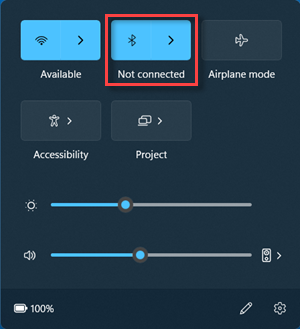
Check in quick settings: Select the Network, Sound, or Battery icons ( ) on the right side of the taskbar, look for the Bluetooth quick setting, then select Bluetooth to turn it on. You’ll see “Not connected” if your Windows 11 device isn’t connected to any Bluetooth accessories.
-
Check in Settings: Select Start > Settings > Bluetooth & devices . Make sure Bluetooth is turned on.
Notes:
-
When you turn Bluetooth on in Settings, the following message appears immediately:
-
"Discoverable as <computer_name>"
Check your Bluetooth device
Make sure your Bluetooth device is turned on, is charged or has fresh batteries, and is in range of your PC. Then, try the following:
-
Turn off your Bluetooth device, wait a few seconds, then turn it back on.
-
Make sure your Bluetooth device is in range. If your Bluetooth device is unresponsive or sluggish, check to make sure it’s not too close to any other USB device that’s plugged into a USB 3.0 port. Unshielded USB devices can sometimes interfere with Bluetooth connections.
Change the Bluetooth devices discovery setting
If you don't see your Bluetooth device displayed in the list of devices, you may need to set your Bluetooth devices discovery setting to Advanced.
-
Select Start > Settings > Bluetooth & devices > Devices .
-
Under Device settings > Bluetooth devices discovery, choose one of the following from the drop-down list:
-
Default—displays common Bluetooth devices
-
Advanced—displays all types of Bluetooth devices
-
-
If you still don't see your Bluetooth device displayed after choosing the Advanced setting, try the solutions listed below.
Check your PC
On the PC you want to pair to:
-
Make sure airplane mode is off: Select the Network, Sound, or Battery icons ( ) on the right side of the taskbar, then make sure the Airplane mode quick setting is turned off.
-
Turn Bluetooth on and off: Select Start > Settings > Bluetooth & devices . Turn off Bluetooth , wait a few seconds, then turn it back on.
-
Remove the Bluetooth device, then add it again: Select Start > Settings > Bluetooth & devices > Devices . In Devices, select More options for the Bluetooth device you’re having problems connecting to, and then select Remove device > Yes. To learn more about pairing your Bluetooth device again, see Pair a Bluetooth device.
When Bluetooth doesn't work or the Bluetooth icon is missing
Try these steps if your Bluetooth isn't working. Here are some other common problems:
-
The Bluetooth icon is missing, or Bluetooth can't be turned on or off.
-
Bluetooth doesn't work after a Windows update is installed.
-
Bluetooth doesn't work after you upgrade to Windows 11 from Windows 10.
-
Bluetooth doesn't appear in Device Manager, and there are no unknown devices listed.
To get started, select a heading to see more info.
Select Start > Settings > System > Troubleshoot > Other troubleshooters . Next to Bluetooth , select Run and follow the instructions.
If you recently upgraded to Windows 11 or installed Windows 11 updates, the current driver may have been designed for an earlier version of Windows. To automatically check for driver updates:
-
Select Search on the taskbar, type for device manager, and then select Device Manager from the list of results.
-
In Device Manager, select Bluetooth, and then select the Bluetooth adapter name, which may include the word “radio.”
-
Press and hold (or right-click) the Bluetooth adapter, and then select Update driver > Search automatically for updated driver software. Follow the steps, then select Close.
-
After installing the updated driver, select Start > Power > Restart if you're prompted to restart, and then check whether that fixes the connection issue.
If Windows can’t find a new Bluetooth driver, visit the PC manufacturer’s website and download the latest Bluetooth driver from there.
Important: An outdated or incompatible driver is one of the most common causes of Bluetooth connection problems.
To manually install the Bluetooth driver:
Go to your PC manufacturer's website and download the latest driver. Then do one of the following:
-
If you downloaded an executable (.exe) file, just double-click the file to run it and install the drivers. That should be all you need to do.
-
If you downloaded individual files, and at least one file has an .inf file name extension and another has a .sys extension, do the following:
-
Select Search on the taskbar, type device manager, and then select Device Manager from the list of results.
-
In Device Manager, select Bluetooth > the Bluetooth adapter name. (If it’s not listed there, check in Other devices.)
-
Press and hold (or right-click) the network adapter, and then select Update driver > Browse my computer for drivers.
-
Select Browse, select the location where the driver files are stored, and then select OK.
-
Select Next, and follow the steps to install the driver. When the installation is finished, select Close.
-
After you've updated the driver, select Start > Power > Restart if you're prompted to restart, and check whether that fixes the connection issue.
-
If you don't see the Bluetooth icon, but Bluetooth does appear in Device Manager, try to uninstall the Bluetooth adapter, and then trigger an automatic reinstall. Here's how:
-
Select Search on the taskbar, enter device manager, then select Device Manager from the results.
-
In Device Manager, select Bluetooth. Press and hold (or right-click) the Bluetooth adapter name (which may include the word “radio”), and select Uninstall device > Uninstall.
-
Select Start , then select Power > Shut down .
-
After your device shuts down, wait a few seconds, and then turn it back on. Windows will try to reinstall the driver.
-
If Windows doesn't reinstall the driver automatically, open Device Manager and select Action > Scan for hardware changes.
Note: You may need to contact your PC or other hardware manufacturer to get the latest drivers for your Bluetooth adapter.
If these steps don't fix your Bluetooth problem, use Windows Feedback Hub to file a bug. This helps Microsoft determine the root cause of the problem.
Include details about what you were doing or specific steps you were taking when the problem occurred. For example, if you started having Bluetooth problems after updating Windows or changing Windows versions, include this info.
Note: If your school or workplace manages your device and you don't see the Bluetooth icon, it may be disabled by your organization. Check with your IT support person.
Troubleshoot problems with Bluetooth accessories
If you can turn on Bluetooth but having problems pairing or using a Bluetooth accessory, try the following steps to try to fix common problems with Bluetooth accessories.
You should also check your Bluetooth device manufacturer's website—especially if you have other Bluetooth devices that are working. The device manufacturer will probably have more detailed, product-specific information and troubleshooting steps.
To get started, select a heading to see more info.
-
If you’re prompted to enter a PIN to use your device, but you don’t know the PIN:
-
Check the device’s documentation for a pin, or look for one on the device itself.
-
Try 0000 or 1234.
-
-
If you’re prompted to enter a PIN, but you don’t see a place to enter one on your PC’s screen, type 0000 on your Bluetooth keyboard and press Enter.
-
Try to remove the device, then pair it again. Your device might be paired, but not connected—Bluetooth keyboards, mice, and pens connect only when necessary.
To remove a Bluetooth device, select Start > Settings > Bluetooth & devices > Devices . In Devices, select More options for the Bluetooth device that’s paired but not working, then select Remove device > Yes. After that, pair the device again. For more info on pairing devices, see Pair a Bluetooth device.
If you’re having problems connecting a Bluetooth audio device or hearing sound:
-
Make sure the audio device is within range of your PC.
-
Make sure the audio is playing through the Bluetooth device. Select Start > Settings > System > Sound . Select Choose where to play sound then select the Bluetooth device.
-
If your Bluetooth device displays as Paired in Settings > Bluetooth & devices > Devices , but you can’t hear audio, make sure it’s connected. In Devices, select More options next to the device, and then select Connect.
-
Try to remove the Bluetooth device, then pair it again. To remove a Bluetooth device, select Start > Settings > Bluetooth & devices > Devices . In Devices, select More options for the Bluetooth device that’s paired but not working, then select Remove device > Yes. After that, pair the device again. For more info on pairing devices, see Pair a Bluetooth device.
If your device is connected, but the audio quality is poor:
-
Make sure the audio is playing through the Bluetooth device. Select Start > Settings > System > Sound . In Choose where to play sound, select the Bluetooth audio device.
-
Pause other things that might be using Bluetooth, such as file-sharing over Bluetooth. For more info, see Fix sound or audio problems in Windows.
-
Verify that stereo is selected for the Bluetooth device to ensure the best quality audio. To do this:
-
On the right side of the taskbar, click Volume , and then select Manage audio devices to choose a playback device.
-
Select the Bluetooth device, and make sure the Stereo option is selected. (The lower-audio quality option is Hands-Free.)
-
If stereo is not available as an option, remove the device in Settings > Bluetooth & devices > Devices , and then add the device again. Then, check the Volume panel again to make sure that stereo is selected.
-
File sharing
If you’re having problems sharing files over Bluetooth:
-
Try using nearby sharing. Learn more about nearby sharing
-
Make sure Bluetooth is turned on for both the sending and receiving device. For more info, see Send files over Bluetooth.
Note: Nearby sharing is available on Windows 10 (version 1803 and later) and on Windows 11.
Phones
The PIN should appear on your phone screen or computer screen. Confirm that you’re seeing the correct PIN on both devices.
Motion controllers
For help troubleshooting problems with Bluetooth-connected motion controllers, see Controllers in Windows Mixed Reality.
Fitness trackers
For help troubleshooting problems with Bluetooth-connected fitness trackers, see your device manufacturer’s instructions.
If you've tried the steps in this article or don't see a solution to the problem, use Windows Feedback Hub to file a bug. This helps Microsoft determine the root cause of the problem.
Include specific details about what you were doing when the problem occurred. For example, if you started having Bluetooth problems after updating Windows or changing Windows versions, include this info.
If you run into problems trying to connect to a Bluetooth device, here are some troubleshooting steps to try.
Note: For general info about how to connect a Bluetooth device to your PC, see Pair a Bluetooth device in Windows.
Before you start

Check these things before you start troubleshooting Bluetooth on your device:
Check your product information
If you’re setting up a new device and Bluetooth is missing, check the product specifications to make sure it has Bluetooth capabilities. Some devices don’t have Bluetooth.
Make sure Bluetooth is turned on
If you're using a laptop with a physical Bluetooth switch on the body, make sure it’s switched on.
In Windows 10, there are two ways to check if Bluetooth is turned on. Here’s how:
-
Check in the taskbar. Select action center ( or ). If you don’t see Bluetooth, select Expand to reveal Bluetooth, then select Bluetooth to turn it on. You’ll see “Not connected” if your Windows 10 device isn’t paired to any Bluetooth accessories.
-
Check in Settings. Select Select the Start button, then select Settings > Devices > Bluetooth & other devices . Make sure Bluetooth is turned on.
Notes:
-
When you turn Bluetooth on in Settings, the following message appears immediately:
-
"Now discoverable as <computer_name>"
Check your Bluetooth device
Make sure your device is turned on, is charged or has fresh batteries, and is in range of the PC you want to connect to. Then, try the following:
-
Turn off your Bluetooth device, wait a few seconds, then turn it back on.
-
Make sure your Bluetooth device is in range. If your Bluetooth device is unresponsive or sluggish, check to make sure it’s not too close to any other USB device that’s plugged into a USB 3.0 port. Unshielded USB devices can sometimes interfere with Bluetooth connections.
Check your PC
On the PC you want to pair to:
-
Make sure airplane mode is off: Select Start , then select Settings > Network & Internet > Airplane mode . Make sure Airplane mode is turned off.
-
Turn Bluetooth on and off: Select Start , then select Settings > Devices > Bluetooth & other devices . Turn off Bluetooth, wait a few seconds, then turn it back on.
-
Remove the Bluetooth device, then add it again: Select Start , then select Settings > Devices > Bluetooth & other devices .. In Bluetooth, select the device you’re having problems connecting to, and then select Remove device > Yes. To learn more about pairing your Bluetooth device again, see Pair a Bluetooth device.
When Bluetooth doesn't work or the Bluetooth icon is missing
Try these steps if your Bluetooth isn't working. Here are some other common problems:
-
The Bluetooth icon is missing or Bluetooth can't be turned on or off.
-
Bluetooth doesn't work after a Windows 10 update is installed.
-
Bluetooth doesn't work after you upgrade to Windows 10 from Windows 8.1 or Windows 7.
-
Bluetooth doesn't appear in Device Manager, and there are no unknown devices listed.
To get started, select a heading to see more info.
Select Start , then select Settings > Update & Security > Troubleshoot . In Find and fix other problems, select Bluetooth, and then select Run the troubleshooter and follow the instructions.
If you recently upgraded to Windows 10 or installed Windows 10 updates, the current driver may have been designed for an earlier version of Windows. To automatically check for driver updates:
-
In the search box on the taskbar, search for Device Manager, and then select Device Manager from the list of results.
-
In Device Manager, select Bluetooth, and then select the Bluetooth adapter name, which may include the word “radio.”
-
Press and hold (or right-click) the Bluetooth adapter, and then select Update driver > Search automatically for updated driver software. Follow the steps, then select Close.
-
After installing the updated driver, select the Start button, select Power > Restart if you're prompted to restart, and then check whether that fixes the connection issue.
If Windows can’t find a new Bluetooth driver, visit the PC manufacturer’s website and download the latest Bluetooth driver from there.
Important: An outdated or incompatible driver is one of the most common causes of Bluetooth connection problems.
To manually install the Bluetooth driver:
Go to your PC manufacturer's website and download the latest driver. Then do one of the following:
-
If you downloaded an executable (.exe) file, just double-click the file to run it and install the drivers. That should be all you need to do.
-
If you downloaded individual files, and at least one file has an .inf file name extension and another has a .sys extension, do the following:
-
In the search box on the taskbar, type Device Manager, and then select Device Manager from the list of results.
-
In Device Manager, select Bluetooth > the Bluetooth adapter name. (If it’s not listed there, check in Other devices.)
-
Press and hold (or right-click) the network adapter, and then select Update driver > Browse my computer for driver software.
-
Select Browse, select the location where the driver files are stored, and then select OK.
-
Select Next, and follow the steps to install the driver. When the installation is finished, select Close.
-
After you've updated the driver, select the Start button, select Power > Restart if you're prompted to restart, and check whether that fixes the connection issue.
-
If you don't see the Bluetooth icon, but Bluetooth does appear in Device Manager, try to uninstall the Bluetooth adapter and trigger an automatic reinstall. Here's how:
-
In the search box on the taskbar, enter device manager, then select Device Manager from the results.
-
In Device Manager, select Bluetooth. Press and hold (or right-click) the Bluetooth adapter name (which may include the word “radio”), and select Uninstall device.
-
Select Start , then select Power > Shut down .
-
After your device shuts down, wait a few seconds, and then turn it back on. Windows will try to reinstall the driver.
-
If Windows doesn't reinstall the driver automatically, open Device Manager and select Action > Scan for hardware changes.
Note: You may need to contact your PC or other hardware manufacturer to obtain the latest drivers for your Bluetooth adapter.
If these methods don't fix your Bluetooth problem, use Windows Feedback Hub to file a bug. This helps Microsoft determine the root cause of this issue.
Include details about what you were doing or specific steps you were taking when the bug occurred. For example, if you started having Bluetooth problems after updating Windows or changing Windows versions, include this information.
Note: If your school or workplace manages your device and you don't see the Bluetooth icon, it may be disabled by your organization. Check with your system administrator.
Troubleshoot problems with Bluetooth accessories
If you can turn on Bluetooth but are having problems pairing or using a Bluetooth accessory, use the following methods for troubleshooting common problems with Bluetooth accessories.
You should also check your device manufacturer's website, especially if you have other Bluetooth devices that are working. The device manufacturer will probably have more detailed, product-specific information and troubleshooting steps.
To get started, select a heading to see more info.
-
If you’re prompted to enter a PIN to use your device, but you don’t know the PIN:
-
Check the device’s documentation for a pin, or look for one on the device itself.
-
Try 0000 or 1234.
-
-
If you’re prompted to enter a PIN, but you don’t see a place to enter one on your PC’s screen, type 0000 on your Bluetooth keyboard and press Enter.
-
Try to remove the device, then pair it again. Your device might be paired, but not connected—Bluetooth keyboards, mice, and pens connect only when necessary.
To remove a Bluetooth device, select Start button, then select Settings > Devices > Bluetooth & other devices . Select the Bluetooth device that’s paired but not working, then select Remove device > Yes. After that, pair the device again. For more info on pairing devices, see Pair a Bluetooth device.
If you’re having problems connecting a Bluetooth audio device or hearing sound:
-
Make sure the audio device is within range of your PC.
-
Make sure the audio is playing through the Bluetooth device. Select Start , then select Settings > System > Sound . In Choose your output device, select the Bluetooth device.
-
If your device displays as Paired but you can’t hear audio, make sure it’s connected. Select Start , then select Settings > Devices > Bluetooth & other devices . In Bluetooth, select the device, and then select Connect.
-
Try unpairing, then re-pairing, the device. To unpair a device, select Start , then select Settings > Devices > Bluetooth & other devices . Select the Bluetooth device that’s paired but not working, then select Remove device > Yes. After that, pair the device again. For more info on pairing devices, see Pair a Bluetooth device.
If your device is connected, but the audio quality is poor:
-
Make sure the audio is playing through the Bluetooth device. Select Start , then select Settings > System > Sound . In Choose your output device, select the Bluetooth audio device.
-
Pause other things that might be using Bluetooth, such as file-sharing over Bluetooth. For more info, see Fix sound or audio problems in Windows.
-
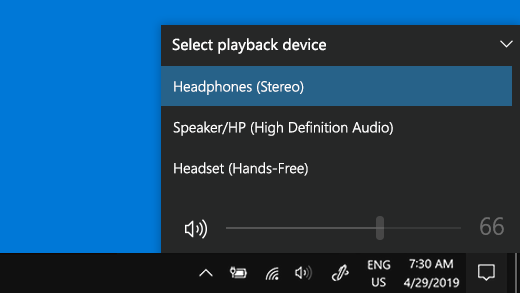
Verify that stereo is selected for the Bluetooth device in order to ensure the best quality audio. To do this:
-
On the right side of the taskbar, click Volume and then select the chevron icon to choose a playback device.
-
Select the Bluetooth device, and make sure the Stereo option is selected. (The lower-audio quality option is Hands-Free.)
-
If stereo is not available as an option, remove the device in Settings > Devices > Bluetooth & other devices and then re-add the device. Then, check the Volume panel again to make sure that stereo is selected.
-
If your Bluetooth volume controls no longer work after you install a Windows update, follow these steps.
Warning: Serious problems might occur if you modify the registry incorrectly. For added protection, back up the registry before attempting to modify it.
-
Make sure you've installed the latest updates from Windows Update. (A solution for this issue was included in the October 24, 2018—KB4462933 (OS Build 17134.376) update for Windows 10 version 1803.)
To check for updates, select Start , and then go to Settings > Update & security > Windows Update > Check for updates. -
Manually disable the Absolute Volume feature by making a change in the registry. To do this, select Start and type cmd. Right-click Command Prompt in the Search results and select Run as administrator.
-
In the Command Prompt window, type the following command:
reg add HKLM\SYSTEM\ControlSet001\Control\Bluetooth\Audio\AVRCP\CT /v DisableAbsoluteVolume /t REG_DWORD /d 1 /fYou may need to restart Windows for the registry change to take effect.
Notes:
-
To re-enable the Absolute Volume feature, type the following command in the Command Prompt window:
-
reg add HKLM\SYSTEM\ControlSet001\Control\Bluetooth\Audio\AVRCP\CT /v DisableAbsoluteVolume /t REG_DWORD /d 0 /f
-
File sharing
If you’re having problems sharing files over Bluetooth:
-
Try using nearby sharing. Learn more about nearby sharing
-
Make sure Bluetooth is turned on for both the sending and receiving device. For more info, see Share files over Bluetooth.
Note: Nearby sharing is only available on Windows 10, version 1803 and later.
Phones
The PIN should appear on your phone screen or computer screen. Confirm that you’re seeing the correct PIN on both devices.
Motion controllers
For help troubleshooting problems with Bluetooth-connected motion controllers, see Controllers in Windows Mixed Reality.
Fitness trackers
For help troubleshooting problems with Bluetooth-connected fitness trackers, see your device manufacturer’s instructions.
If you've tried the steps in this article or don't see a solution to the problem, use Windows Feedback Hub to file a bug. This helps Microsoft determine the root cause of this issue.
Include specific details about what you were doing when the bug occurred. For example, if you started having Bluetooth problems after updating Windows or changing Windows versions, include this information.









