Article ID: 828142 - Last Review: January 18, 2007 - Revision: 2.2 Excel statistical functions: SLOPEOn This PageSUMMARYThe purpose of this article is to describe the SLOPE function in Microsoft OfficeExcel 2003 and in later versions of Excel, to illustrate how the function is used, and to compare the results of the function in Excel 2003 and in later versions of Excel with the results of the SLOPE function in earlier versions of Excel. MORE INFORMATION The SLOPE(known_y's,known_x's) function returns the slope of the linear regression line that is used to predict y values from x values. SyntaxThe most common usage of the SLOPE function includes two ranges of cells that contain the data, such as SLOPE(A1:A100, B1:B100). Example of usageTo illustrate the SLOPE function, create a blank Excel worksheet, and then copy the following table. Select cell A1 in your blank Excel worksheet, and then paste the entries so that the table fills cells A1:D13 in your worksheet.Collapse this table
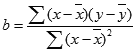
Cells A2:A7 and B2:B7 contain the y-values and the x-values that are used to call SLOPE in cell A9. If you have a version of Excel that is earlier than Excel 2003, be aware that SLOPE can exhibit rounding errors in the earlier versions. The behavior of SLOPE has been improved in Excel 2003 and in later versions of Excel. If you use a version of Excel that is earlier than Excel 2003, the worksheet gives you a chance to run an experiment to discover when rounding errors occur. If you add a positive constant to each of the observations in cells B2:B7, it should not affect the value of SLOPE. If you plot x,y pairs with x on the horizontal axis and y on the vertical axis, adding a positive constant to each x value shifts the data to the right. The best-fit regression line would still have the same slope. Increasing the value in cell D3 adds a larger constant to cells B2:B7. If cell D3 is less than or equal to 7, then there are no rounding errors that appear in the first 6 decimal places of SLOPE. But then try 7.25, 7.5, 7.75, and 8. Cells D7:D12 show values of SLOPE when cell D3 = 7.5 and 8 respectively. Note that rounding errors have become so severe that division by 0 occurs when cell D3 = 8. Earlier versions of Excel produce wrong answers in these cases because the effects of rounding errors are more profound with the computational formula that is used by these versions. Still, the cases that are used in this experiment can be viewed as extreme. If you have Excel 2003 or a later version of Excel, you will see no changes in the values of SLOPE if you try this experiment. However, cells D7:D12 show rounding errors that you would have obtained with earlier versions of Excel. Results in earlier versions of ExcelFor example, assume that the two data arrays are named X's and Y's. Earlier versions of Excel used a single pass through the data to compute the sum of squares of X’s, the sum of X's, the sum of Y's, the sum of XY's, and the count of the number of observations that are in each array. These quantities were then combined into the computational formula that is given in the Help file in earlier versions of Excel.Results in Excel 2003 and in later versions of ExcelThe procedure that is used in Excel 2003 and in later versions of Excel uses a two-pass process through the data. First, the sums of X's and Y's, and the count of the number of observations in each array are computed. From these the means (averages) of the X and the Y observations can be computed.On the second pass, the following actions are taken:
In the numeric examples, even with a high power of 10 in cell D3, these three sums are not affected, and the results of the second pass are independent of the entry that is in cell D3. Therefore, the results in Excel 2003 and in later versions of Excel are more stable numerically than in earlier versions of Excel. ConclusionsReplacing a one-pass approach by a two-pass approach gives better numeric performance of SLOPE in Excel 2003 and in later versions of Excel. The results in Excel 2003 and in later versions of Excel will never be less accurate than the results from earlier versions of Excel.In most practical examples, however, you are not likely to notice a difference between the results in later versions of Excel results and the results in earlier versions of Excel. You are unlikely to notice a difference because typical data is unlikely to exhibit the kind of unusual behavior that this experiment illustrates. Numeric instability is most likely to appear in earlier versions of Excel when data contains a high number of significant digits that are combined with relatively little variation between data values. The following procedure for finding the sum of squared deviations for a sample mean is more accurate than the alternative procedure:
A short list of such functions includes VAR, VARP, STDEV, STDEVP, DVAR, DVARP, DSTDEV, DSTDEVP, FORECAST, SLOPE, INTERCEPT, PEARSON, RSQ, and STEYX. Similar improvements were made in each of the three Analysis of Variance tools in the Analysis ToolPak.
| Article Translations
|

Back to the top