This article describes how to create a new email profile in Microsoft Office Outlook 2010, in Microsoft Office Outlook 2007, and in Microsoft Office Outlook 2003. Additionally, this article describes how to configure Outlook so that it opens a specific profile, and the article describes how to configure Outlook so that it prompts you for a specific email profile when you start the program.
Note Create email profile is different from setup an email account in Outlook. Visit the following Microsoft Website to find out why need to create or configure email profiles in Outlook.
For those who want to setup email account in Outlook, visit the following Website:
This article is intended for beginning to intermediate users.
Video: How to create and configure an email profile in Outlook
Collapse this imageExpand this image
uuid=
2a3ef886-a3b7-4e34-a13d-65b7ffb41737 VideoUrl=
http://aka.ms/y0njgx
(http://aka.ms/y0njgx)
Collapse this imageExpand this image
How to create a new email profile in Outlook 2010, in Outlook 2007, and in Outlook 2003
Collapse this imageExpand this image
Email accounts are contained in profiles. An email profile is made up of email accounts, data files, and information about where your email messages are stored. A new profile is created automatically when you run Outlook for the first time. After that, the profile runs every time that you start Outlook.
Most people need only one profile. However, you might find it useful to have more than one profile. For example, you might use one profile for work-related email messages and another profile for messages in your personal email account. Also, if other people use your computer, their accounts and settings can be kept in separate profiles that have different names.
To create a new email profile in Outlook 2010, Outlook 2007 and in Outlook 2003, follow these steps:
- Click Start, and then click Run.
- Copy and paste, or type the following command in the Open box, and then press ENTER:
control panel
Note If you are using a 64-bit version of Windows, double-click View 32-bit Control Panel in Control Panel to display the Mail icon. - Open the Mail Setup dialog box:
For Windows 7:- If Control Panel is in either Large icons or Small icons view, click Mail. The Mail Setup dialog box appears.
Collapse this imageExpand this image
- If Control Panel is in Category view, under View by, click to select either Large icons or Small icons, and then click Mail. The Mail Setup dialog box appears.
Collapse this imageExpand this image
For Windows Vista or Windows XP:- If Control Panel is in Classic View, double-click Mail. The Mail Setup dialog box appears.
- If Control Panel is in Category View, under Control Panel, click Switch to Classic View for Windows XP, or click Classic View for Windows Vista, and then double-click Mail. The Mail Setup dialog box appears.
- In the Mail Setup dialog box, click Show Profiles.
Collapse this imageExpand this image
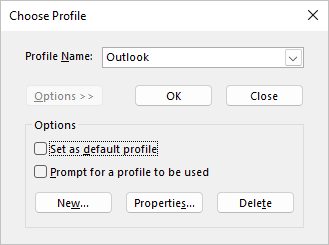
- On the General tab, under When starting Microsoft Office Outlook, use this profile, click Prompt for a profile to be used, and then click Add.
See image
Collapse this imageExpand this image
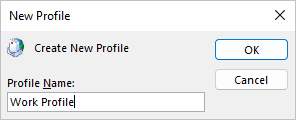
- In the Profile Name box, type the name that you want to use for the new email profile, and then click OK.
Collapse this imageExpand this image
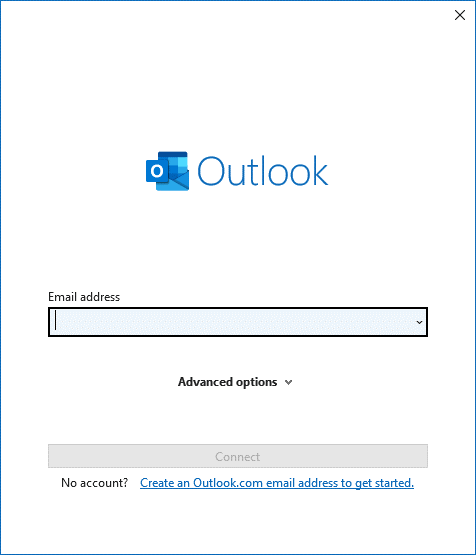
- In the E-mail Accounts dialog box, click Add a new e-mail account, and then click Next.
- Click the appropriate server type for your new email account, and then click Next.
- Type your account information in the required boxes, and then click Next.
- Click Finish, and then click OK.
If these steps did not work for you, please see the "Next steps" section for additional help suggestions.
Note By default, both the Outlook Address Book and the personal folders (.pst) files are automatically added to each new email profile, except for those email profiles that are created in Microsoft Exchange Server. By default, .pst files are not added to each new email profile in Exchange Server.
Collapse this imageExpand this image
How to configure Outlook 2010, Outlook 2007, and Outlook 2003 to open a specific email profile
Collapse this imageExpand this image
If you have multiple email profiles on your computer, and you want Outlook to open a specific profile every time that you start the program, you can configure Outlook to do this.
To configure Outlook 2010, Outlook 2007, and Outlook 2003 so that Outlook starts with a specific email profile, follow these steps:
- Click Start, and then click Run.
- Copy and paste, or type the following command in the Open box, and then press ENTER:
control panel
Note If you are using a 64-bit version of Windows, double-click View 32-bit Control Panel in Control Panel to display the Mail icon. - Open the Mail Setup dialog box:
For Windows 7:- If Control Panel is in either Large icons or Small icons view, click Mail. The Mail Setup dialog box appears.
Collapse this imageExpand this image
- If Control Panel is in Category view, under View by, click to select either Large icons or Small icons, and then click Mail. The Mail Setup dialog box appears.
Collapse this imageExpand this image
For Windows Vista or Windows XP:- If Control Panel is in Classic View, double-click Mail. The Mail Setup dialog box appears.
- If Control Panel is in Category View, under Control Panel, click Switch to Classic View for Windows XP, or click Classic View for Windows Vista, and then double-click Mail. The Mail Setup dialog box appears.
- In the Mail Setup dialog box, click Show Profiles.
Collapse this imageExpand this image
- On the General tab, under When starting Microsoft Office Outlook, use this profile, click Always use this profile.
Collapse this imageExpand this image
- In the Always use this profile list, select the profile that you want to use, and then click OK.
If these steps did not work for you, please see the "Next steps" section for additional help suggestions.
Collapse this imageExpand this image
How to configure Outlook 2010, Outlook 2007, and Outlook 2003 to prompt you for a specific email profile
Collapse this imageExpand this image
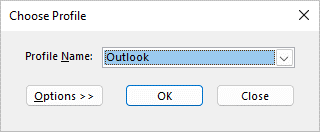
If you have multiple email profiles on your computer, and you want Outlook to prompt you to select a specific profile when program starts, you can configure Outlook to do this.
To configure Outlook 2010, Outlook 2007, and Outlook 2003 to prompt you for a specific email profile, follow these steps:
- Click Start, and then click Run.
- Copy and paste, or type the following command in the Open box, and then press ENTER:
control panel
Note If you are using a 64-bit version of Windows, double-click View 32-bit Control Panel in Control Panel to display the Mail icon. - Open the Mail Setup dialog box:
For Windows 7:- If Control Panel is in either Large icons or Small icons view, click Mail. The Mail Setup dialog box appears.
Collapse this imageExpand this image
- If Control Panel is in Category view, under View by, click to select either Large icons or Small icons, and then click Mail. The Mail Setup dialog box appears.
Collapse this imageExpand this image
For Windows Vista or Windows XP:- If Control Panel is in Classic View, double-click Mail. The Mail Setup dialog box appears.
- If Control Panel is in Category View, under Control Panel, click Switch to Classic View for Windows XP, or click Classic View for Windows Vista, and then double-click Mail. The Mail Setup dialog box appears.
- In the Mail Setup dialog box, click Show Profiles.
Collapse this imageExpand this image
- On the General tab, under When starting Microsoft Office Outlook, use this profile, click Prompt for a profile to be used.
Collapse this imageExpand this image
- Click OK.
If these steps did not work for you, please see the "Next steps" section for additional help suggestions.
Collapse this imageExpand this image
If these steps to create a new email profile in Microsoft Outlook 2010, in Microsoft Office Outlook 2007, and in Microsoft Office Outlook 2003 did not work for you, you can use the Microsoft Customer Support Services website to find other solutions to your problem. Some services that the Microsoft Customer Support Services website provides include the following:
- Searchable Knowledge Base
(http://support.microsoft.com/search/?adv=1)
: Search technical support information and self-help tools for Microsoft products. - Solution Centers
(http://support.microsoft.com/select/?target=hub)
: View product-specific, frequently asked questions and support highlights. - Other Support Options
(http://support.microsoft.com/default.aspx?pr=csshome)
: Use the web to ask a question, contact Microsoft Customer Support Services, or provide feedback.
Article ID: 829918 - Last Review: November 14, 2012 - Revision: 14.0
Applies to
- Microsoft Office Outlook 2003
- Microsoft Office Outlook 2007
- Microsoft Outlook 2010
| kbpubtypekc kbprofiles kbstartprogram kbemail kbconfig kbhowto kbinfo vkbportal231 vkbportal237 kbcip kbvideocontent KB829918 |