
There are various reasons for video or audio playback issues in PowerPoint. This article offers some suggestions for compatibility and troubleshooting.
To avoid audio or video playback issues in PowerPoint, you can optimize media files you've inserted into your presentation for compatibility on other devices. For a list of supported file types, visit Video and audio file formats supported in PowerPoint.
When you're ready to share your presentation, do the following:
-
On the File tab of the Ribbon, select Info.
-
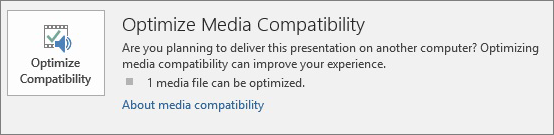
If the media in your presentation was inserted in a format that might have compatibility issues when played on another device, the Optimize Compatibility option will appear. If it doesn’t appear, you don’t have compatibility issues and are ready to share.
-
Select Optimize Compatibility*. PowerPoint will improve any media that requires optimization.
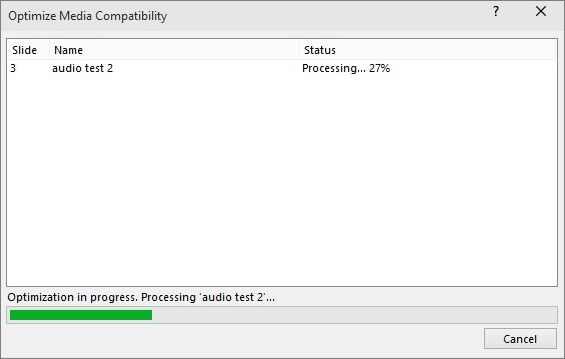
* Embedded subtitles and alternate audio tracks are removed in this optimization process.
When the Optimize Compatibility button appears, it provides a summary of resolutions of potential playback issues. It also provides a list of the number of occurrences of media in the presentation. The following are common scenarios that can cause playback issues:
-
If you have linked videos, Optimize for Compatibility reports that you need to embed them. Select View Links to proceed. The dialog box that opens allows you to embed the videos by selecting Break Link for each link you want to embed from a device and user with access to the linked video.
-
If you have videos that were inserted using an earlier version of PowerPoint, you'll need to upgrade your media file format so that these files will play. Upgrading automatically updates and embeds the files in the newest format. Once you have upgraded, you should run Optimize for Compatibility again.
To upgrade your media files from an earlier version, on the File tab, select Info, and then select Convert.
If you are having trouble inserting or playing media, it could be that you don't have the proper codec installed. For example, someone could send you a PowerPoint presentation with media based on a codec that your PC doesn't have. The best solution is for the author of the presentation to run Optimize Compatibility before sending the file to anyone else.
When attempting to insert a video file, you might receive an error message like this if you don't have the right codec file installed:

Try one of the following to help resolve any lingering issues:
-
Determine which codec you need to run the media. Read What is a codec and why do I need it? to find out how Windows Media Player can help you do that. Or install a third-party tool that can examine a media file and determine which codec it needs. Then install the codec required to run the media. You can find many codecs on the fourcc.org website.
For a detailed discussion of codecs, see Windows Media Codecs.
-
Download a third-party media decoder and encoder filter, such as ffdshow or DivX, which will allow you to decode and encode a variety of formats.
-
If you created a presentation on a PC and decide to deliver it on an Apple Macintosh, use media with the .mp4 file format extension.
If your slide show is longer than one song, you can add more songs. However, if you find that you are having trouble synchronizing the music with the slide show, you can use a third-party audio editing tool, such as Audacity®to string the songs together into one file so they play continuously throughout the slide show.
Still having trouble?
Contact us or ask the community for help with questions not answered here.
See Also
Tips for improving audio and video playback and compatibility in PowerPoint








