
Outlook has an Import/Export wizard that makes it easy to import contacts from a CSV file.
If you're not on Outlook for Windows, check which Outlook version you're on, and then choose one of these options to import contacts:
Important: Steps may be different between new and classic Outlook for Windows. To determine which version of Outlook you're using, look for File on the ribbon. If there's no File option, follow the steps under the New Outlook tab. If the File option appears, select the tab for Classic Outlook.
Use a comma separated values file (CSV) to import your contacts into your Outlook account.
Tip: For best results, make sure that the CSV file has UTF-8 encoding. This encoding works for all languages and alphabets.
-
On the side panel, select

-
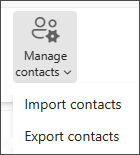
From the ribbon, select Manage contacts > Import contacts.
-
Select Browse, choose your CSV file, and select Open.
-
Select Import.
Note: If the file doesn't have UTF-8 encoding, the import tool may not recognize and display all text correctly. The import tool will then show you some example contacts from your file, and you can check that the text is readable and correct. If the text is not displayed correctly, select Cancel. You will need a file in UTF-8 encoding to continue. Convert your CSV file to use UTF-8 encoding and restart the import. To learn more about UTF-8 encoding, see Why should I care about UTF-8 encoding?
Typically, you can import contacts without worrying about the underlying details of how the text is stored in the CSV file. However, if the contact information includes characters not found in the English alphabet, such as Greek, Cyrillic, Arabic, or Japanese characters, this can cause problems when importing contacts. Therefore, you should save the contacts file with UTF-8 encoding if you have that option during export.
If you can't export your contacts using UTF-8 directly, you can convert the exported CSV file using Excel or third-party apps. How to do this will be different between apps and app versions.
How to convert your CSV file to UTF-8 using Microsoft Excel 2016:
-
In Excel, create a new blank document (workbook).
-
From the Data menu, select From Text/CSV. Browse to your exported CSV file (you may have to select to display Text Files (....csv) to see it). Select Import.
-
In the dialog box that appears, under File Origin, choose the encoding that makes the characters in the text appear correctly, for example, Cyrillic Windows 1251, and then select Load.
-
Check that characters are displayed correctly in Excel.
-
Select File >Save As. Enter a name for your file, and select CSV UTF-8 (Comma delimited) (*.csv) as your file type.
-
Select Save.
-
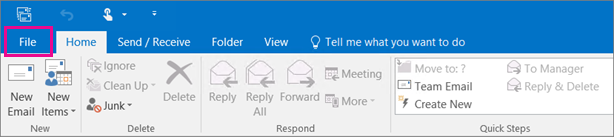
At the top of your Outlook ribbon, choose File.
If your ribbon doesn't have a File option in the top left corner, you're using an older Outlook version. See What version of Outlook do I have? to get to the import instructions for your version of Outlook.
-
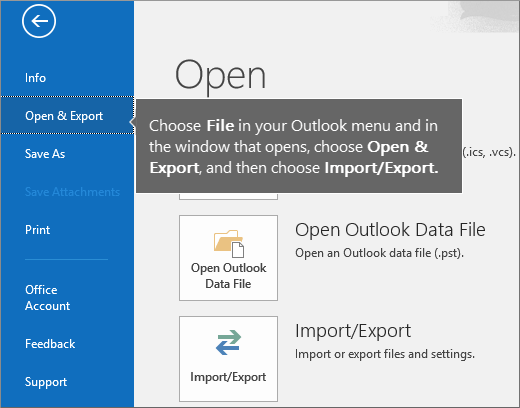
Choose Open & Export > Import/Export. This starts the wizard!
-
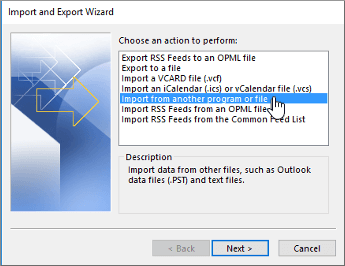
Choose Import from another program or file, and then choose Next.
-
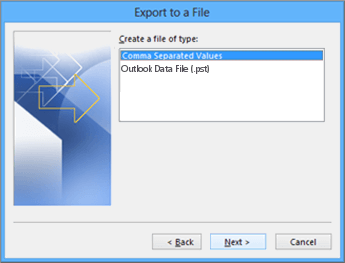
Choose Comma Separated Values, and then choose Next.
-
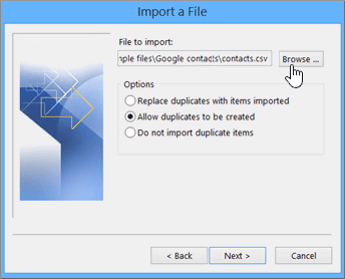
In the Import a File box, browse to your contacts file, and then double-click to select it.
-
Choose one of the following to specify how you want Outlook to handle duplicate contacts:
-
Replace duplicates with items imported If a contact is already in Outlook and your contacts file, Outlook discards the info it has for that contact and uses the info from your contacts file. You should choose this option if the contact info in your contacts file is more complete or more current than the contact info in Outlook.
-
Allow duplicates to be created If a contact is in Outlook and your contacts file, Outlook creates duplicate contacts, one with the original Outlook info and one with the info imported from your contacts file. You can combine info for those people later to eliminate duplicate contacts. This is the default option.
-
Do not import duplicate items If a contact is in Outlook and your contacts file, Outlook keeps the info it has for that contact and discards the info from your contacts file. You should choose this option if the contact info in Outlook is more complete or more current than the info in your contacts file.
-
-
Click Next.
-
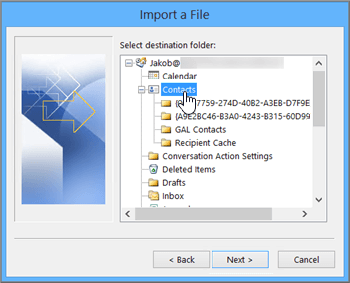
In the Select a destination folder box, scroll to the top if needed and select the Contacts folder > Next. If you have multiple email accounts, choose the Contacts folder that's under the email account you want to be associated with the contacts.
-
Choose Finish.
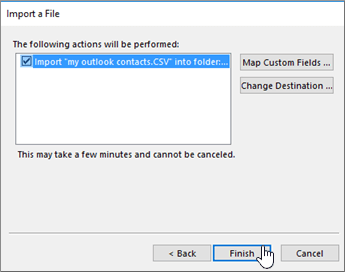
Outlook begins importing your contacts immediately. You'll know it's finished when the Import Progress box closes.
-
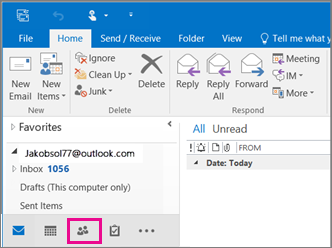
To see your contacts, at the bottom of Outlook, choose the People icon.
Didn't work?
See Also
Import email messages, contacts, and other items into Outlook for Mac









