
Introduction
Games for Windows – LIVE lets you connect to millions of other gamers just like yourself. But, to get started, you first have to create your FREE Games for Windows – LIVE account.
Summary
Creating a Games for Windows – LIVE account requires you to first set up a Windows Live ID email account.
The following account types are examples of Windows Live email accounts:
-
Hotmail.com
-
Live.com
-
MSN.com
-
Zune.net
-
Passport.net
If you do not already have a Windows Live ID email account, please visit accounts.live.com to create your FREE email account.
Note Windows Live ID accounts are used to validate customer identification. After you create a Windows Live ID, you can use this email address when you sign up for any Microsoft online service.
Create your FREE Games for Windows – LIVE account
Visit the following GAMES for Windows – LIVE website to get started:
go.microsoft.com/?linkid=9652400Note If you already have a Windows Live ID email account, such as a Hotmail.com or MSN.com, you can sign in by using that account because you are already registered with a FREE Games for Windows – LIVE account. Type your Windows Live ID email address and password in the appropriate boxes under Sign in to Xbox. Then, click Sign in.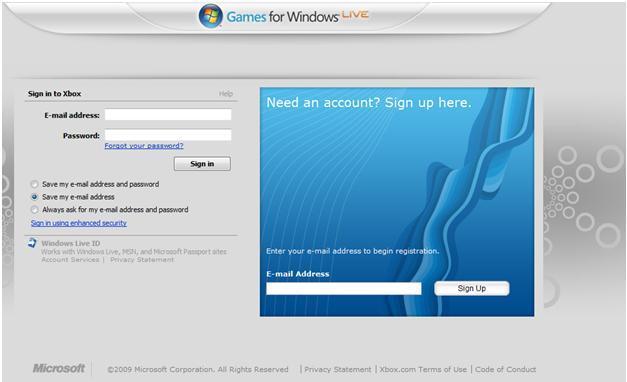
If you do not already have a Windows Live ID email account, type your email address in the box under Need an account? Sign up here. Then, click Sign Up.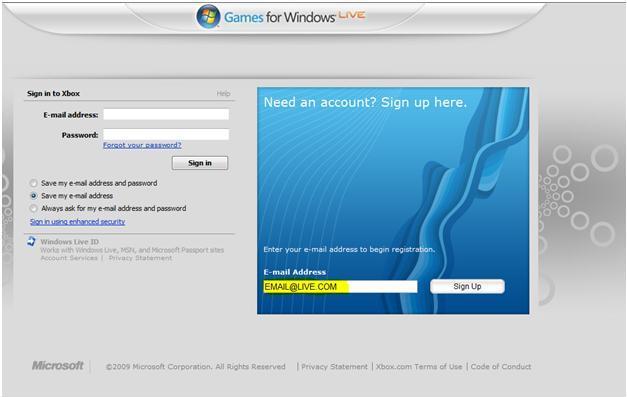
To continue the account creation process, follow these steps:
-
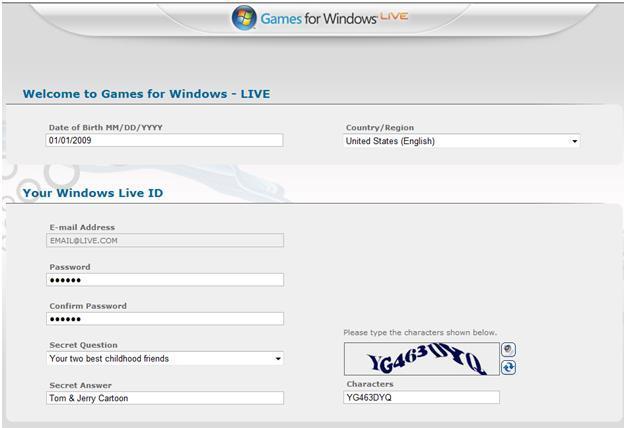
Step 1: In the Date of Birth box, type your date of birth. In the Country / Region box, enter the country or region in which you reside.
-
Step 2: Type a password in the Password and Confirm Password boxes.
Note Make sure that you create a password that is obscure and that other people cannot easily guess. -
Step 3: Click the Secret Question list to select a question. Then, type your response in the Secret Answer box.
Important To maintain sufficient security, provide an obscure Secret Answer that other people cannot easily guess. In the example that is shown in step 4, the Secret Question of Your two best childhood friends is given a Secret Answer of Tom & Jerry Cartoon. Although Tom and Jerry are fictional characters, this approach adds an additional layer of security in the future if you require assistance to recover your password. -
Step 4: In the Character Verification box, type the characters that are shown. If you cannot read the characters, you can press the speaker icon to hear the characters spoken. Or, you can click the redraw icon to cycle a new set of characters.
-
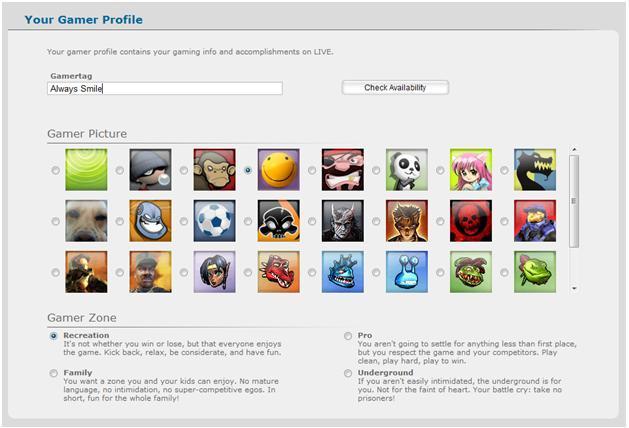
Step 5: Create your unique online identity To do this, type a unique name in the Gamertag box, and then click Check Availability to see whether the Gamertag that you selected is available.
Important Your Gamertag is unique to you, and is your Games for Windows – LIVE online identity. We encourage all gamers to be creative when they create a Gamertag. However, remember that some names, or the context of words in a sentence, can be seen as offensive by other people. -
Step 6: Select a Gamer Picture.
Note You can change your picture at any time after you create your account. -
Step 7: Select your Gamer Zone. This lets the Games for Windows – LIVE service match you to other people who have a similar Gamer Zone. This matching process helps provide the best possible gaming experience. For example, a Family gamer may not enjoy being matched to a Pro player who could be very competitive and have a high gaming skill level.
-
Step 8: Provide a contact email address to which we can send you information that is specific to the Games for Windows – LIVE service.
IMPORTANT: Please review the account creation fields to confirm that all information is accurate. After the account is created, some fields cannot be changed. For example, the "Date of Birth" field cannot be changed.
To complete the account creation, click I Accept.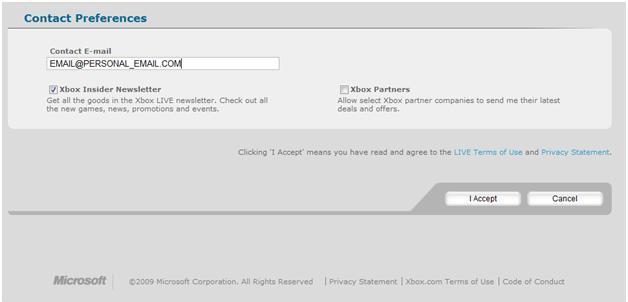
Child LIVE account
To create a Windows LIVE ID account for a child (minor), you must provide a Windows Live email address that you can designate as a Parent account. If you do not already have a Windows Live email account, you must create one before you can create a Child account.
After the Parent-to-Child account relationship is confirmed, you can connect to Games for Windows – LIVE by using the Child account.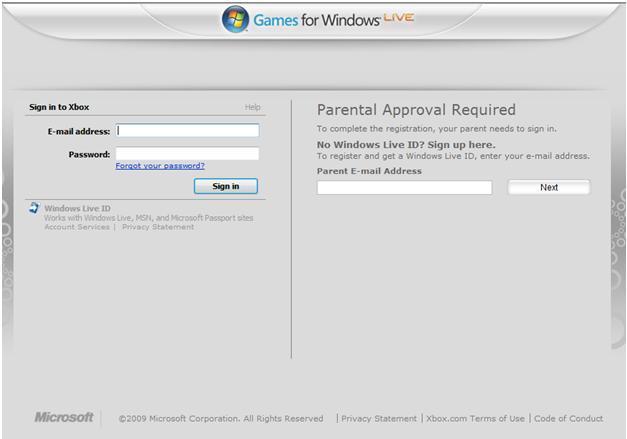
After you provide the Windows Live email address for the Parent account, you receive a confirmation email message. You must click the link in that message to confirm your address. This confirmation creates the link between the Parent and Child accounts.
Provide the Windows Live email address for the Parent account, and then click I Accept.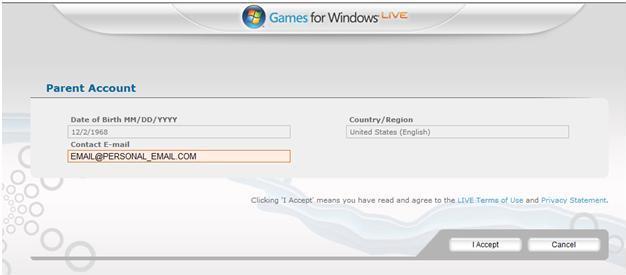
To complete the process, enter the required information on the Parent Age Verification screen, and then click Create.
Note A Credit Card Verification (CCV) number must be provided in the Security code box as confirmation of age. You will not be charged a fee to sign up. This information is used only to verify the age of the Parent account holder.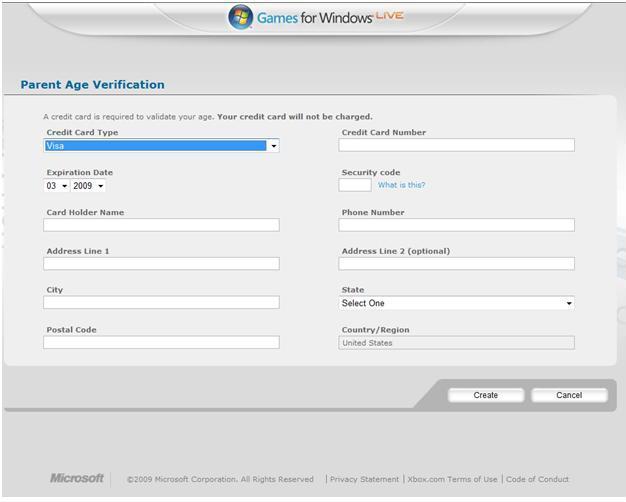
You can now log on to the Games for Windows – LIVE website by using the Child account.
More Information
Account management
Visit the following Xbox website to manage your online account:
live.xbox.com/AccountOn this website, you can do the following:
-
See your Xbox LIVE friends list
-
Manage your Xbox LIVE account
-
Send and receive private messages
-
View and compare your Xbox 360 achievements








