
INTRODUCTION
The Microsoft devices that are listed in the "Applies to" section do not include their own transceiver. Instead, the mouse or keyboard relies on the transceiver that is built into the desktop or portable computer to which it is connected. How the mouse or keyboard connects to the computer by Bluetooth varies. The connection depends on how the Bluetooth technology is implemented on the computer. If the the steps in this article do not resolve the problem, you may have to contact the computer manufacturer to find out how to turn on the Bluetooth service on the computer, and about how to add a device to the computer.
Note A transceiver is a kind of USB connector, which is a small plug that has a USB logo on it. To see a USB connecter, click the following link:
http://www.microsoft.com/windows/windowsmedia/images/howto/USB_connector.gif
More Information
Configuring a Bluetooth device on a Windows-based computer
How to make sure that the Bluetooth service is started
-
Open the Microsoft Management Console (MMC) snap-in for Services. To do this, follow these steps.
Windows Vista or Windows 7-
Click Start

services.msc
-
In the Programs list, click Services.

Windows XP
-
Click Start, and then click Run.
-
Copy and then paste (or type) the following command in the Open box, and then press ENTER:
services.msc
-
-
Double-click the Bluetooth Support service.
-
If the Bluetooth Support service is stopped, click Start.
-
On the Startup type list, click Automatic.
-
Click the Log On tab.
-
Click Local System account.
-
Click OK.
-
If you prompted to restart the computer, click Yes.
How to connect the Bluetooth device to the computer
-
Press and hold the Connect button on the bottom of the mouse. If your device has a battery indication light, it will blink and alternate between red and green to indicate that the device is discoverable.
-
On the computer, open the Bluetooth software. The Bluetooth software is typically located in Control Panel. For more information about opening the Bluetooth software, see the "How to open the Bluetooth software" section.
-
Click the Devices tab, and then click Add.
-
Follow the instructions that appear on the screen.
A Microsoft Bluetooth mouse does not require a passkey to connect to the computer. If you are prompted for a passkey, select No passkey. If you do not get the No Passkey option, try to enter 0000 as a passkey by using your keyboard.
If you cannot connect to the computer, you must troubleshoot the Bluetooth connection. For more information about how to troubleshoot the Bluetooth connection, click the following article numbers to view the articles in the Microsoft Knowledge Base:
883258 How to troubleshoot Bluetooth detection and connectivity problems in Windows XP Service Pack 2
894035 The Bluetooth Devices item is not present when you open Control Panel
How to open the Bluetooth software
There are several versions of Bluetooth software that help you connect your device to your Bluetooth wireless transceiver. For example, a Toshiba portable computer may use Toshiba Bluetooth software. Windows 7, Windows Vista, and Windows XP SP2 include Microsoft Bluetooth software.
-
To open Microsoft Bluetooth software on a Windows Vista, Windows 7, or Windows XP SP2-based computer, click Bluetooth Devices in Control Panel.
-
To open Toshiba Bluetooth on Toshiba portable computers, click Start, point to All Programs, point to Toshiba, point to Bluetooth, and then click Bluetooth Settings.
For more information about Toshiba Bluetooth software, visit the following Toshiba Web site: -
For other portable computer manufacturers, see the documentation that was included with the computer. Or, contact the following computer manufacturers for more information about their Bluetooth software:
-
Hewlett-Packard (HP) computers:
-
Dell computers:
-
Lenovo computers:
For information about how to contact other portable computer manufacturers, visit the following Microsoft Web site:
-
Configuring a Bluetooth device on an Apple (Macintosh)
The devices that are listed in the "Applies to" section are designed to use Bluetooth functionality that is provided by the operating system. These devices do not require Intellitype or Intellipoint software.
Note These steps may differ in different version of the Macintosh operating system.
To add the Bluetooth mouse or keyboard device, follow these steps:
-
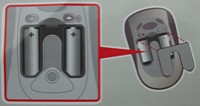
Make sure that you have fresh set of batteries. If you do not, turn off your Bluetooth device. The green light on the device should be turned off.
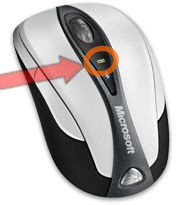
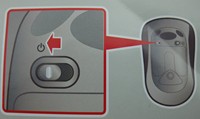
Note Both mouse and keyboard devices may have the On/Off switch on the bottom. Refer to the following illustrations. Shining light (indicates that the device is on)
Changing batteries
Turning on or turning off the device
-
On the Apple menu, click Preferences.
-
Click Bluetooth.
-
Click to select the On and Discoverable check boxes.
-
Click Set Up New Device, or click the plus sign (+) at the bottom-left corner of the window.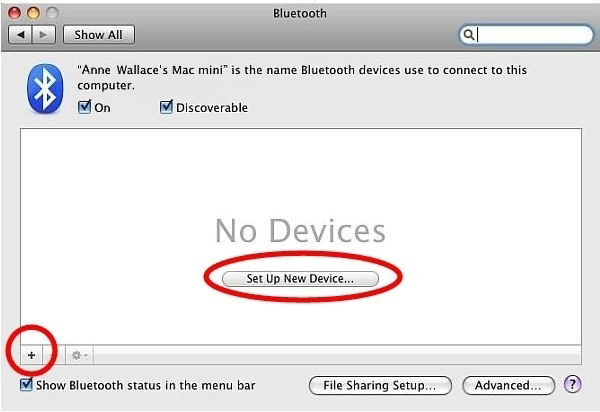
-
In the Bluetooth Setup Assistance window, click Continue.
-
Turn on the device by using the On/Off button on the bottom of the device.
-
Select either Mouse or Keyboard, and then click Continue.
-
Press the sync button on the bottom of the device if the button exists. If there is a sync button, it should be located next to the Bluetooth symbol. If your device does not have a sync button, go to the next step.
Syncing the device

-
The computer will detect the device. Select the name of the mouse or keyboard device, and then click Continue.
-
After the setup is complete, click Quit. The device should now work.
If you are trying to configure a Bluetooth mouse, it maybe helpful to download and install an advanced driver for USB and for Bluetooth mice. To obtain the appropriate driver, visit the following Apple Web site:
http://www.apple.com/downloads/macosx/drivers/steermouse.html For detailed instructions about how to set up your Bluetooth device on the Macintosh, visit the following Apple Web site:
http://www.apple.com/support/bluetooth/
Microsoft provides third-party contact information to help you find technical support. This contact information may change without notice. Microsoft does not guarantee the accuracy of this third-party contact information.
The third-party products that this article discusses are manufactured by companies that are independent of Microsoft. Microsoft makes no warranty, implied or otherwise, about the performance or reliability of these products.








