
You can save a file to a location on your computer, like a hard disk drive or a flash drive, or on an online service, like OneDrive. You can also export files to different file formats and save them to different file names.
Important: Even if you have AutoRecover enabled, you should save a file frequently while you are working on it to avoid losing data due to an unexpected power failure or some other problem. AutoRecover is described later in the topic "Save AutoRecover information automatically."
When you save a file, you can usually change its name, storage location, and file format all at the same time, if you want to do so. However, you might not want to do all of those things, and the instructions in this topic describe each option individually.
Save a file
By default, Office saves a file in a default working folder.
-
On the File menu, click Save, or press

Tip: Alternatively, you can click the Save icon

-
If you are saving the document for the first time, you must enter a file name.
Related tasks
To save the document that you currently have open to a new or different file name than it currently has, use Save as.
-
On the File menu, click Save as, or press
-
If you want to save the file in a folder other than the current folder, navigate to that folder.
-
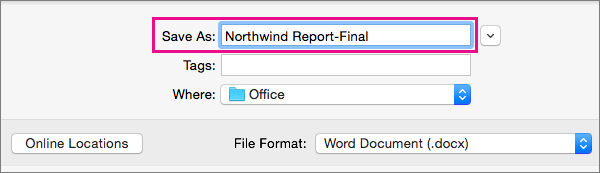
In the Save As box, enter a different file name.
-
Click Save.
If you want to save a file to a location on your computer other than the default folder, use Save as.
-
On the File menu, click Save as, or press
-
If the dialog box does not show a folder or folders on your computer, click On My Mac.

If you see the Online Locations button, the dialog box is currently displaying a folder on your computer.
-
Navigate to the folder on your computer where you want to save the file.
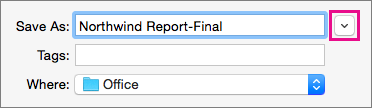
Tip: To show the favorites and display options for folders that are available in Finder, click the downward pointing arrow next to the Save As box.
-
If you want to create a new folder in the folder that you are currently viewing, click New Folder, and then enter a name for the folder.
-
In the Save As box, enter a different file name if you want.
-
Click Save.
Office allows you to save files in online folders provided by OneDrive and SharePoint. If you have accounts that give you access to these services, you can save and access files stored on these services much like files stored on your computer.
SharePoint services and OneDrive for work or school are typically offered by an employer or organization, but you can use OneDrive on your own. For more information about these services, see the related topics in See Also.
To save a file to an online location other than the default folder, use Save as. You can save files from Word, Excel, or PowerPoint directly to folders on OneDrive and SharePoint services.
-
On the File menu, click Save as, or press
-
If the dialog box shows a folder on your computer rather than on an online service, click Online Locations.

If you see the On My Mac button, the dialog box is currently displaying an online location.
-
Navigate to the folder where you want to save your file.
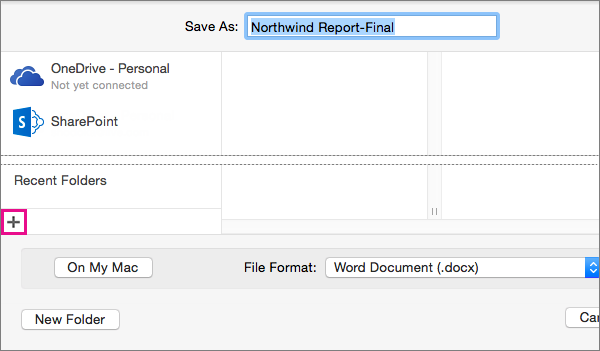
You might need to click the name of a service on the left before you can access the folder you want. If you do not see the service that you need to access, click the plus sign to add a service.
-
If you want to create a new folder in the folder that you are currently viewing, click New Folder, and then enter a name for the folder.
-
In the Save As box, enter a different file name if you want.
-
Click Save.
If you need to share a file with someone who does not have Office for Mac or who has an older version, you can save your document in a file format that a different or older application can read. You can also export a document as a PDF file or an HTML file, among other choices.
-
On the File menu, click Save As.
-
If you want to change the file name, change the name in the Save As box.
-
In the File Format list, click the file format that you want to use.
For example, click Word 97-2004 document (.doc) to create a file that is compatible with Word 97 and later versions of Word that do not use the XML-based file format (.docx).
-
Click Save.
AutoRecover can help you recover a file that you were editing after a power failure or other problem that interrupts you while you are editing the file. The more frequently that AutoRecover saves files information, the more complete recovery can be after a failure.
However, using AutoRecover does not replace saving your files at regular intervals or when you are done editing the file. You may also find it helpful to save multiple versions of a file to different file names (for example, after each significant change) so that you can review or return to an earlier version, if necessary.
If after a failure, you choose not to save the recovered version of a file after you open it, the file is deleted, and your unsaved changes are lost. If you save the recovery file, it replaces the original file, unless you specify a new file name.
-
On the Word, PowerPoint, or Excel menu, click Preferences.
-
Under Output and Sharing, click Save.
-
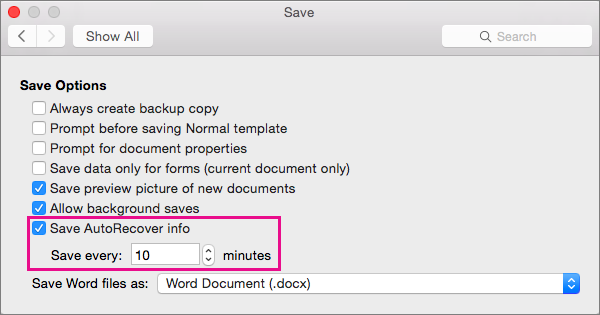
Select Save AutoRecover info.
-
In the Save every box, enter the number of minutes you want as the interval between saving AutoRecover information.
Each time that the application saves AutoRecover information, it waits for the number of minutes that you specify here to pass before saving AutoRecover information again.
Save a file
By default, Office saves a file in a default working folder.
-
On the File menu, click Save, or press
Tip: Alternatively, you can click the Save icon in the upper left corner of the window.
-
If you are saving the document for the first time, you must enter a file name.
Related tasks
To save the document that you currently have open to a new or different file name than it currently has, use Save as.
-
On the File menu, click Save as.
-
If you want to save the file in a folder other than the current folder, navigate to that folder.
-
In the Save As box, enter a different file name.
-
Click Save.
Office allows you to save files in online folders provided by OneDrive and SharePoint. If you have accounts that give you access to these services, you can save and access files stored on these services much like files stored on your computer.
SharePoint services and OneDrive for work or school are typically offered by an employer or organization, but you can use OneDrive on your own. For more information about these services, see the related topics.
To save a file to an online location other than the default folder, use Share. You can save files from Word, Excel, or PowerPoint directly to folders on OneDrive and SharePoint services.
Note: If you're having trouble saving to an online location, make sure you're connected to the Internet and that you are signed in to either SharePoint or OneDrive. If you're on a corporate network, verify that your network connection is working.
Save to OneDrive
-
From your computer, click File > Share > Save to OneDrive.
-
If this is the first time that you have tried to access OneDrive, type your Microsoft account and Password, and then click Sign In.
-
In the Save As box, enter the name of your document.
-
Under Personal Folders or Shared Folders, click the folder where you want to save the document, and then click Save.
Save to SharePoint
-
From your computer, click File > Share > Save to SharePoint.
-
To add a SharePoint site, click Add a location

-
In the Save As box, enter the name of your document.
-
Under Recent Locations or Saved Locations, click the SharePoint library where you want to save the document, and then click Save.
When you create and save a workbook, Word, Excel, and PowerPoint automatically save the file in the Open XML format. However, you can save the file in another format or change the default file format.
Save a file in the Open XML Format (default)
Save a file in the Office 2004 for Mac file format
Change the default file format that files are saved in
Save a file as a webpage (Word and Excel only)
Save a file as plain text (Word only)
Save a file as JPEG (PowerPoint only)
Save a file as a movie (PowerPoint only)
Save a file in the Open XML Format (the default file format for Office for Mac 2011)
-
Create a file, or open the file that you want to save.
-
On the File menu, click Save As.
-
In the Save As box, type a name for the file.
-
On the Format pop-up menu, make sure Word Document (.docx), PowerPoint Presentation (.pptx), or Excel Workbook (.xlsx) is selected, depending on the Office program you're using.
-
Click Save.
Save a file in the Office 2004 for Mac file format
Important: Some items that were created by using features in Office for Mac 2011 might behave differently when the document is saved in the file format that is used by Office 2004 for Mac or earlier. Use the Compatibility Report to avoid using new Office features that might behave differently with earlier versions of Office.
-
Create a file, or open the file that you want to save.
-
On the File menu, click Save As.
-
In the Save As box, type a name for the file.
-
On the Format pop-up menu, click Word 97-2004 Document (.doc), PowerPoint 97-2004 Presentation (.ppt), or Excel 97-2004 Workbook (.xls), depending on the Office program you're using.
Note: If you open and then save a copy of a file that was created in Office 2004 for Mac or earlier, the application automatically saves the file in the correct file format.
-
Click Save.
Save a file as PDF
You can save your document as PDF, to preserve document formatting and make the document readable but not editable. You need to use Adobe Reader to view documents after you save them in this file format.
Note: PDF files created from Office 2011 are limited to printable content. In other words, if the content does not appear in print, it will not appear in the PDF.
-
Create a file, or open the file that you want to save.
-
On the File menu, click Save As.
-
In the Save As box, type a name for the file.
-
On the Format pop-up menu, click PDF.
-
Click Save.
Change the default file format that files are saved in
You can change the file format that Office for Mac always saves documents in. For example, if you usually share documents with other people who use an earlier version of Office for Mac, you might want to always save documents in the file format that is used in that version.
In Word and PowerPoint:
-
Open any file or create a new file.
-
On the File menu, click Save As.
-
Click Options, and then on the Save [Program] files as pop-up menu, click the file format that you want.
In Excel:
-
Open any file or create a new file.
-
On the Excel menu, click Preferences.
-
Under Sharing and Privacy, click Compatibility
-
Under Transition, on the Save files in this format pop-up menu, click the file format that you want.
If you want to change the default file format to work with Office 2004 for Mac or earlier, click Excel 97-2004 Workbook (.xls).

Save a file as a webpage (Word and Excel only)
You can save a file as a webpage, which converts the file into a file format that's readable by web browsers. However, the results of the conversion depend on the kind of content in your file. Office for Mac converts the file's formatting to the closest equivalent web formatting. Therefore, the webpage might look very different from the original file. For example, many text effects, such as animated, embossed, or outlined text, become plain or shaded text.
Note: We recommend that you preview the file in a web browser to make sure that the results are what you want. To do this, on the File menu, click Web Page Preview.
-
Create a file, or open the file that you want to save.
-
On the File menu, click Save as Web Page.
-
In the Save As box, type a name for the file.
-
Click Save.
Save a file as plain text (Word only)
You can save a document as plain text so that the document can be opened by a number of text editing programs. However, saving a document in plain text does not reliably preserve the formatting, layout, or other features of the document.
-
Create a file, or open the file that you want to save.
-
On the File menu, click Save As.
-
In the Save As box, type a name for the file.
-
On the Format pop-up menu, click Plain Text (.txt).
-
Click Save.
Save a file as JPEG (PowerPoint only)
When you save a presentation as a JPEG, each slide becomes a picture. Then, if you post the presentation on a Web site, the presentation is easier to view.
-
Create a file, or open the file that you want to save.
-
On the File menu, click Save as Pictures.
-
In the Save As box, type a name for the file.
-
Click Save.
Save a file as a movie (PowerPoint only)
To run your presentation on a computer that doesn't have PowerPoint installed, you can save your presentation as a movie (.mov) file. You can then play the movie in any application that supports QuickTime movies.
-
Create a file, or open the file that you want to save.
-
On the File menu, click Save as Movie.
-
In the Save As box, type a name for the file.
-
Click Save.
AutoRecover can help you recover a file that you were editing after a power failure or other problem that interrupts you while you are editing the file. The more frequently that AutoRecover saves files information, the more complete recovery can be after a failure.
However, using AutoRecover does not replace saving your files at regular intervals or when you are done editing the file. You may also find it helpful to save multiple versions of a file to different file names (for example, after each significant change) so that you can review or return to an earlier version, if necessary.
If after a failure, you choose not to save the recovered version of a file after you open it, the file is deleted, and your unsaved changes are lost. If you save the recovery file, it replaces the original file, unless you specify a new file name.
-
On the Word, PowerPoint, or Excel menu, click Preferences.
-
Click Save.
-
In the AutoRecover box, enter the number of minutes you want as the interval between saving AutoRecover information.
Each time that the application saves AutoRecover information, it waits for the number of minutes that you specify here to pass before saving AutoRecover information again.
When you open a document in Word for Mac 2011 that was created in an earlier version of Word, either Word for Mac or Word for Windows, compatibility mode is turned on. [Compatibility Mode] shows in the title bar of the document window. Compatibility mode indicates that the document was created in an earlier version of Word or was saved in an earlier file format. In compatibility mode, no new or improved features in Word 2011 are available. However, users can still edit the document by using features that are compatible with the earlier file format.
You can work in compatibility mode or you can convert your document to the Word 2011 file format. When you save in the Word 2011 format, the document layout appears as if it were created in Word 2011 and the file format changes from .doc to .docx. In this format, you can access the new and improved features in Word 2011. However, anyone who uses an earlier version of Word may be prevented from or have problems editing parts of the document that were created by using new or enhanced features.
Document elements that behave differently in compatibility mode
The elements listed in the following table might change permanently when you work in compatibility mode. You can't convert them back to Word 2011 elements even if you convert your document to Word 2011 later.
|
Word 2011 element |
Behavior in compatibility mode |
|---|---|
|
Bibliography |
Converted to static text. |
|
Blocked authors |
Information about where other authors were editing the document will be lost permanently. |
|
Citations |
Converted to static text. |
|
Advanced typography features |
All font-supported advanced typography features, for example, ligatures, are removed when the document is saved in the .doc file format. |
|
Open XML embedded objects |
Permanently converted to static content. |
|
Placeholder text in content controls |
Converted to static text. |
|
Relative text box positioning |
Converted to absolute positions. |
|
Text box text alignment |
All text that is not already top-aligned is converted to top-aligned text. |
|
Text effects |
Text effects such as Reflection, Glow, 3-D Format, and 3-D Rotation are lost. |
|
Alternative text on tables |
Alternative text on tables is permanently removed. |
|
Themes, theme colors, theme fonts, and theme effects |
Permanently converted to styles. If the file is later opened in Word 2011, you can't automatically change the style by using themes. |
|
Tracked moves |
Converted to deletions and insertions. |
|
WordArt |
Converted to static text. |
The document elements listed in the following table change when you work in compatibility mode. However, you can convert them to Word 2011 elements if you convert your document to Word 2011 later.
|
Word 2011 element |
Behavior in compatibility mode |
|---|---|
|
SmartArt graphics |
Converted to images and cannot be edited. |
|
Diagrams and charts |
Converted to images and cannot be edited. |
|
Shapes and text boxes |
Converted to effects that are available in the .doc file format. |
|
Equations |
For documents in compatibility mode, presented as images that cannot be edited. Equations can be edited when the document is saved in a Word 2011 file format. |
Turn on compatibility mode
You can create new documents that are compatible with earlier versions of Word by using compatibility mode.
-
Open a new document.
-
On the File menu, click Save As.
-
In the Save As box, type a name for the document.
-
In the Format pop-up menu, select Word 97-2004 Document (.doc), and then click Save.
[Compatibility Mode] appears in the title bar after the document name.
Convert a document from compatibility mode
The Convert Document command clears the compatibility options so that the document layout appears as if it were created in Word 2011. If the file is in .doc format, the Convert Document command also upgrades the file to the .docx format. After you convert the document, you can access the new and enhanced features in Word 2011. However, people who are using earlier versions of Word may be prevented from or have problems editing certain parts of the document that were created by using new or enhanced features in Word 2011.
-
On the File menu, click Convert Document.








