
INTRODUCTION
This article describes the new Aero troubleshooter tool introduced in Windows 7.
If you cannot see the glass window effects, or if you cannot use Aero Peek or Aero Shake, use this tool to automatically diagnose and fix the problem.
How to use Aero troubleshooter
-
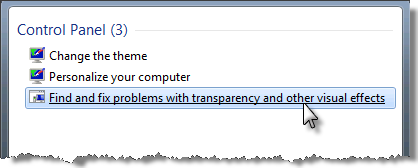
Click Start, type aero in the Start Search box, and then click Find and fix problems with transparency and other visual effects.
-
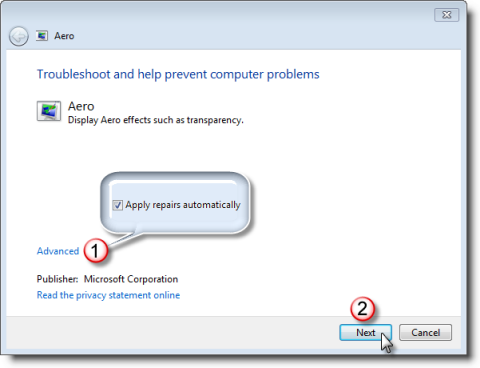
A wizard window opens. Click Advanced if you want the problem fixed automatically, and then click Next to continue.
-
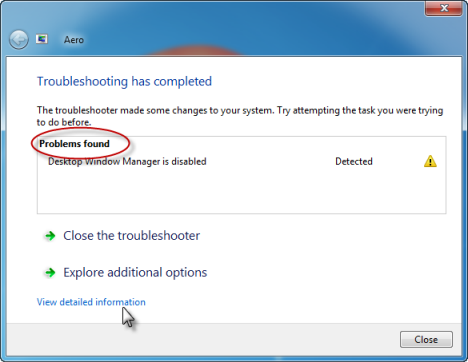
If the problem is automatically fixed, the window borders are translucent.
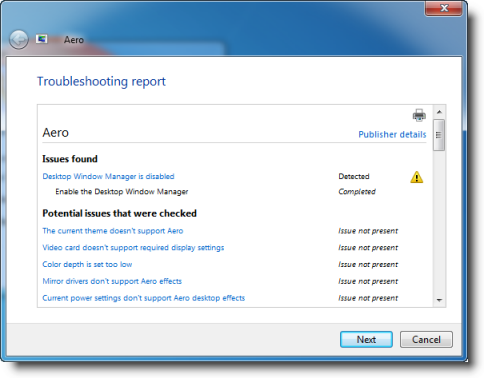
If the problem is not fixed or if you want to see the details, click View detailed information to see a report.
Note To use Aero, you must meet the following requirements:
-
You have to rate your computer first (Windows Experience Index).
-
Your computer must have DirectX 9.0 or a later version installed. Or, your computer must have WDDM 1.0 or a later version installed.
-
Aero is not available in Windows 7 Home Basic.
More Information
For more information about the Aero desktop experience, including system requirements, hardware requirements, and using Aero in Windows Server 2008 R2, visit the following Microsoft Web site:
http://windows.microsoft.com/en-us/windows7/What-is-the-Aero-desktop-experience








